EasyManua.ls Logo

Comcast Voice Remote - User Manual

Comcast Voice Remote
6 pages
Print Icon
To Next Page IconTo Next Page
Loading...
Remote not working with your TV?
The remote has to be programmed
to the TV and/or audio receiver to
control power, volume, and input. Go
to the Remote Settings screen on X1
to program control of your TV and
audio receiver.
Need help? Say “Remote help” to see
tips & tricks for using your remote.
Voice command not working? Make
sure you’re pressing the Voice button
while you speak into the remote, and
release it when complete.
Need to pair with another box? If
you want to use your remote with a
dierent set-top box repeat step 3
while pointing the remote at the box.
Looking for more information? Visit
Xnity.com/remotes for additional
help with Xnity remotes
Voice Remote
Start
FCC Compliance Statement
1 Meet Your Remote
2 Turn On Your Remote 3 Pair Your Remote for Voice Control Troubleshooting
This equipment has been tested and found to
comply with the limits for a Class B digital device,
pursuant to part 15 of the FCC rules. These limits
are designed to provide reasonable protection
against harmful interference in a residential
installation. This equipment generates, uses, and
can radiate radio frequency energy and, if not used
in accordance with the instructions, may cause
harmful interference to radio communications.
There is no guarantee that interference will not
occur in a particular installation. If this equipment
does cause harmful interference to radio or
television reception, the user is encouraged to try
to correct the interference by one or more of the
following measures:
Reorient or relocate the receiving antenna.
Increase or decrease the separation
between the equipment and receiver.
Connect the equipment into an outlet on a
circuit dierent from that which the receiver
is connected.
Consult the dealer or an experienced remote
control / TV technician for help.
It is strongly recommended that the TV be
plugged into a separate wall outlet.
The user is cautioned that changes and modications
made to this equipment without the approval of the
manufacturer could void the users authority to
operate this equipment.
This device complies with part 15 of the FCC rules.
Operation is subject to the following two conditions:
(1) This device may not cause harmful interference,
and (2) this device must accept any interference
received, including interference that may cause
undesired operation.
FCC ID: MG3-4352
Mic / Status LED
Pick up your remote and remove
the Pull tab on the back by
pulling up on the tab. The Status
LED will blink green four times
as the remote powers up (about 5
seconds).
Make sure your TV and set-top
box are turned on.
A
B
B
C
Your remote arrives with the AA batteries already installed, but not
activated. Here is how to power it on for the rst time.
Press and hold the Xnity button
and Info button until the status
LED changes from red to green
(about 5 seconds).
You should see the an on-screen
conrmation when the remote
is paired. If you do not see
conrmation, press the Xnity
button again.
Once your remote is paired, follow
the on-screen instructions to set
up power, volume, and input control
for your TV.
A
Use Voice Control to search for networks and shows, set DVR recordings,
and get recommendations.
Voice Control
Push and hold to talk.
Discover content by
channel, program or
key words.
Save
Starts recording the
program you are watching
or saves future programs
to your DVR.
Info
Displays information
about programs and
notications.
TV Input
Changes to the next
available input on your TV.
Number Keys
Use predictive text (T9) to
quickly search for content.
XFINITY / Menu
Access Guide, Saved,
XFINITY On Demand, Apps,
Search, and Settings.
Back Arrow
Press and release for Last.
Press and hold for 2
seconds to Exit.
Power
Now that your remote is set up,
press and hold the Voice button to
ask “what can i say?” for some voice
command suggestions.
Pairing
Successful
Question and Answer IconNeed help?

Do you have a question about the Comcast Voice Remote and is the answer not in the manual?

Summary

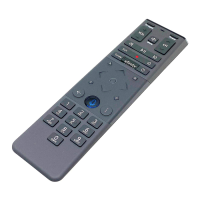
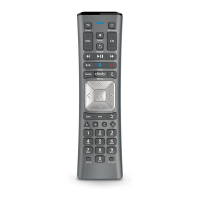
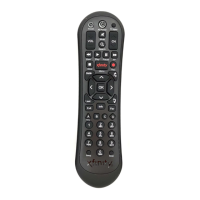
Meet Your Remote

TV Input

Changes to the next available input on your TV.

XFINITY; Menu

Access Guide, Saved, XFINITY On Demand, Apps, Search, and Settings.

Back Arrow

Press and release for Last. Press and hold for 2 seconds to Exit.

Number Keys

Use predictive text (T9) to quickly search for content.

Mic; Status LED

Indicates microphone status and remote power/pairing status.

Power Button

Controls the power state of the TV and/or set-top box.

Save Button

Starts recording the program you are watching or saves future programs to your DVR.

Voice Control

Push and hold to talk. Discover content by channel, program or key words.

Info Button

Displays information about programs and notifications.

Turn On Your Remote

Power Activation

Remove the 'Pull' tab from the battery compartment to activate the remote.

TV and Set-top Box Status

Ensure your TV and set-top box are powered on before proceeding.

Pair Your Remote for Voice Control

Initial Pairing Process

Press and hold Xfinity and Info buttons until LED changes from red to green.

TV Control Setup

Follow on-screen instructions to set up TV power, volume, and input control.

Voice Command Practice

Press and hold the Voice button to ask for voice command suggestions.

Troubleshooting

Remote Not Working

Program the remote to your TV/audio receiver via Remote Settings on X1.

Getting Help

Say 'Remote help' for tips and tricks on using your remote.

Voice Command Issues

Ensure you press the Voice button while speaking and release when complete.

Pairing with Other Boxes

Repeat pairing step 3 while pointing the remote at the new set-top box.

Additional Support

Visit Xfinity.com/remotes for additional help with Xfinity remotes.

Overview

This document outlines the setup, usage, and troubleshooting for an Xfinity Voice Remote, designed to enhance the user's television viewing experience through intuitive control and voice commands.

Function Description

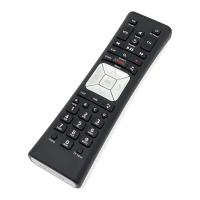
The Xfinity Voice Remote is a sophisticated input device that allows users to control their television and Xfinity set-top box. Its primary function is to provide a comprehensive interface for navigating TV channels, accessing on-demand content, managing DVR recordings, and interacting with various Xfinity services. A key feature is its voice control capability, which enables users to search for content, change channels, and execute commands simply by speaking into the remote. This hands-free operation significantly streamlines the user experience, making content discovery and system navigation more efficient and user-friendly. The remote also supports traditional button-based input for all standard television and set-top box functions, ensuring versatility in control methods.

Usage Features

The remote is designed for ease of use, incorporating several features that simplify daily operation:

  • TV Input Control: A dedicated "TV Input" button allows users to cycle through available inputs on their television, making it easy to switch between different connected devices (e.g., gaming consoles, Blu-ray players).
  • Power Control: Separate "Power" buttons are provided for both the TV and the Xfinity set-top box, offering independent control over each device.
  • Volume and Channel Control: Standard "VOL" (Volume) and "CH" (Channel) buttons, along with mute functionality, provide familiar control over audio levels and channel selection.
  • Navigation Pad: A central directional pad (up, down, left, right) with an "OK" button in the middle facilitates menu navigation and selection.
  • Playback Controls: Dedicated buttons for "Rewind," "Play/Pause," and "Fast Forward" enable full control over live TV, recorded content, and on-demand programming. A "Save" button allows for easy recording of current programs or scheduling future recordings.
  • XFINITY / Menu Access: The "XFINITY" button serves as a central access point for the Xfinity Guide, Saved recordings, XFINITY On Demand, Apps, Search, and Settings, providing a gateway to the platform's extensive features.
  • Back Arrow: A "Back Arrow" button offers quick navigation to the previous screen or menu. Pressing and releasing it returns to the last viewed item, while pressing and holding it for two seconds exits the current application or menu.
  • Voice Control: The "Voice Control" button, typically represented by a microphone icon, is the gateway to the remote's voice command capabilities. Users press and hold this button to speak their commands, such as "What's on HBO?" or "Show me action movies." This feature significantly enhances content discovery and interaction.
  • Info Button: An "Info" button provides contextual information about the currently selected program, channel, or menu item, including program descriptions, cast details, and notifications.
  • Number Keys: A full set of numeric keys (0-9) allows for direct channel entry and also supports predictive text (T9) for searching content by title or keyword, offering an alternative to voice commands for text input.
  • Pairing for Voice Control: The remote requires pairing with the Xfinity set-top box to enable voice control and full functionality. This process involves pressing and holding the "XFINITY" and "Info" buttons simultaneously until the status LED changes from red to green. On-screen instructions then guide the user through setting up power, volume, and input control for their TV.
  • Voice Command Suggestions: Once paired, users can press and hold the "Voice" button and ask "what can I say?" to receive a list of suggested voice commands, helping them explore the full potential of the voice control feature.

Maintenance Features

While the Xfinity Voice Remote is designed for durability and minimal maintenance, the document provides guidance on initial setup and troubleshooting:

  • Battery Installation and Activation: The remote comes with AA batteries pre-installed but not activated. Users must remove a "Pull" tab from the back of the remote to activate the batteries. This simple step powers on the remote, indicated by the status LED blinking green four times.
  • Troubleshooting Guide: The manual includes a dedicated troubleshooting section to address common issues:
    • Remote not working with TV: If the remote isn't controlling the TV's power, volume, or input, users are directed to the "Remote Settings" screen on X1 to program the remote for their TV and/or audio receiver. This indicates that the remote's universal control features can be configured post-pairing.
    • Need help: Users can say "Remote help" into the voice remote to access tips and tricks for using the device, providing an interactive self-help option.
    • Voice command not working: If voice commands fail, users are reminded to press and hold the "Voice" button while speaking and release it when finished, emphasizing correct usage of the voice feature.
    • Need to pair with another box: For users wishing to use the remote with a different set-top box, the manual advises repeating the pairing process (step 3) while pointing the remote at the new box. This highlights the remote's ability to be re-paired and used with different Xfinity devices.
    • More information: Users are directed to Xfinity.com/remotes for additional help and resources, providing an external support channel for complex issues or further inquiries.
  • FCC Compliance: The document includes an FCC Compliance Statement, which, while not a direct maintenance feature, informs users about regulatory standards and potential interference issues. It advises on measures to correct interference, such as reorienting antennas or increasing separation between equipment, and notes that unauthorized modifications could void the user's authority to operate the equipment. This section implicitly encourages users to avoid tampering with the device to maintain its proper functioning and compliance.

In essence, the Xfinity Voice Remote is presented as an intuitive, feature-rich control device that simplifies the interaction with Xfinity entertainment systems through both traditional button input and advanced voice commands, with clear instructions for initial setup and ongoing support.

Comcast Voice Remote Specifications

General IconGeneral
Voice ControlYes
Connectivity TechnologyBluetooth, IR
D-PadYes
Power ButtonYes
Volume ControlYes
Channel ControlYes
Mute ButtonYes
Guide ButtonYes
Menu ButtonYes
Exit ButtonYes
Info ButtonYes
Last ButtonYes
DVR ControlsYes
Netflix ButtonYes
Amazon Prime ButtonYes
YouTube ButtonYes
CompatibilityXfinity X1
Batteries2 AA

Related product manuals