(COMMODORE KEY)
The Commodore
Key Is
very
similar lo
perform lour
functions;
,
and can
be used fo
1) When
used wllh
the
shut hey. Ihe
O
key
lets
you got into typing
mode, where
you
can
use both upper- and lowercase
letters.
2)
The
O
key always
acts as a shift lo let you
type
the graphic
symbol pictured
on the LEFT
tronl
ot
each key. Just hold down
<J
and press
the graphic key
you
want
3)
The
O
key is
used like the erst
key lo
cnange
the colour ot
whal
you type onscreen when
pressed with a
COLOUR KEY.
4)
When you want
to slow down a scrolling
d-splay (a
program
thai
appears
line-by-ilne
on
the screen but might
be
going
by too fast to
follow), hold
down the
O
key.
The
display scrolling
speed
slows
down considerably
When you release
(he key,
it
goes back
to
normal
speed
(Hey. the
Jfc
key can do something
by
itselfl)
hvs
on fivs OIT (Reverse
On/OH)
Your
Commodore 1
6
lets
you print the reverse image
of
letters
and
numbers. In
other words, if your
cursor is black and the screen
background is yellow,
what
you tyoe
appears in
yellow letters on
a
black
background.
Here's all
you do lo get reversed images. Press
the ctbl
key
and the
ivsoh key
E ^erythlng
you
type
;>;
now.
displayed In revQRMh
unM
you
press the
cm
and
bts
oft the hetuhn key. or the
Etc key
and
O This returns
you to typing normal (non-reversed)
characters
I
I
I I
I
I
f
1
(
I
KEY
EFFECT
RVSOK
REVERSE PRINTING
ON
CTRL
-
Est
\
CTRL
HVS
QFF -
NORMAL
PRINTING
CTRL
w
-
E-OFF
\
22
i
I
(
FLASH ON FLASH OFF
You
can make
the characters on
your
screen
flash
on and off
continuously, like the cursor Hashes. Press ctbl and the flash oh
key to make whatever you type flash. Typing ctbl
and
flash off
of
RETUmi >i esc ,nd O makes your typing
normal (non-flashing)
again.
KEY
-
EFFECT
CTBL
+
FLASH ON CHARACTERS
FLASH
CTRL
CTRL
+
rUUBOFF
(Escape)
NORMAL DISPLAY
CTRL—
f
1
-
OFF
The
ESC
key lets
you
perform many special screen editing
functions,
including functions to set up and
manipulate
screen
windows.
Windowing
Is a special
properly
of your Commodore
1
6.
which lots you
set
apart an
area
of
Ihe screen that may be used
as work space
wttnoul
affecting the rest of Ihe screen. The
ESC
key can
perlorm several
window
editing
functions, as
well
as
many other regular
uses,
such as
Inserting, deleting, and scrolling All the functions of the ESC key
will
be
listed and explained when reviewing screen windows in Chapler A.
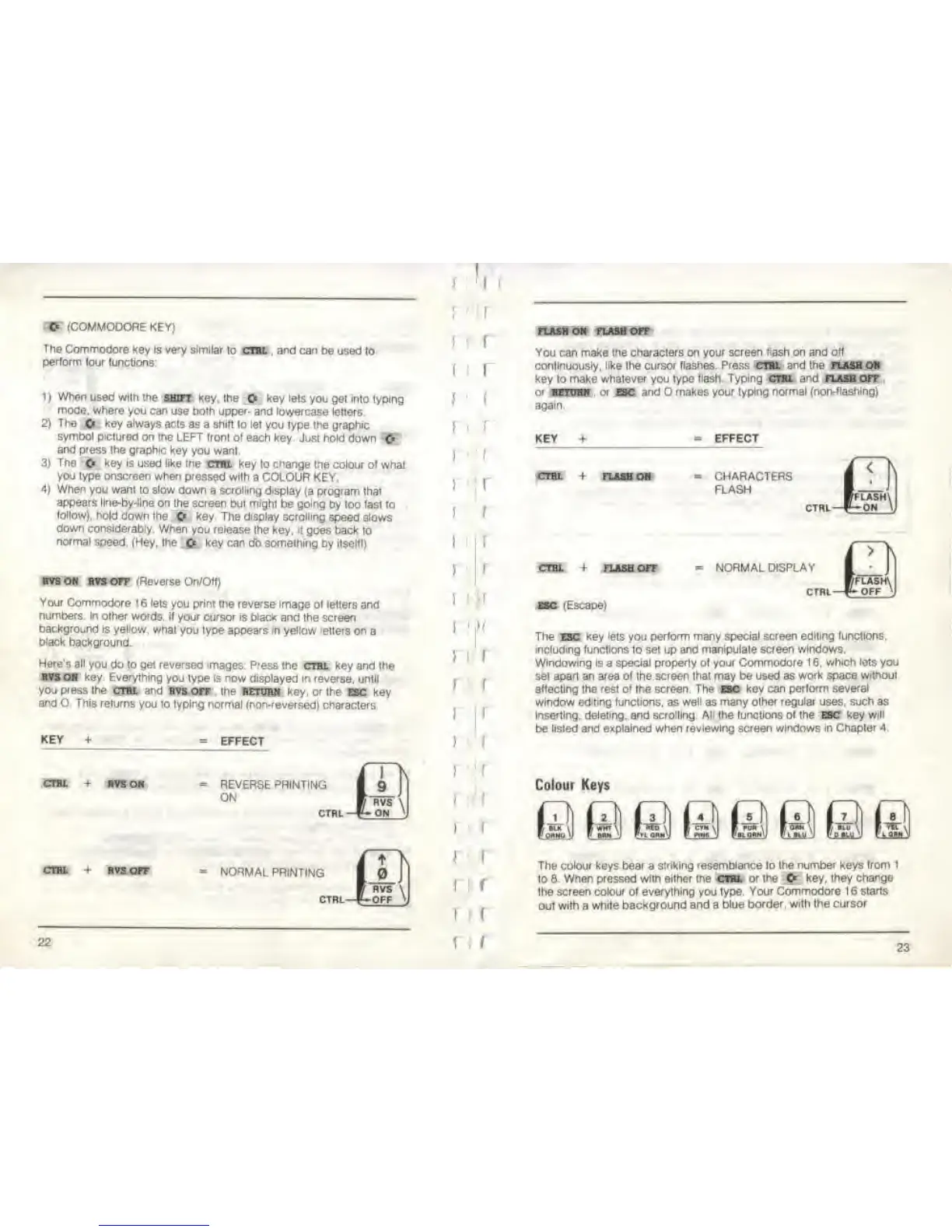
Colour Keys
The
colour keys bear
a
striking resemblance lo Ihe
number
keys
from
1
to 8. When pressed wllh either the ctbl
or the
C>
key. they change
ihe screen colour of
everything
you type.
Your Commodore 16
starts
oul
with a white
background and a blue
border, wilh the cursor
23



 To Next Page