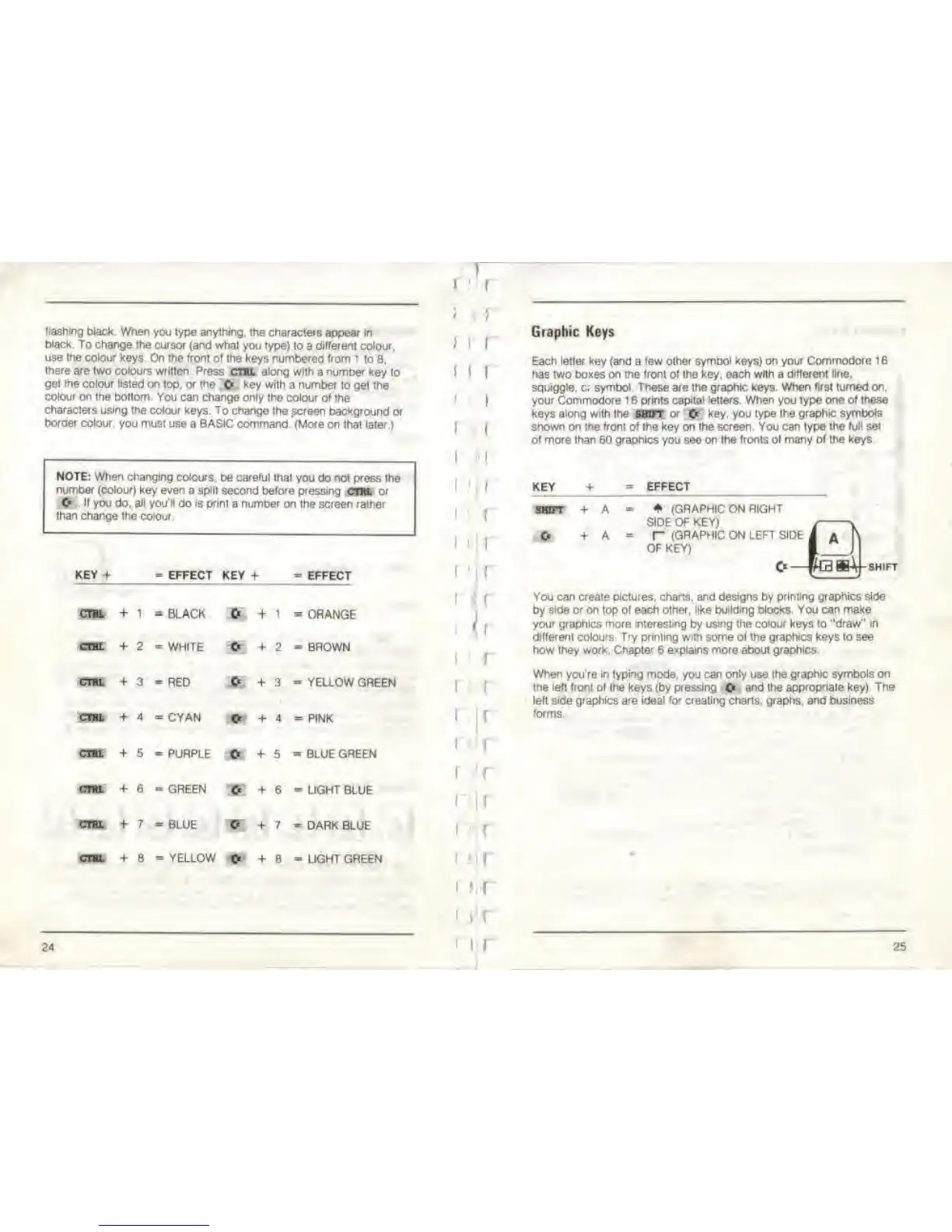
Hashing black. When
you lype anything. Ihe characters
appear
in
black. To change Ihe
cursor
{and
what you type)
to a
different
colour,
use Ihe colour keys On the Ironl ol
the keys numbered from i
to 8.
there
are
two colours
written Press
cm
along
with a number key to
get the colour fisted on
top.
at the
O
key with
a number to get the
colour
on
the bottom You can change only the colour
of the
characters using
the colour keys. To change
the screen background
or
border colour,
you must use a BASIC command
(More on that later.)
NOTE: When
changing colours
be
careful that
you do not press the
number (colour)
key
even
a split second belore pressing
cm or
O
II you
do,
all you'll
do
is print
a number on the screen rather
than change
the colour
KEY
+
EFFECT
KEY +
CTHl
+ 1 *
BLACK +
1 =
ORANGE
crtC
+
2
=
WHITE Cf
+ 2
-
BROWN
CTRL
f
3
=
RED
CTHL
+ 1 -
CYAN
+ 5 =
PURPLE
3
= YEUOW
GREEN
+ 4
= PINK
+
5
=
BLUE
GREEN
+ 6 = GREEN
C«
+
6
-
LIGHT
BLUE
CTRL + 7 =
BLUE O + 7
=
DARK
BLUE
+
8
- YELLOW
© + 8
-
LIGHT GREEN
24
>
!
(
!
[
I
f
(
I
I
1
1
1
1
1
f
I
1
1
1
r
1
1
i
1 1
l
Graphic Keys
Each letler key
(and a
tew other symbol keys) on your Commodore 1
6
has two boxes on the front of the key. each wrth a
different
tine,
squiggle,
Of
symbol These are the graphic keys. When
first turned on,
your
Commodore 1 6 prints
capital letters. When
you type
one of these
-•
.'v
! i
.i 'j -villi the
SHIFT
or © key. you type the graphic symbols
shown on the front of Ihe
key on
the screen. You can type the full set
ol more than 60 graphics you see on the
fronts
of many
of the keys
KEY
EFFECT
+
A
-
(GRAPHIC ON
RIGHT
SIDE OF KEY)
+ A
=
r
(GRAPHIC ON LEFT SIDE
OF KEY)
SHIFT
You can create pictures,
charts, and designs
by
printing graphics side
by
side or on
top
ol each other, like building blocks. You can make
your graphics more interesting by using the colour keys to "draw" In
different
colours
T-y printing
with
some ol Ihe
graphics
keys to
see
how
they work. Cnapler
6
explains more about graphics.
When
you're
in typing
mode, you can only use the
graphic symbols on
the left front
ol
Ihe
keys (by
pressing
&
and
the
appropnate key) The
left side graphics are ideal for creating charts, graphs, and business
forms,
25



 To Next Page