Key functions
Surcharging
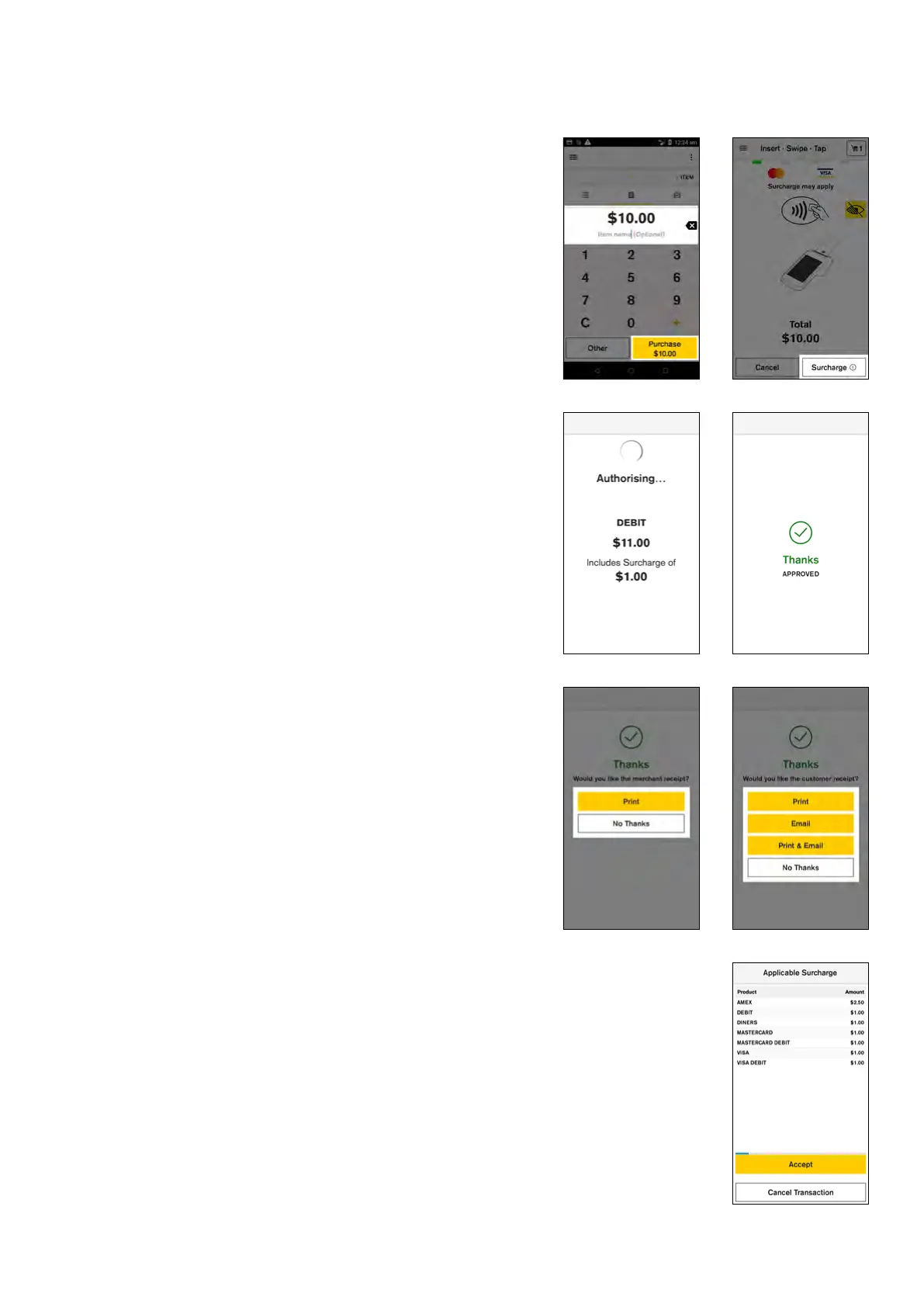
1. Enter the transaction amount
2. Tap ‘Purchase ($amount)’
3. The purchase amount is displayed on screen with a
message ‘Surcharges may apply’
NOTE: There is an information ‘Surcharge’ button at the
bottom right of the screen. Your customer can select
this to learn the surcharges applicable for dierent card
types. Once select the customer will need to confirm
the surcharge amount incurred by the transaction. (If the
customer does not confirm or cancels the surcharge the
transaction will be cancelled).
4. Your customer presents card or device and enters
their PIN (if required)
5. Your Smart terminal processes the transaction and
then displays ‘Approved’ or ‘Declined’
NOTE: While processing the total amount of the
transaction including the surcharge amount will be
displayed on the screen.
6. If a card is inserted, the terminal prompts to remove
the card from the chip card slot
7. Merchant receipt prints. Receipt will show surcharge
amount as a separate item
8. Select ‘Print’ to print a customer copy. Receipt will
show surcharge amount as a separate item
*The image on
the right shows
the ‘Applicable
Surcharge’
information
screen referred
to in step 3.
21 Commonwealth Bank of Australia | Smart User Guide



 To Next Page