Key functions
Taking a payment
To quickly navigate to the Payment screen from
another screen, tap the Payment screen key
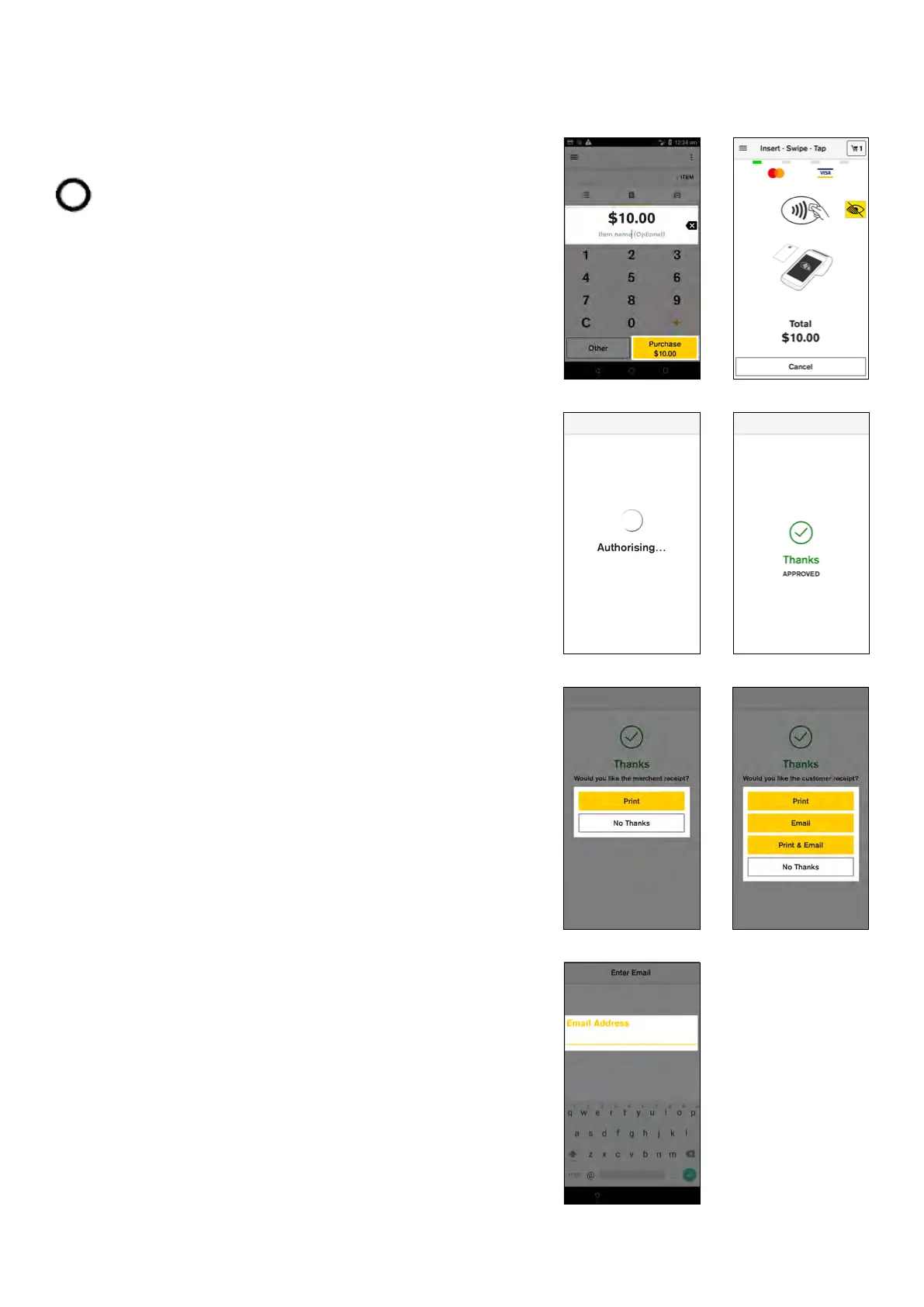
To process a Purchase transaction:
1. Enter the transaction amount
2. Tap ‘Purchase ($amount)’
3. Your customer presents their card or device and
enters their PIN (if required)
4. Your Smart terminal processes the transaction and
then displays ‘Approved’ or ‘Declined’
5. If a card is inserted, the terminal prompts to remove
the card from the chip card slot
6. Merchant receipt prints
7. By default your terminal will print a customer receipt
and ask if you would like to email a copy to the
customer
8. The customer can now enter their email address and
a copy of the receipt will be sent to the nominated
email
NOTE: Receipt printing options can be adjusted through
the settings of the device. Launcher > Device Manger
> Configuration Options > Enter Manager passcode >
Merchant > Receipt printing options
Tap (Apple Pay, Google Pay, contactless cards) – The
customer holds their contactless device or card near the
centre of the screen.
Insert (chip cards) – The customer inserts their chip card
into the slot at the top of the terminal. The card should be
inserted chip end first with the chip facing up.
Swipe (magnetic stripe cards) – The customer swipes the
magstripe on their card through the magstripe reader at
the bottom of the Smart terminal.
8 Commonwealth Bank of Australia | Smart User Guide



 To Next Page