31
COMUNELLO ®Copyright 2019 - All rights reserved
ENGLISH
again (the corresponding led starts to ash) and keep it pressed until
the led stops ashing, which conrms the successful deletion of all
codes saved in the system.
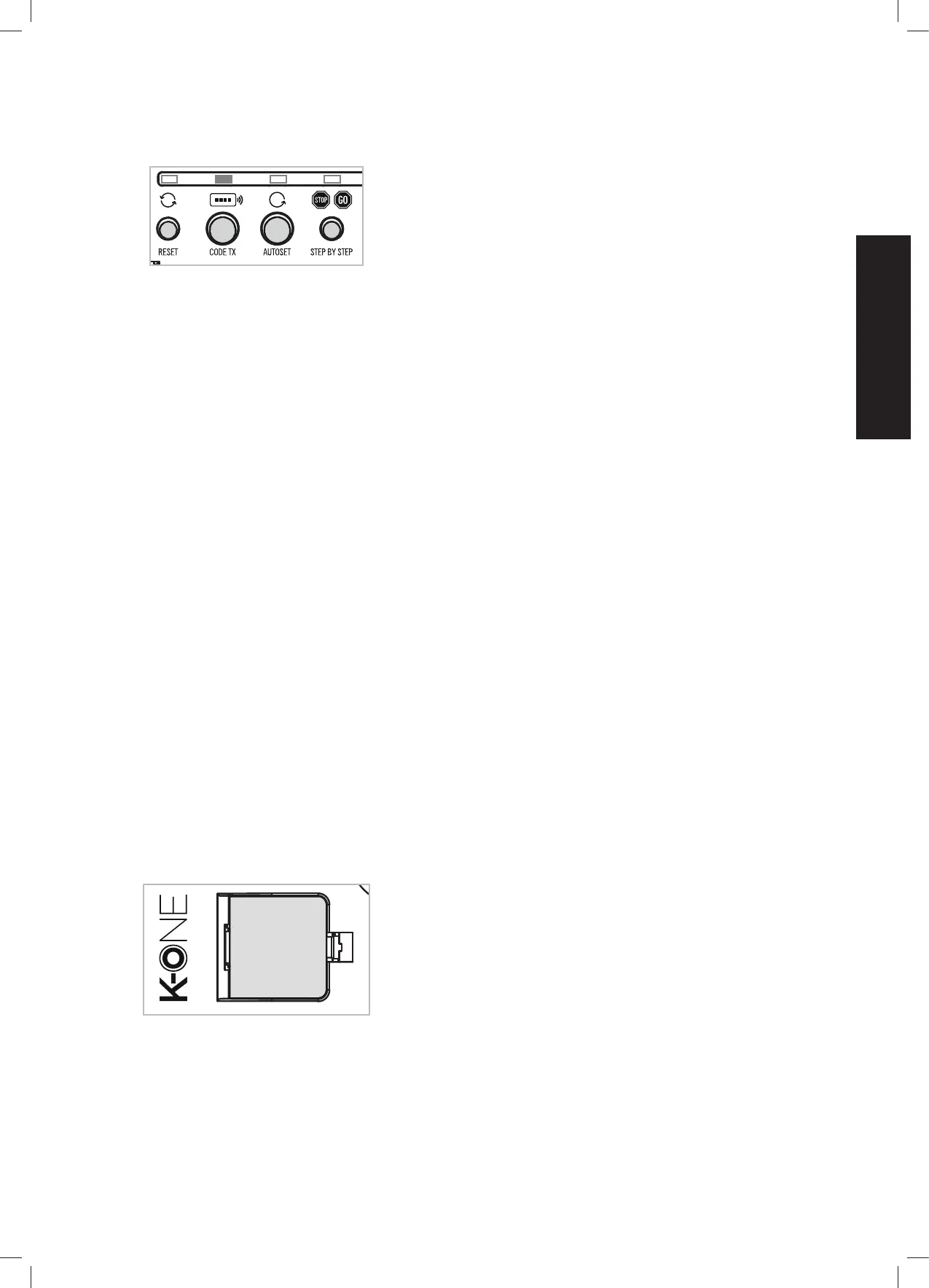
Programming buttons
TX CODE Remote control programming
ACCESSORIES DETECTION (BUS LINE)
The control unit automatically detects all the ONE accessories
wired on the BUS line, checking the type of accessory, its numeric
identier ID and the type of operation set (MODE). Always make sure
to use accessories with different ID for each type of accessory (par:
ACCESSORY ADDRESS ASSIGNMENT). The system also detects
the accessories installed on the BUS line:
1 Before the maximum stroke self-learning process (AUTOSET). At
this stage, the system detects the accessories installed and saves
the system conguration (e.g.: new installation).
2 Each time you press the RESET button. At this stage, the system
re-reads the accessories installed, but does not change the initial
conguration (accessories saved).
NOTE: The detection of the accessories is an automatic operation
that may cause a delay in the system’s conguration proportionate
to the number of accessories installed.
NOTE: Make sure you have set the ID and MODE (operating mode)
on all accessories installed, before connecting them to the digital
BUS line.
IMPORTANT! If you want to congure the system with
ONE app access (requires the use of tablet with wireless
connection and a K-ONE access key - code ONE KEY), keep
the MODE dip-switches set to OFF (TYPE 1 operation) for all
accessories connected to the BUS line.
ADJUSTMENTS FROM COMUNELLO ONE APP
The control unit features an advanced access for additional system
conguration. Using the (optional) accessory K-ONE (code ONE
KEY), you can connect to the control unit via Wi-Fi radio and proceed
to its full conguration following a simple and guided procedure, with
the aid of the COMUNELLO ONE app that you can download from
our online store. To use the app COMUNELLO ONE, you will need
a wi device (tablet or smartphone) with android or iOS operating
system.
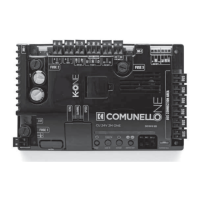
Connector for K-ONE module
Conguration via the COMUNELLO ONE app allows you to congure
and adjust all the parameters of the system in a fast and easy way,
monitor its operation, manage the list of saved remote controls, copy
the conguration to another equivalent system and plan maintenance.
ADDITIONAL ADJUSTMENTS FROM THE APP:
Guided procedure to check direction of rotation of the operators and
change their settings.
Commands
Set the pause time (automatic closing) (0”..4 min)
Enable Permanent Close.
Force/Speed
Adjust maximum operator speed during opening cycle
(10%..100%)
Adjust maximum operator speed during closing cycle (10%..100%)
Adjust deceleration speed during opening cycle (10%..100%)
Adjust deceleration speed during closing cycle (10%..100%)
Start Operator 1 deceleration during opening cycle ( 0%..100%)
Start Operator 1 deceleration during closing cycle ( 0%..100%)
Start Operator 2 deceleration during opening cycle ( 0%..100%)
Start Operator 2 deceleration during closing cycle ( 0%..100%)
Adjust pedestrian opening (10%..100%)
Enable/Disable Operator Brake
Enable/Disable Soft Stop
Enable/Disable Soft Start
Enable/Disable Release Stroke
Enable/Disable Slam Lock
Remote controls
Read saved codes and set function
Assign a text string for each code
Delete single code
Add a new code
Check the presence of a code
Photocells
Enable/Disable Partial Inversion during Closing cycle
Enable/Disable Partial Inversion during Opening cycle
Enable/Disable Follow-Me
Operation test
Assign a text string for each photocell
Set the MODE (operation) of each photocell
Key switches
Operation test
Assign a text string for each key switch
Set the MODE (operation) of each key switch
Flashing lights
Enable/Disable Closing Pre-Flash
Enable/Disable Opening Pre-Flash
Enable/Disable Fast Flash during Opening cycle
Enable/Disable Fast Flash during Closing cycle
Enable/Disable Flash during Pause
Operation test
Assign a text string for each key ashing light
Interface I/O
Operation test
Assign a text string for each Interface I/O
Set the MODE (operation) of each Interface I/O
Utility output
Set Electric lock activation time (1”..20”)
Diagnostics
Display the number of Manoeuvres Performed
Display the number of Operator Hours of operation
Display the number of System Life Hours
Display the number of Resets
Display the number of Stops (STOP commands)
Display the number of Encoder notches
FACTORY RESET
However necessary to restore the conguration as shipped, press
simultaneously the RESET and STEP BY STEP pushbuttons, then stop
pressing RESET button, keeping pressing the STEP BY STEP button till the
AUTOSET led will blink. Stop pressing the STEP BY STEP button and wait
until the TX POWER BUS LED starts blinking (about 20’’).
DIAGNOSTICS
Photocell (DS) management in case of a fault
The photocell management (DS) in case of a fault of AT LEAST ONE OF


 To Next Page