Need help?
Do you have a question about the Contixo F19 and is the answer not in the manual?
Crucial safety information and owner responsibilities for safe drone operation.
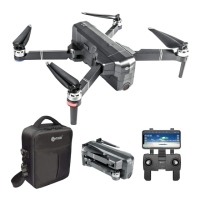
Lists package contents and explains remote control operations.
Steps for unfolding arms, installing propellers, and managing the flight battery.
Guide to installing the app, pairing the remote, and connecting to the drone.
Instructions for basic flight, app connection, and control mode selection.
Details on 3D Roll, Obstacle Avoidance, and Headless Mode.
How to use fine-tuning for flight stability and control adjustments.
Using the camera for photos/videos and accessing the media gallery.
How to use Follow Me, Gesture Selfie, and Flight Path modes.
Using entertainment features and gravity-based drone control.
Comprehensive technical details of the drone's capabilities and components.
Solutions for common issues and contact information for support.
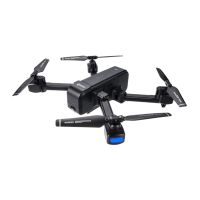
The Contixo F19 RC Drone is a mini quadcopter designed for drone application developers, allowing for quick deployment of custom applications. It comes with pre-configured default settings from the factory but offers customization options. The drone is designed and engineered by Contixo, Inc. in Southern California, USA, and manufactured in China. Adult supervision is advised for children, teenagers, and adults operating the drone.
The F19 drone is designed with safety in mind, but proper training and thoughtful operation are crucial. Users should not set up, operate, perform maintenance, or repair the drone without first reading and understanding the manual and labels. The drone owner is responsible for following all setup, operation, and maintenance instructions, keeping safety instructions readily available, and ensuring all operators are properly trained and supervised. It's important to ensure all parts are in place and operating correctly before use. Regular inspection and maintenance with approved replacement parts are also required.
The F19 drone is recommended for indoor use or flying below 16 feet (5m). When flying, avoid obstacles, crowds, high voltage power lines, trees, airports, or water. Do not fly near strong electromagnetic sources like power lines and base stations, as these can affect the onboard compass. The drone should not be used in adverse weather conditions such as rain, snow, fog, or high wind speeds. Always stay away from rotating propellers and motors.
The drone is controlled via a remote control and a dedicated WiFi UAV app.
The remote control features several buttons and joysticks for various functions:
To use the app, open the mobile phone bracket on the remote control and install your smartphone.
Search for "WiFi UAV" in the App Store (for iOS 8.0 or higher) or Google Play Store (for Android 5.0 or higher) and install the application.
Short press the "3D Roll" button on the remote control and push the direction joystick forward, backward, left, or right. The drone will perform a roll in the corresponding direction. Ensure the drone is about 5 feet off the ground for this function.
Press the obstacle avoidance button on the remote control to turn this mode on or off. In this mode, the drone avoids obstacles on four sides and stops in place when an obstacle is detected, triggering an alarm on the remote controller. It is recommended for indoor flights in spaces of at least 6x6 meters (20x20 feet). When active, the drone's speed will be reduced, and the fast gear cannot be engaged.
The drone defaults to Normal Mode after successful pairing. Click the "Headless Mode" button on the remote control to enter or exit Headless Mode, or use the app icon. In Headless Mode, the drone's forward direction is set relative to the pilot's facing direction at the time of pairing, regardless of the drone's rotation in flight. This simplifies control as the pilot doesn't need to reorient based on the drone's heading. It's crucial for the pilot not to change positions or facing direction during Headless Mode to avoid misdirection.
If the drone spins or tilts in the air, use the fine-tuning function. Press the fine-tuning button (a beep will sound), then move the joystick in the opposite direction to correct the deviation. The function automatically exits after 5-6 seconds of no operation.
Click the "Follow Me" icon in the app. The camera will automatically recognize a person or human-shaped object. Tap on the desired object or person to track, and the drone will follow it. If multiple people are on screen, you can choose one. If no target is detected, the drone enters "waiting mode." This mode is only available in APP controlled mode.
Click the "Gesture Selfie" icon in the app.
Connect the drone's WiFi to your smartphone and click the "Flight Path" icon in the app. A transparent box will appear on the screen. Mark the desired flight path within this box on the map. The drone will then follow this path. This mode is only available in APP controlled mode.
Connect the drone's WiFi to your smartphone and click the "Palm Follow" icon in the app. Place your palm in front of the lens. The drone will automatically recognize your palm's position and follow its movement. This mode is only available in APP controlled mode.
Click the "Entertainment Mode" icon in the app to access photo effects and composite short videos.
Click the "Gravity Control Mode" icon in the app. This mode, available only in APP controlled mode, allows you to control the drone's flying direction by tilting your phone:
Open the app and click the "Gallery" icon to access your saved picture and video files.
 General
| Flight Time | 30 Minutes |
|---|---|
| Battery Capacity | 2500 mAh |
| GPS | Yes |
| Foldable | Yes |
| Video Resolution | 3840 x 2160 pixels |
| Camera Features | Gesture Control |

 To Next Page