WaveLinx Networked Relay Panel Quick Start (Version 15)
www.cooperlighting.com 12
View the Devices in the Construction Area
WaveLinx Networked Relay Panel Relays and Dimmers will automatically join the Construction Area once the panel is added to the
WaveLinx Area Controller. Before beginning these steps, open the WaveLinx Mobile App and Login to the WaveLinx Area Controller.
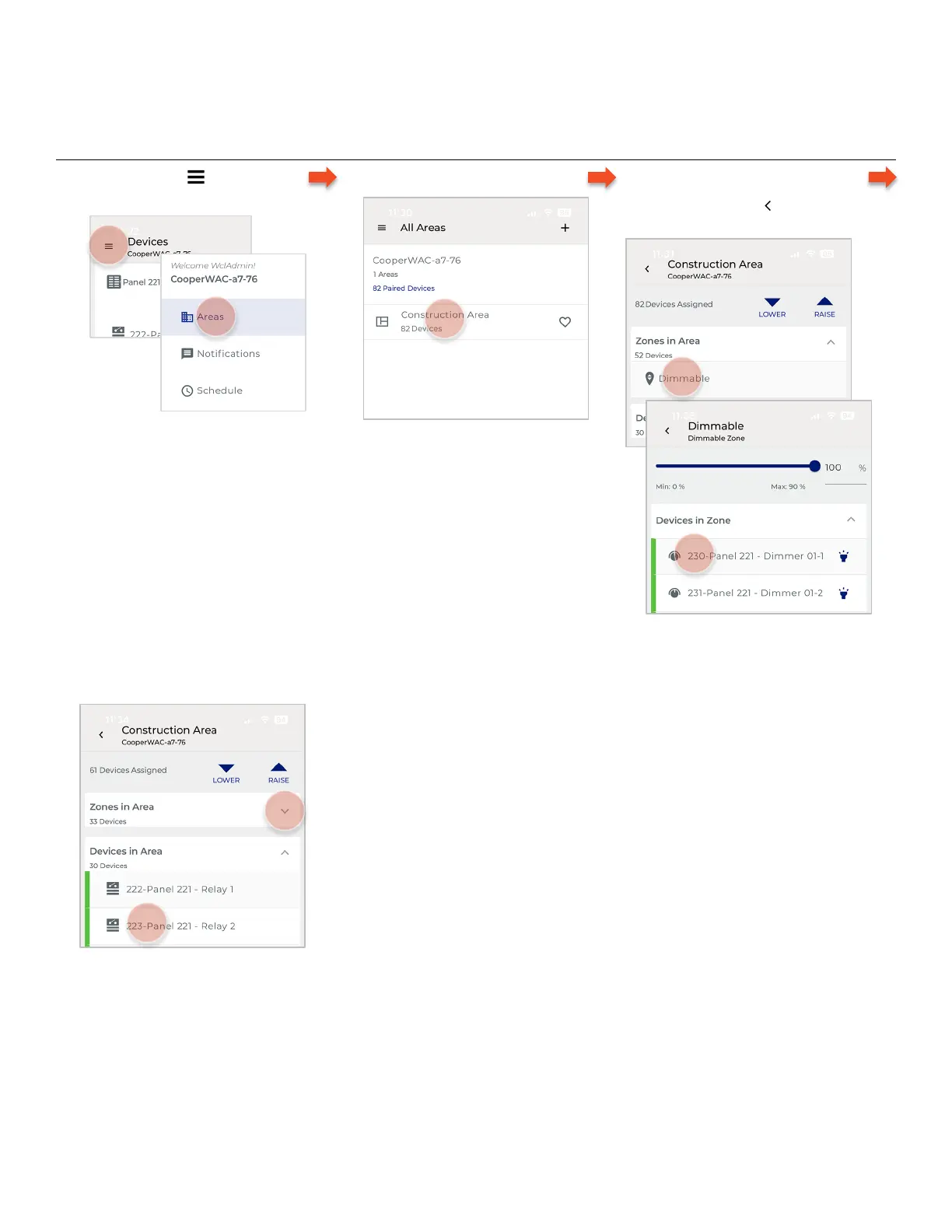
Follow the steps below to view the devices in the Construction Area:
1 – From the menu , select Areas
to display the All Areas list.
2 – Tap the Construction Area.
3 – To view the dimmers, tap the
Dimmable Zone. Tap a dimmer to
view it. Tap back to return to the
area.
4 – To view the relays, tap Devices In
Area. Tap a dimmer to view it.
Next Steps
The WaveLinx Network Relay Panel’s relays and dimmers are ready for programming. Use the WaveLinx Mobile App to assign the relays
and dimmers to Areas and Zones and assign control from other WaveLinx devices.



 To Next Page