34
ver.071217-2.10
iLEARN System Manual
iLEARN Door Control Menu Screens (continued)
4.9.13 Rear Light Curtain Bypass -Default is OFF. When turned ON, the Light Curtain re-
verse bits from the iDRIVE.g are ignored by the iLEARN - Rear Gate Light Curtain is effectively
TURNED OFF.
4.11 Fire Service Recall (FSR) Close Speed - Default is OFF. When turned ON, the Car Gate
will close at 30% of Full Speed.
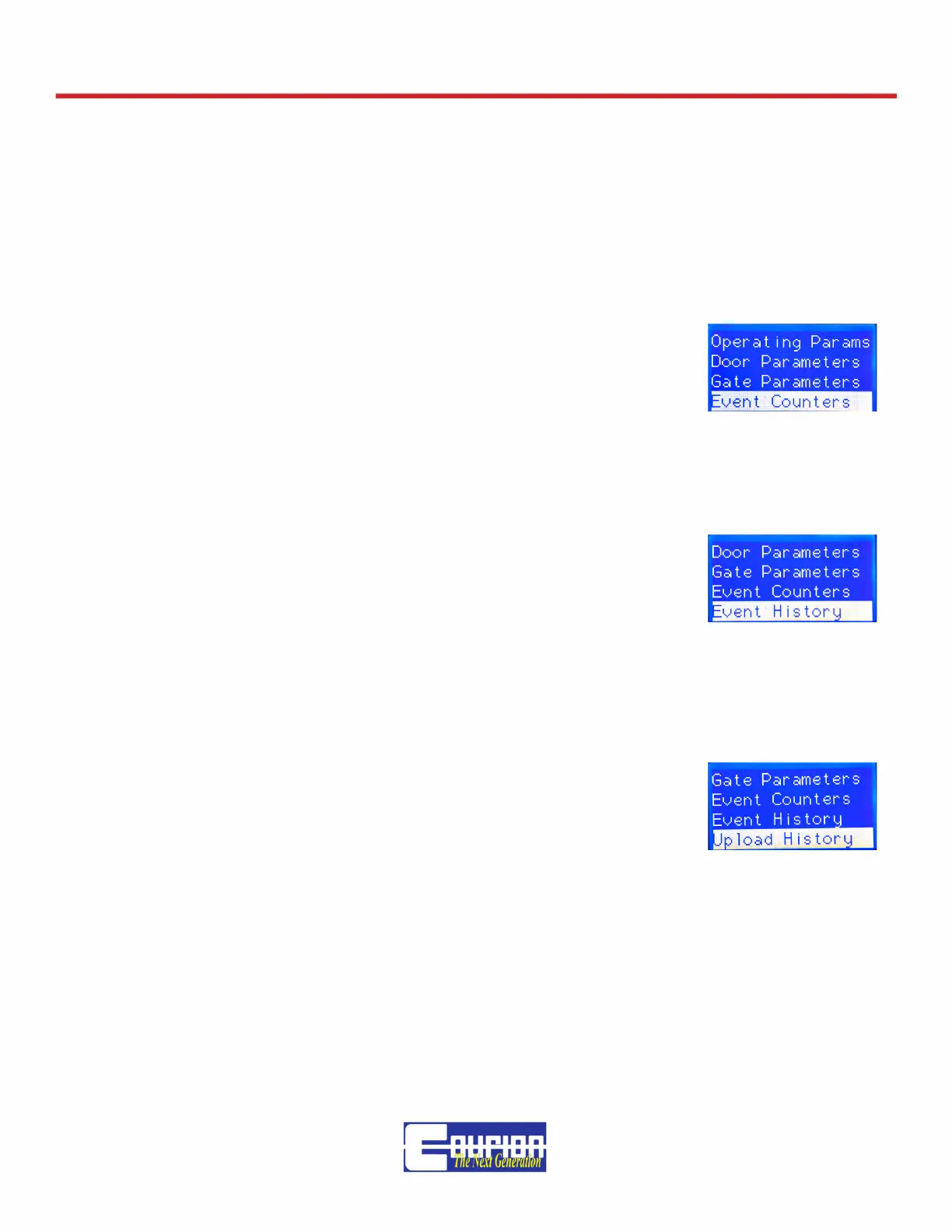
Event Counter
Provides the # of cycles (Open/Close) of operation for each iDRIVE.
Event History
This is a presentation of recorded events. Event #0 is the most recent,
#1 is the next most recent and so forth. The date and time is also pre-
sented.
WHEN TROUBLESHOOTING OR ANSWERING A MAINTENANCE
CALL, THIS HISTORY LOG PROVIDES AN EXCELLENT START TO
DETERMINING WHAT CAUSED A PROBLEM OR FAULT WITH YOUR
COURION FREIGHT DOOR SYSTEM. SEE THE TROUBLESHOOT-
ING AND ERROR MESSAGE SECTION OF THIS MANUAL FOR FUR-
THER DETAILS.
Upload History
The iLEARN Door Control has the ability to upload the Event History le
to your laptop via a USB cable. After attaching the USB Cable to your
laptop and the iLEARN Door Control, please take the following steps:
1. Using Windows Device Manager, determine the appropriate USB Com Port that Windows has
assigned to the iLEARN USB Port connection. (<START> <CONTROL PANEL> <SYSTEM>
<HARDWARE> <DEVICE MANAGER> <Ports (COM & LPT)> USB Serial Port) After determining
appropriate COM Port, close all Control Panel windows.
2. Open Windows Hyper Terminal (<START> <ALL PROGRAMS> <ACCESSORIES> <COMMU-
NICATIONS> <HYPER TERMINAL>). Enter a Connection Description Name and hit OK.



 To Next Page