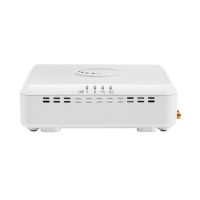
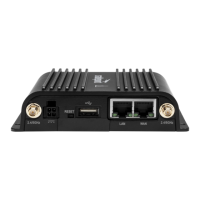
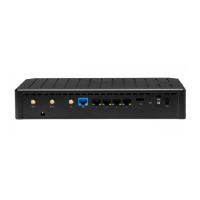
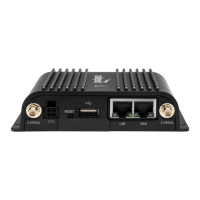
The First Time Setup Wizard will help you customize the name of your wireless network, change passwords to
something you choose, and establish an optimal WiFi security mode (CBR400 only). The CBR400 comes with a
unique password creating built-in WiFi Security, which prevents unauthorized users from connecting to your WiFi
network.
1)
Open a browser window and type “cp/” or “192.168.0.1” in the address bar. PRESS ENTER/RETURN.
2)
When prompted for your password, type the eight character Default Password found on product label
(the last eight characters of the MAC Address).
3) When you log-in for the first time, you will be automatically directed to the FIRST TIME SETUP WIZARD.
4) If you choose, you can change the router’s ADMINISTRATOR PASSWORD.
Then, select your TIME ZONE. Click NEXT.
5) (CBR400 only) CradlePoint recommends you customize your WiFi Network Name. Type in your personalized
Wireless Network Name here. You can also enable the Guest Network feature
(see description on page 7).
Choose the WIFI SECURITY MODE that best fits your needs: POOR for WEP, GOOD for WPA/WPA2
and BEST for WPA2 Only. (
Make sure your PC or other devices support the mode you choose ).
Choose a personalized WIRELESS SECURITY PASSWORD. This password will be used to reconnect
your devices to the router once the security settings have been saved. Click NEXT.
6) If necessary, select your 4G WiMAX Realm. Using a 3G or LTE modem no selection is necessary.
Click NEXT.
7) Review the details and record your wireless network name, administrative and wireless
WPA password. Click APPLY to save the settings to your router.
If you are currently using the CBR400 WiFi network, reconnect your devices to the network using the
new wireless network name and wireless security password.
SPECIAL FEATURES of the CBR400/CBR450
6 7 85
IP PASSTHROUGH
IP passthrough transparently bridges WAN traffic to a single device on the LAN side of the router. All routing and NAT
protocols are bypassed
REMOTE MANAGEMENT
WiPipe™ Central, SNMP v1,2,3 or CLI over SSH
GUEST WiFi NETWORK (CBR400 only)
Two SSIDs, with individual security and QoS settings, separate critical traffic or create a public WiFi hotspot.
Create a WiFi hotspot with a captive portal (terms of service, ads, etc)
WiFi-as-WAN (CBR400 only)
Enables use as a WiFi repeater, WiFi Bridge or as a WiFi-to-Ethernet adapter for Ethernet-enabled devices
DATA USAGE MANAGMENT AND ALERTS
Monitor data usage and avoid overages
OUT-OF-BAND MANAGEMENT
Serial console available to control another attached device for out-of-band management (USB to Serial)
VPN SUPPORT
IPSec VPN (1 session) with GRE tunneling option, also supports pass-through VPN connections (IPSec, L2TP, PPTP)
VLAN SUPPORT
Isolate, segment and secure your network
RESET: To restore the router to its factory default settings, press and hot the RESET button on the side of the router for ten seconds.
Reset returns the login to the DEFAULT PASSWORD (the last eight characters of the MAC address) and resets all configuration changes.
FE DER AL COM MU NIC ATI ON COM MIS SI ON STA TEM ENT
This equipment has been tested and f ound to comply with the limits for a Class B digita l device, pursuant to P art 15 of the FCC Rules. These limits ar e
designed to provide reasonable p rotection agai nst harmful interference in a reside ntial installa tion. This equipment gen erates, uses and can ra diate radio
frequency energy a nd, if n ot installed and used in accor dance with the instru ctions, may cause ha rmful interfe rence to radio commun ications. However,
there is no guarantee th at interfere nce will not occur in a particular installation. If this equipme nt does cause harmf ul interfere nce to r adio or television
reception, which can be determined by turning the eq uipment off an d on, the user is encouraged to try to cor rect the inter ference by one of the followi ng
measures:
-Reorient or relocate the receiving antenn a.
-Increase the separation b etween the equip ment and receive r.
-Connect t he equipment int o an outlet on a circuit differe nt from that to w hich the receive r is connected.
-Consult t he dealer or an experienced radi o/TV technician for help.
FCC Caut ion: Any chan ges or modifi cations not e xpressly appro ved by the p arty responsib le for compli ance could vo id the user's authority to operate this
equipment. This device c omplies with Part 15 of t he FCC Rules. Operation is subject to the following two conditions : (1) This d evice may not cause harmfu l
interferen ce, and (2) this device must acc ept any interfer ence received, in cluding interfer ence that may ca use undesired ope ration
IMPORTANT NOTE:
FCC Radiat ion Exposure Sta tement:
This e quipment compl ies with F CC radiation exposure l imits set forth for an uncontrolle d environment . This equ ipment should be instal led and ope rated
with minimum distance 20cm between the radiator & your body.This transmitter must not be co- located or operating in conjunction with any othe r antenna
or trans mitter.The ava ilability of some specific channels and /or operationa l frequency bands are cou ntry dependent and are f irmware program med at the
factory to match the inten ded destination. The firmware se tting is not acce ssible by the en d user.
RA DIO FR EQU EN CY INT ERF ERE NCE R EQU IRE MEN T - C ANA DA
This Class B digital appar atus complies wi th Canadian ICES -003. Cet apparei l numérique de l a classe B est c onforme à la norm e NMB-003 du Can ada.
WA RRA NTY IN FO RMA TIO N
CradlePoin t, Inc. warrants t his product agains t defects in mater ials and workmansh ip to the original purchaser (or the first purchaser in the case of resale by
an authorized distributor) for a per iod of one (1) yea r from the date of shipment . This warranty is limited to a repair or rep lacement of the product, at
CradlePoin t’s discretion. CradlePoint do es not warrant that the oper ation of the d evice will mee t your requirem ents or be err or free. Withi n thirty (30) days
of receipt sh ould the product fail for any reason other th an damage due to custo mer negligence, pur chaser may return the product to the point of purchase
for a full refund of the purch ase price. I f the purcha ser wishes t o upgrade or convert to another Cradl ePoint, Inc. product withi n the thirty (30) day period,
purchaser m ay return the produc t and apply the full pu rchase price toward t he purchase of anoth er CradlePoint prod uct. Any other return will be subject to
CradlePoin t, Inc.’s existi ng return policy .
SA FET Y A ND HA ZAR DS
Due to the natu re of wire less communic ations, data transmission and recep tion is n ot guaranteed and may be delayed , corrupted (i.e., con tain errors), or
lost. The device is not i ntended for and should not be us ed in any critic al applicat ions where failure to trans mit or receive da ta properl y could result in
property damage, loss or personal injury of any kind (includ ing death). CradlePoint exp ressly disclaim s liability f or damages of any kind r esulting from: (a)
delays, er rors, or losses of any data tran smitted or recei ved using the dev ice; or (b) any failure of the d evice to transmit or receive such data.
LI MIT ATI ONS O F L IAB ILI TY
THE RE MEDIES PROVI DED HEREIN ARE YOUR SOLE AND EXCLUSIVE REMEDIES. IN NO EVENT SHALL C RADLEPOINT IN C. BE LI ABLE FOR ANY LOST PROFITS,
DIRECT, IN DIRECT, SPECIAL, INCIDENTAL, PUN ITIVE OR CONSEQU ENTIAL DAMAGES, W HETHER BASED ON CONTRACT, TORT, OR ANY OTHER LEGA L THEORY.
PR IVA CY
CradlePoin t may collect general da ta pertain ing to the use of CradlePoint products via the Internet including, by wa y of example, IP address , device ID,
operating system, browser type and version number, etc. To review CradlePoi nt’s privacy pol icy, please visi t: http://www.cra dlepoint.com/pri vacy.
USING THE FIRST TIME SETUP WIZARD
Connect your computer to the CBR via its WiFi network broadcast or an Ethernet cable.
Open a browser window and type “192.168.0.1” in the address bar. PRESS ENTER/RETURN.
Enter your password to login. Your unique password is the administrator password you set earlier
or the default password found on the bottom label (last 8 characters of the MAC Address).
Select SYSTEM SETTINGS on the top navigation bar, then SYSTEM SOFTWARE in the drop down menu.
Find the FIRMWARE UPGRADE section. This will display the current firmware version that is installed
and indicate if updated firmware is available.
Click AUTOMATIC (Internet) if new firmware is available. The router will download and install the firmware
and automatically reboot itself. A status monitor will appear and indicate when this process is complete. This
process may take several minutes depending on your internet connection speed.
If your router does not have an active internet connection (ie: modem not working on older firmware)
you will need to download the latest firmware from www.cradlepoint.com to your desktop, then use
MANUAL FIRMWARE UPLOAD option.
1)
2)
3)
4)
5)
6)
7)
MODEM SUPPORT & UPDATES (FIRMWARE)
CradlePoint regularly makes new modem support and performance enhancements
available for our products in a software package called “firmware”. Updating firmware
ensures your CBR400/CBR450 is ready for today and tomorrow’s technology.
To Update Your Firmware, Follow The Steps Below:


 To Previous Page
 Loading...