1111 W Jefferson St, Boise, ID 83702
Toll Free: 855.813.3385
Local: 208.424.5054
Fax: 208.429.6852
cradlepoint.com
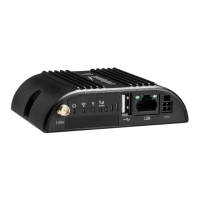
E110 Quick Start Guide
Introduction
This document provides a brief overview of the E110 router, discusses what's inside the box, and
provides basic setup and installation instructions.
Navigation
Use the links below to navigate through this document.
Introduction ...................................................................................................................................... 1
Before You Begin .............................................................................................................................. 2
Location Considerations .............................................................................................................................2
SIM Card for Wireless Connectivity .............................................................................................................2
Batteries ....................................................................................................................................................2
Required Tools for Setup ............................................................................................................................3
Setup ................................................................................................................................................ 3
STEP 1: Check box for content. ...................................................................................................................3
STEP 2: Remove the battery door. ..............................................................................................................3
STEP 3: Insert an active 2FF-sized SIM. ........................................................................................................3
STEP 4: Insert the battery. ..........................................................................................................................4
STEP 5: Reinstall the battery door. ..............................................................................................................4
STEP 6: Attach the LTE cellular antennas. ....................................................................................................4
STEP 7: Mount the router. ..........................................................................................................................4
DESK ................................................................................................................................................................................... 4
WALL & CEILING ................................................................................................................................................................. 4
STEP 8: Connect the Ethernet cable. ...........................................................................................................4
STEP 9: Power up the router. ......................................................................................................................4

 Need help?
 General




 To Next Page