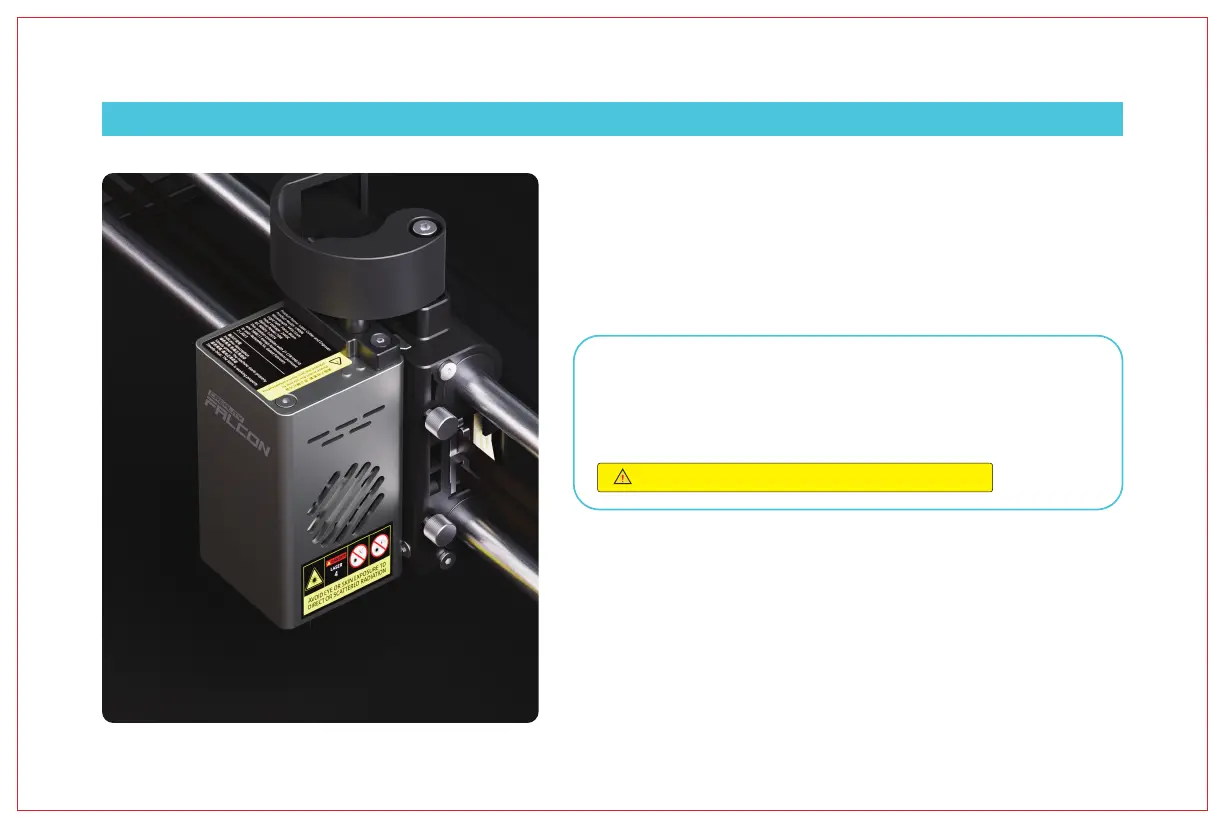
1. After placing different materials, it is necessary to use multi-level focusing strips to adjust the
height of the laser module.
2. For basic parameter settings of the laser engraver, refer to the file "GRBL Basic Parameter
Description" at wiki.creality.com/en/laser-engraver.
3. Firmware upgrade - "https://www.crealitycloud.cn/en/software-firmware/other?type=16" To use the
latest version of firmware, you can download the real-time updated firmware version here. First,
please empty the (self-provided) USB drive to prevent lag during use, then save the newly
downloaded BIN file to the root directory of the (self-provided) USB drive.
Note: Do not disconnect power during the update process
A. Mainboard firmware upgrade
With the power off, copy the firmware upgrade package to the (self-provided) USB drive,
connect the USB drive to the machine using an A to C adapter, and the device will
automatically update when powered on. The buzzer will sound continuously during the
update process, and when the sound stops, the update is complete.
3. Software installation and use
The device can work online through an A to C connection cable (Falcon Design Space/LightBurn/La-
serGRBL), or oine through a (self-provided) USB drive (Falcon Design Space/LightBurn). For detailed
software tutorials, please refer to wiki.creality.com/en/laser-engraver.
Note: Related product information can be obtained from wiki.creality.com/en/laser-engraver -
product manual, assembly instruction video, camera calibration and alignment, parameter
recommendation table, software operation tutorial, G-Code, error code description, GRBL basic
parameter description, FAQ, etc.
VII. Instructions for Use
15


 To Next Page