Tutorials
E-MU Systems 26
The MIDI Connection
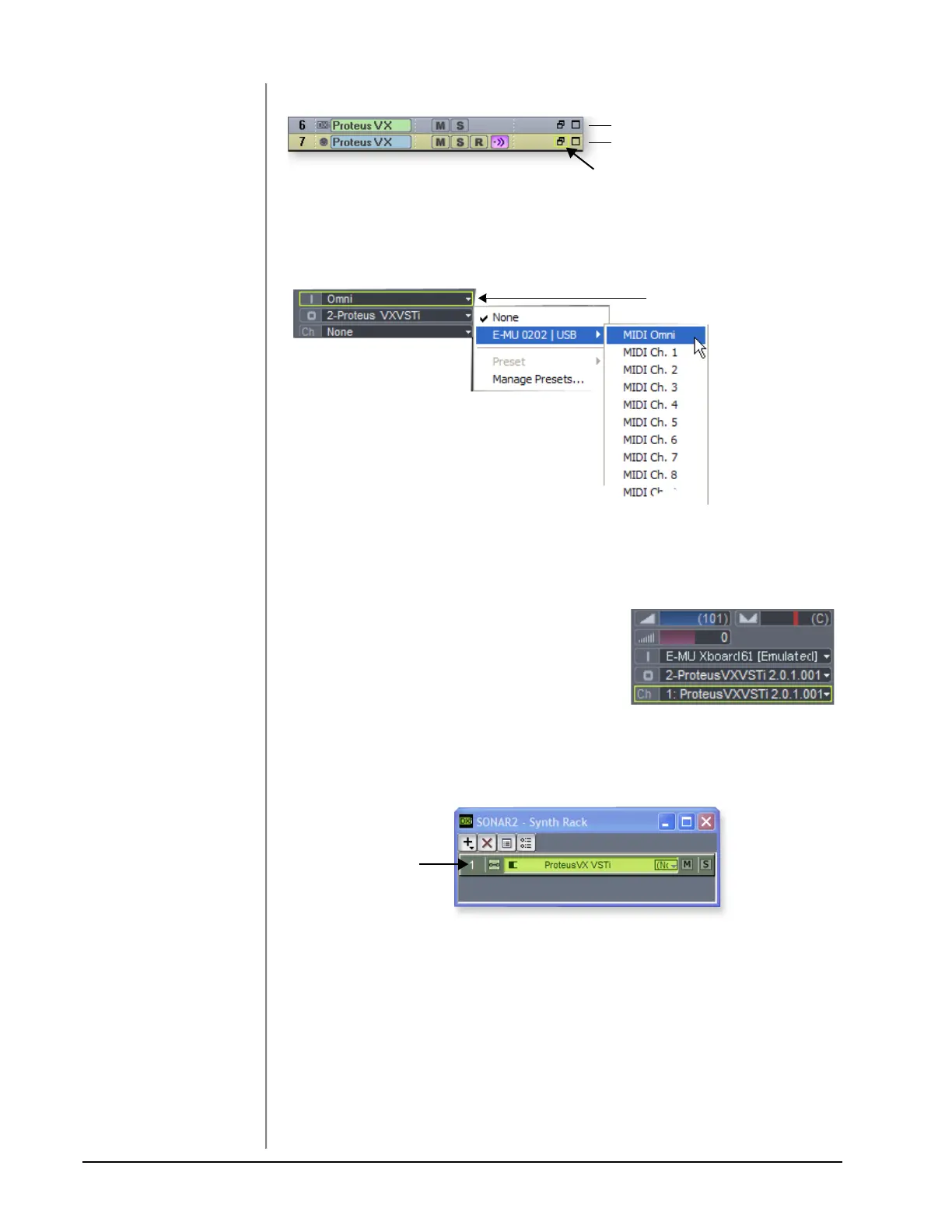
6. Select the blue MIDI Input track by clicking on it. The MIDI Input connection
appears in the strip to the left of the MIDI tracks.
7. Your MIDI Interface should already be selected as the MIDI input in Omni
mode as shown above. “MIDI Omni” allows Proteus VX VSTi to receive on all
16 MIDI channels from your MIDI keyboard. (Proteus VX VSTi is “multi-
timbral” and can assign a different preset to each of the 16 MIDI channels.)
TIP . . .
Check the Sonar MIDI
Monitor in the SysTray to
verify that you’re receiving
MIDI.
8. Set the MIDI Channel for the track to
channel 1 as shown at right. This “re-
channelizes” the incoming MIDI data on any
MIDI channel to channel 1.
Open Proteus VX
9. Double-click on the number (or on the Proteus VX name) to open the Proteus
VX editor.
Audio Output from Proteus VX
MIDI input to Proteus VX
Click Here to view the strip controls.
New Proteus VX Tracks
MIDI Input Select
Synth Rack with Proteus VX
Double-Click Here
to Open Proteus VX



 To Next Page