Getting Started 3-4
Transferring
Files
Audio selections have been preloaded to your player to get you started
quickly. If you wish to listen to music immediately, simply press the
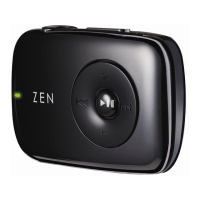
Play/Pause button .
To transfer files
1. Connect your player to your computer’s USB port using the supplied
USB cable.
2. On your desktop, right-click the My Computer icon, and then click
Explore.
3. Copy files into your player using a drag-and-drop operation.
If you wish to download additional music tracks to your player, you can either
download music tracks from Internet music sites (see "Downloading from the
Internet" on page 3-5) or rip them from your audio CDs to create digital files
on your computer. For more information, see "Ripping from a CD" on page 3-
6.
WMA files with Digital
Rights Management
technology cannot be
copied to your player
using Windows
Explorer. You can only
do so with applications
like Windows Media
Player or Creative
MediaSource.



 To Next Page