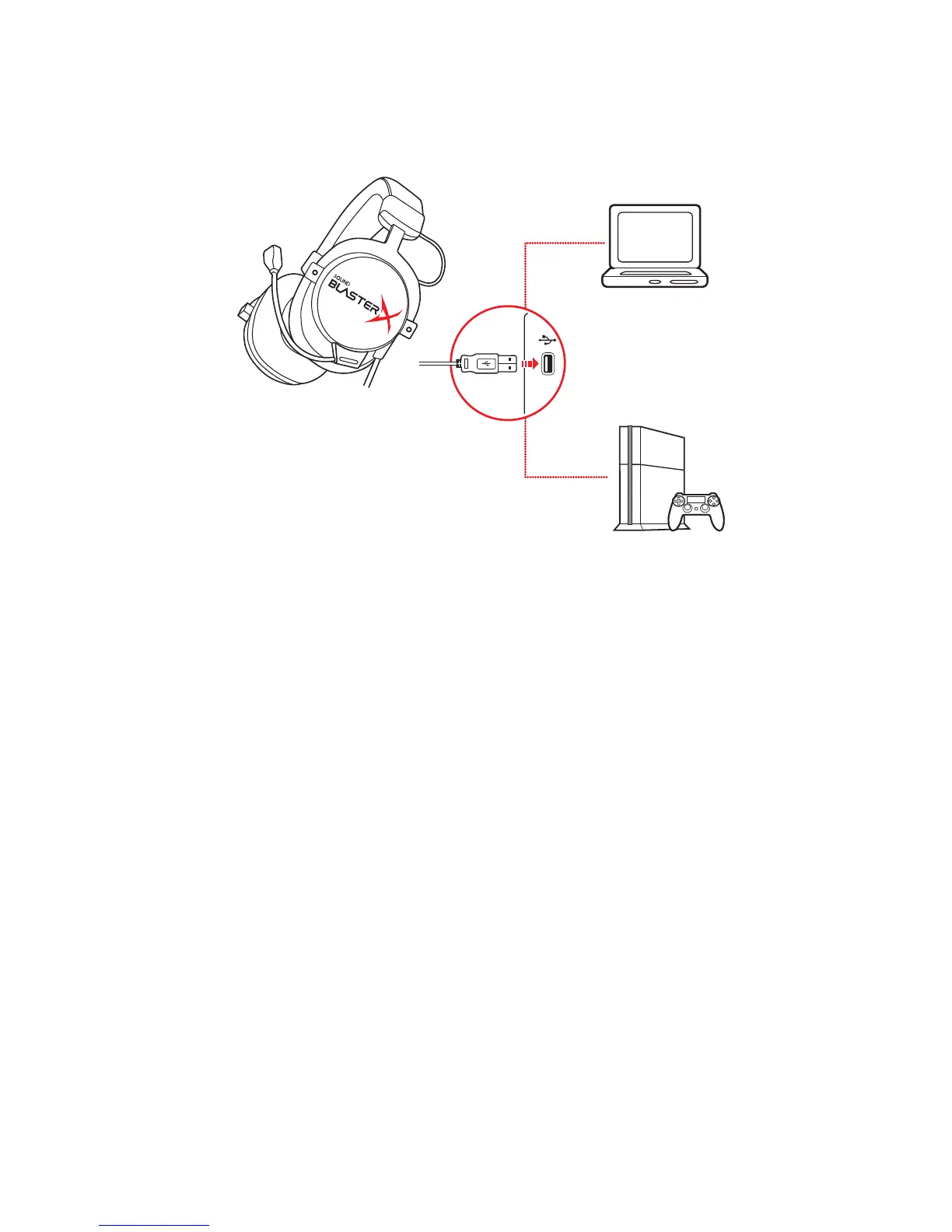
Step 3: Connecting the headset
Connecting to a computer / PS4™ via USB
(a) Micro USB-to-USB cable
(b) Computer
(c) PS4
X-Plus Signature
Configure the X-Plus Signature of your Sound BlasterX H7 with your desired game audio profile to enjoy
the same enhanced audio signature anywhere – no driver or application installation required. See Using
the Creative Software Suite – X-Plus Configurator
BlasterX Acoustic Engine Pro
Enhance audio playback with BlasterX Acoustic Engine Pro enhancements such as 7.1 surround sound,
Scout Mode, immersion control, dynamic range restoration, low-frequency boost, dialog boost, and
automatic volume levelling. See Using the Creative Software Suite – BlasterX Acoustic Engine
Pro.
Note:
X-Plus Signature and BlasterX Acoustic Engine Pro settings cannot be used together at the same time.
If your computer is installed with both the X-Plus Configurator and BlasterX Acoustic Engine
Pro applications, your headset audio settings will switch according to the last application launched. A
balloon notification will pop up to indicate the current active mode.
Sound BlasterX H7 Tournament Edition – Using Your Sound BlasterX H7 6


 To Next Page