Playing audio
Connect your Sound BlasterX H7 to your computer via USB to enjoy the ultimate gaming audio
experience with BlasterX Acoustic Engine Pro.
You can also connect it directly to a PS4 via USB for high resolution audio playback.
Alternatively, you may also connect via the analog cable to portable gaming devices to enjoy powerful
gaming audio on the go.
Multifunction button
l Press once to pause playback
l Press again to resume playback
Answering calls
Mobile communication
When there's an incoming call from your mobile device while you are listening to music, the music fades
out and the ringtone will gradually be heard.
Multifunction button
l Press once to answer an incoming call
l Press again to end a call
The music will resume after the call has ended.
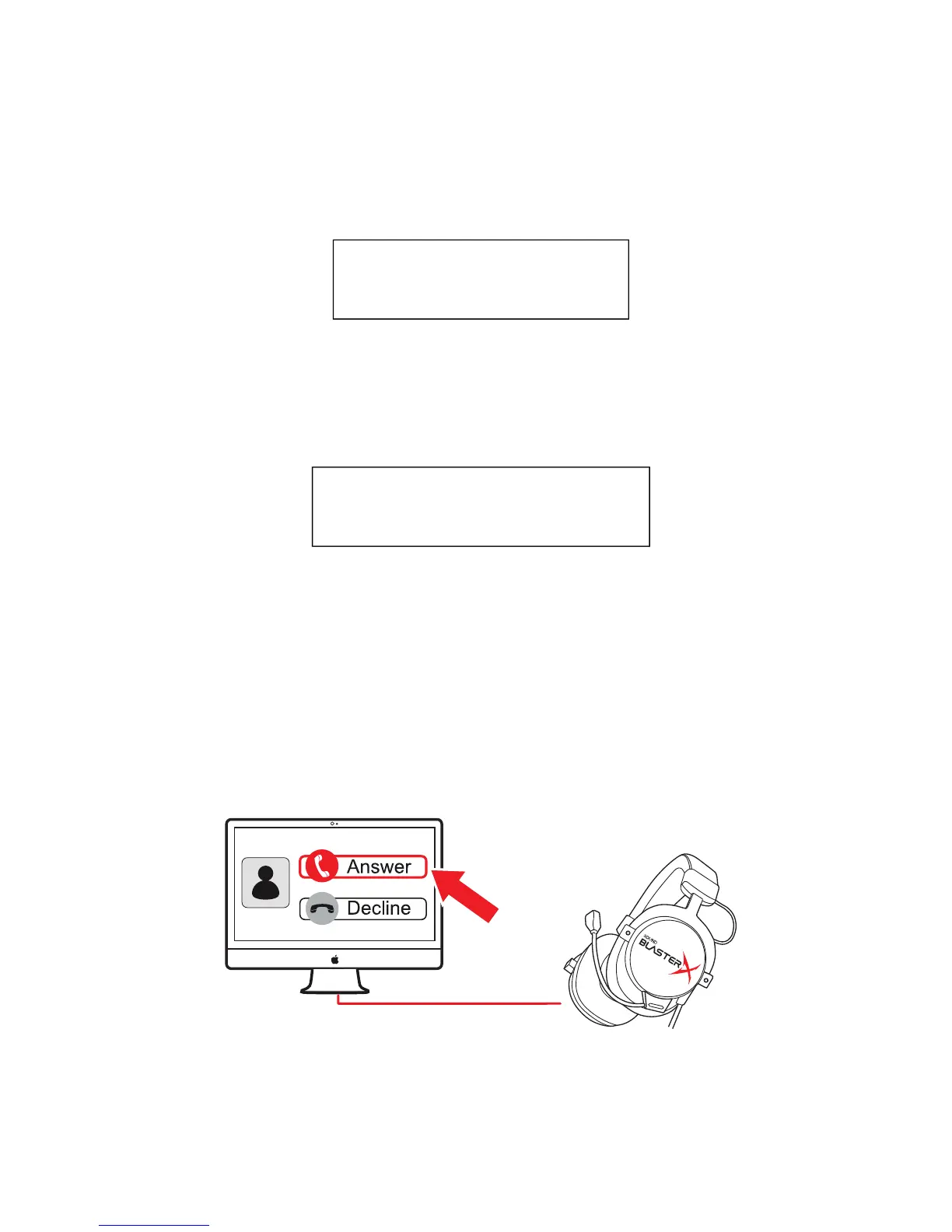
Desktop communication
Use the Sound BlasterX H7 to enjoy outstanding acoustic performance in popular VoIP applications like
Ventrilo
®
and TeamSpeak
®
. Hear and be heard clearly by teammates during multiplayer games to get
the tactical edge.
You may choose to morph your voice with special effects with the Voice FX too! See Having Fun with
Voice FX.
When there's an incoming call, click on the answer call button prompted on the computer screen to
enter voice communication.
Sound BlasterX H7 Tournament Edition – Using Your Sound BlasterX H7 8


 To Next Page