Installing Creative PC-CAM 900 4-2
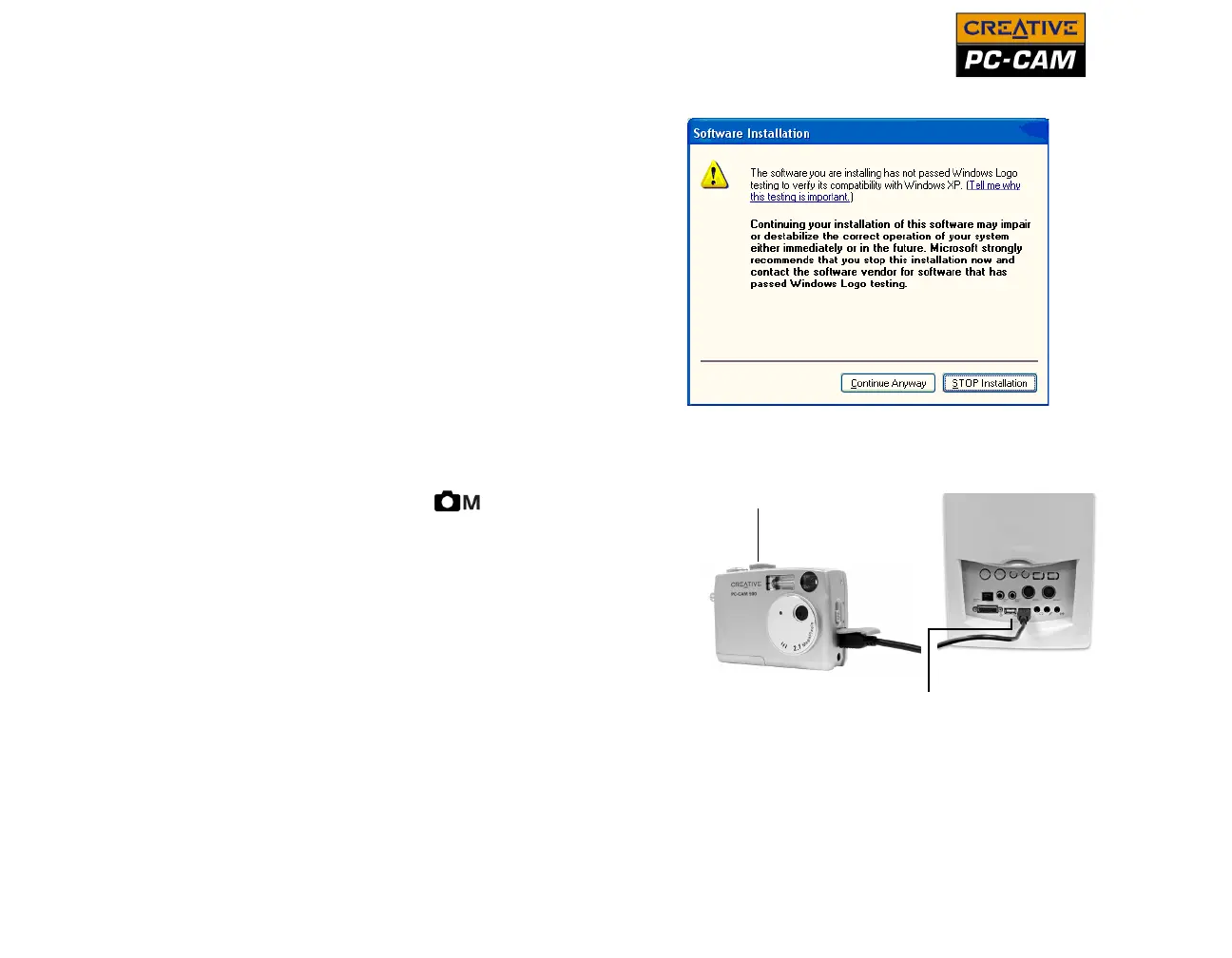
5. If a Software Installation
dialog box appears (Figure
4-1), click the Continue
Anyway button. For more
details on this warning
message, see "Problems in
Windows XP" on page B-3.
6. Turn your camera’s Mode
Selector dial to Manual
Photo
mode.
7. With a USB cable, connect
Creative PC-CAM 900 to an
available USB port on your
computer (Figure 4-2).
Follow the steps below that are
for your operating system.
For Windows XP only
8. The Found New Hardware
message box appears on
your Windows taskbar,
telling you that Windows
has detected your camera as a USB Mass Storage Device.
Figure 4-1: Software Installation dialog box
Figure 4-2: Connecting Creative PC-CAM 900 to your
computer
USB connector
Mode Selector
dial


 To Next Page