4-3 Printing from your Creative PC-CAM 950 Slim
Printing selected
photos
1. Press and hold the Mode button.
The mode selection menu appears.
2. Use the Function buttons to select the Playback mode icon.
3. Press the Flash/Set button.
A menu appears.
4. Press the "Up" Function button to select
the Print Direct menu.
5. Press the down button to select the Set
Print option.
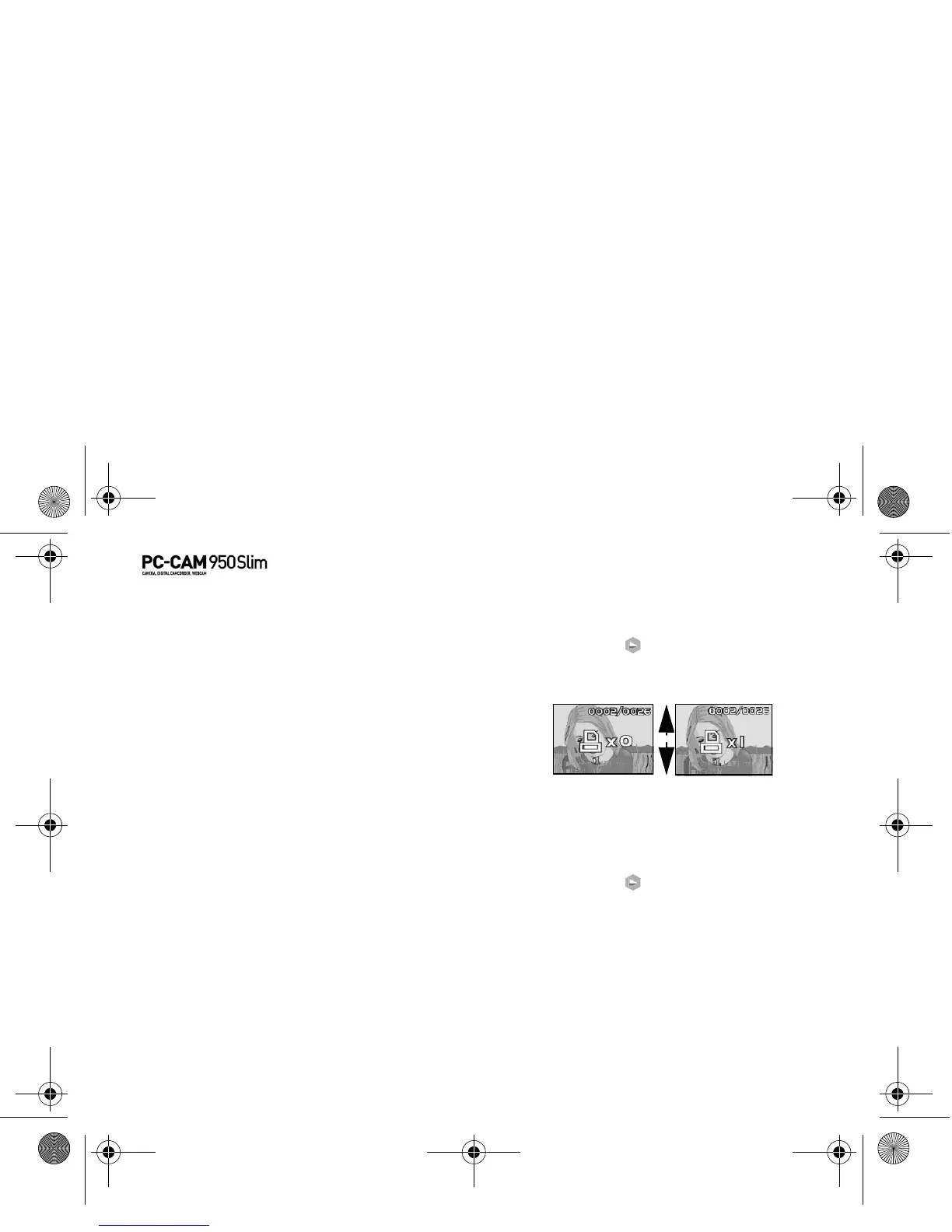
The last viewed photo appears with
selection icons (see Figure 4-2).
6. Use the Function buttons to select the
quantity to print.
7. Press the Flash/Set button to select the
next photo.
Printing all
photos
1. Press and hold the Mode button.
The mode selection menu appears.
2. Use the Function buttons to select the Playback mode icon.
3. Press the Flash/Set button.
A menu appears.
4. Press the "Up" Function button to select the Print Direct menu.
5. Press the "Down" button to select the Print All option.
6. Press the Flash/Set button.
A sub menu appears.
7. Use the Function buttons to select the Print All option, and then press the
Flash/Set button to confirm your selection.
Figure 4-2: Print Direct photo selection screen.
Up
Down
PC-CAM 950 Slim.book Page 3 Tuesday, August 23, 2005 12:57 PM



 To Next Page