5-1 Installing Creative PC-CAM 950 Slim
Installing Creative PC-CAM 950 Slim
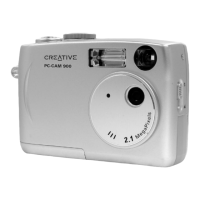
This chapter tells you how to quickly install Creative PC-CAM 950 Slim, as both a
PC-CAM and Mass Storage device, and the software that comes with it.
Installing your
camera
1. Do not connect your camera to your computer before installing the drivers.
If you accidentally begin installation with your camera connected, the Add New
Hardware Wizard or Found New Hardware Wizard dialog box may appear.
If you are using Windows 98 or Windows 98 SE, click the Cancel button. For all
other operating systems, follow the instructions on the screen and disconnect
your camera from your computer.
2. Insert the installation CD into your CD-ROM or CD-ROM/DVD-ROM drive. Your
CD should start automatically. If it does not, follow the steps below:
i. Start Windows Explorer.
ii. On the left pane, click the My Computer icon.
iii. Right-click the CD-ROM/DVD-ROM drive icon, and then click AutoPlay.
3. Click the options for installing drivers and applications.
4. Follow the instructions on the screen to complete the installation. You may be
asked, after an application is installed, if you want to restart your computer. Do
not restart your computer until all the drivers and applications are installed.
PC-CAM 950 Slim.book Page 1 Tuesday, August 23, 2005 12:57 PM



 To Next Page