CrystalVoice Settings
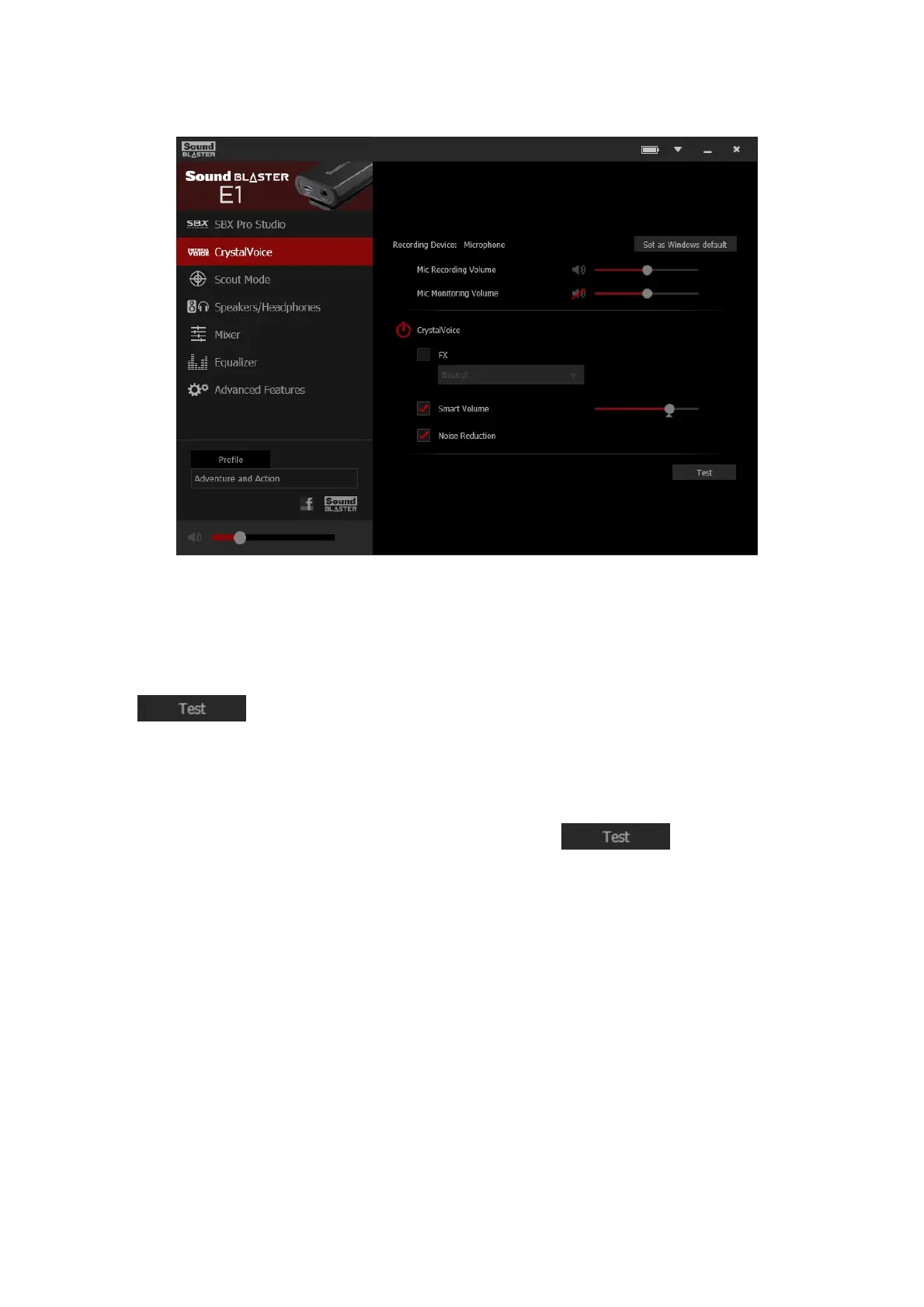
1. Crystal Voice enhancements
Select to turn on or off each of the available enhancements.
2. Enhancement Level sliders
Adjust the amount of enhancement to apply.
3. Audio test button
Click and speak into your microphone to hear how your voice sounds with
CrystalVoice applied.
Having Fun with CrystalVoice
You can adjust the amount to apply for each enhancement by dragging its slider left to decrease or right
to increase. To test the effects of the audio enhancements, click and speak into your
microphone.
l CrystalVoice FX enables the speaker's voice to be altered with a variety of effects, which can be
used to enhance the tone of the speaker's voice, create interesting accents or to sound like a
completely different person.
l CrystalVoice Smart Volume automatically adjusts the loudness of the speaker's voice to
maintain a consistent volume level. This makes it convenient for the speaker to converse normally,
regardless of whether the speaker is close to or far away from the microphone.
l CrystalVoice Noise Reduction enables the speaker to be heard clearly over background noise by
constantly monitoring the environment and eliminate the unwanted noise that interferes with the
conversation.
Sound Blaster E1 – Using the Creative Software Suite 21


 To Next Page