Using Your Xmod Wireless 8
Turning on Xmod Wireless or enabling Standby mode
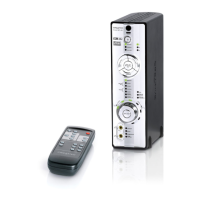
Press the Power/Standby button on your remote control to turn on Xmod
Wireless or enable Standby mode. For Power/Standby LED information, see
below.
Returning to factory default settings
Press and hold the Previous/Rewind and Next/Fast-forward buttons on your
Xmod Wireless together for three seconds. The Volume LED ring lights up.
For more information, see “FAQs” on page 14.
Understanding the Power/Standby LED
IMPORTANT
To save your volume and X-Fi enhancements on/off settings,
enable Standby mode. The Power/Standby LED lights up red. You
may then unplug Xmod Wireless from your computer.
NOTES
You can also press down and hold the Play/Pause button on
your Xmod Wireless for 3 seconds to enable Standby mode. To turn
on Xmod Wireless, press the Play/Pause button.
LED Behavior Status
Blue Stable Turned on and ready for use.
Red Stable In Standby mode.
Flashing Muted.
NOTES
For more information on the Link LED, see the Creative X-Fi
Wireless Receiver User’s Guide.
Bob UG.fm Page 8 Thursday, February 22, 2007 4:04 PM



 To Next Page