Product Manual — Doc. 8745H TSS-70 Series • 69
3. Select Scheduling Display from the provided menu, and then select Next. Ascreen for connecting
to the Zoom Rooms PC is displayed.
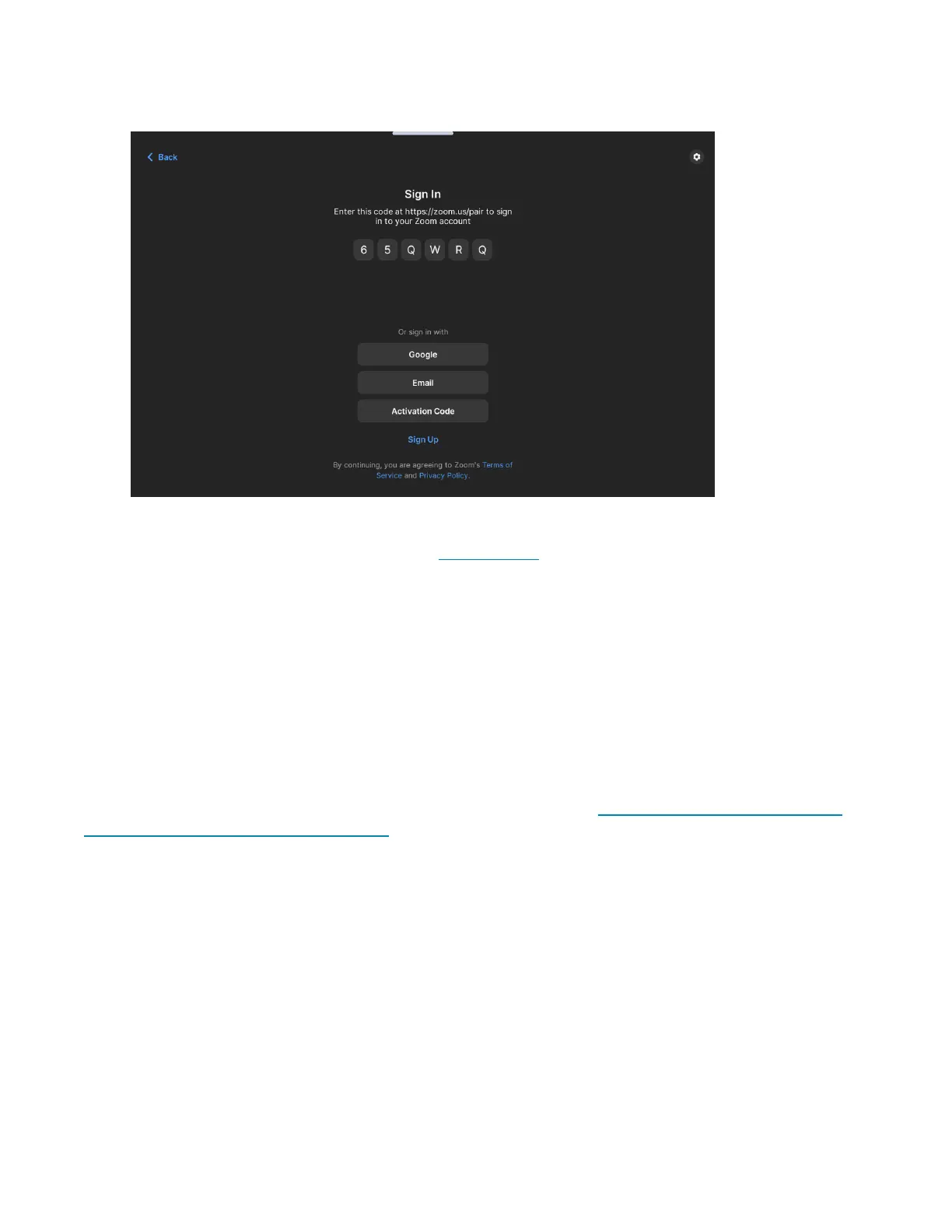
4. Pair the touch screen to your Zoom Rooms account using one of the following methods:
l
Enter the provided pairing code at zoom.us/pair after logging into your Zoom Rooms
account.
l
Select Google to sign in to Zoom Rooms via a paired Google account using a web browser.
l
Select Email to sign in to Zoom Rooms by entering the account email address and password
(supplied by your IT department).
l
Select Activation Code to sign into Zoom Rooms by entering the pairing code for the Zoom
Rooms account (supplied by your ITdepartment).
5. When prompted, confirm that the correct Zoom Rooms account is signing into the device.
If the account pairing is successfully, a notification appears confirming the registration success, and the
application updates to display the scheduling display for the Zoom Rooms deployment.
For more information on setting up and using Zoom Rooms, refer to https://support.zoom.us/hc/en-
us/categories/200108436-Zoom-Rooms.



 To Next Page