Product Manual — Doc. 8745H TSS-70 Series • 81
Wi-Fi Setup
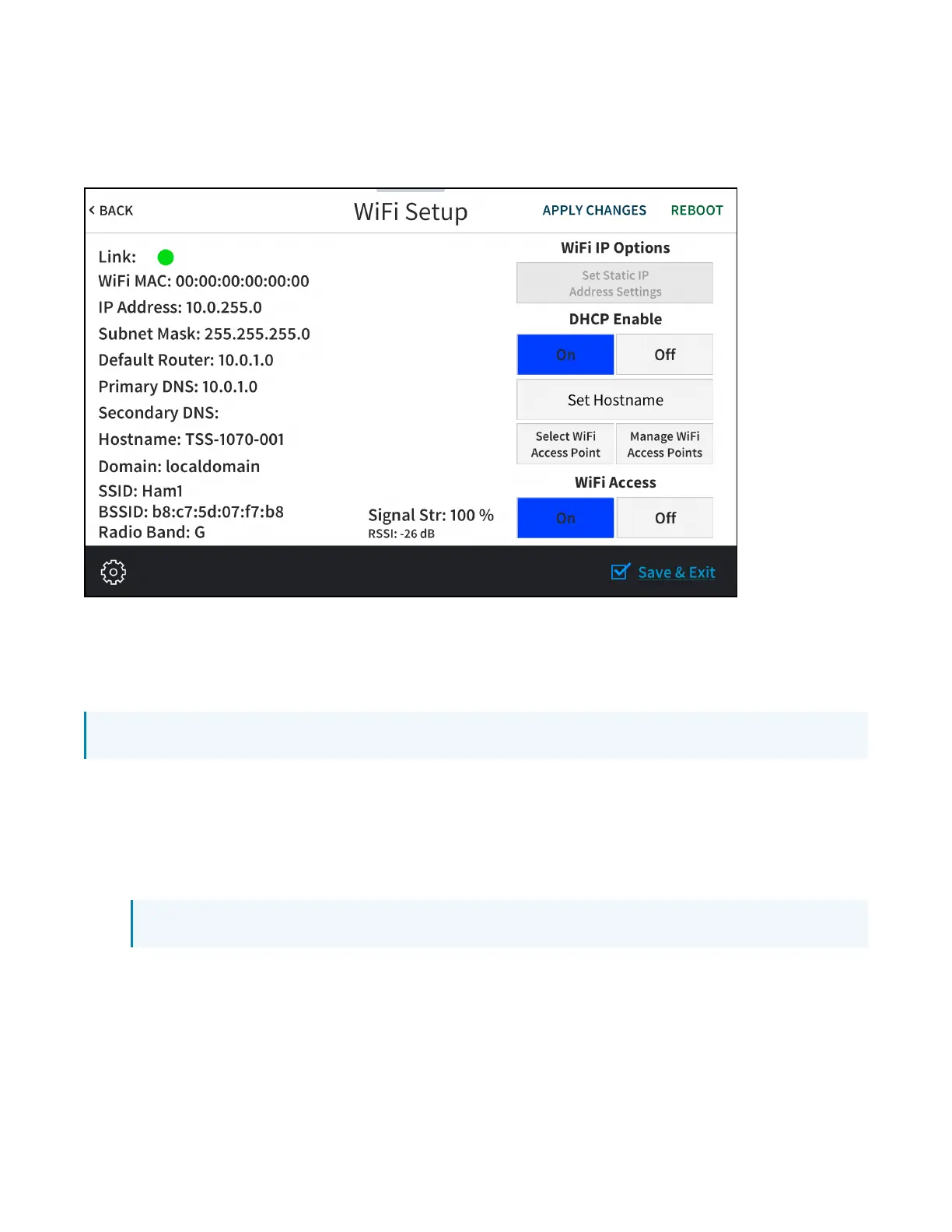
Tap Wi-Fi Setup on the Setup screen to display the Wi-Fi Setup screen.
Wi-Fi Setup Screen
Use the Wi-Fi Setup screen to view the Wi-Fi network MAC and IP addresses, subnet mask address,
default router address, primary and secondary DNS addresses, host name, domain, and various details
about the Wi-Fi connection. A Link indicator is provided to indicate the status of the Wi-Fi connection.
(Green indicates that the Wi-Fi connection is active.)
NOTE:Ethernet must be disabled before a Wi-Fi connection can be configured.
The following buttons are provided for configuring Wi-Fi settings:
l
Tap On or Off under Wi-Fi Access to turn the Wi-Fi adapter on or off. If Wi-Fi Access is set to Off,
Wi-Fi will not function and an Ethernet connection can be established.
l
Tap On or Off under DHCP Enable to turn DHCP (Dynamic Host Configuration Protocol) on or
off.
NOTE: DHCP is enabled on the touch screen by default.
l
If DHCP is turned off, tap Set Static IP Address Settings to enter static IP addresses manually.
l
Tap Set Hostname to enter a new touch screen host name using an on-screen keyboard.
l
Tap APPLY CHANGES to apply any new Wi-Fi settings to the touch screen and to stay in setup
mode.
l
Tap REBOOT to exit setup mode and restart the touch screen.



 To Next Page