6 • DMPS3-4K-200-C/300-C Series: 4K Presentation Systems Supplemental Guide – DOC. 7849B
Hostname
To view or set the hostname, do the following:
1. On the Network Setup menu, select Hostname. The current hostname appears on
the display. The default hostname is DMPS3-xxxxxxxx (xxxxxxxx consists of the last
eight characters [excluding punctuation] of the MAC address). The MAC address is
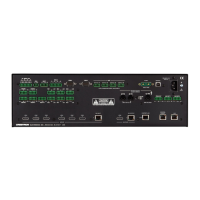
labeled on the rear panel of the device.
Hostname
DMPS3-7F8B1E9C
2. Press ENTER to change the hostname. A screen appears allowing the hostname to
be changed.
DMPS3-7F8B1E9C
DEL INS < >
3. Enter the desired hostname by doing any of the following:
NOTE: The maximum numbers of characters in a hostname is 15. The hostname
can consist of digits, uppercase and lowercase letters, and a hyphen (-).
• To enter the characters in a hostname, use the ▲ and ▼ buttons.
• To move the cursor to the left, press the soft button under the < symbol.
• To move the cursor to the right, press the soft button under the > symbol.
• To delete a character, position the cursor under the character to be deleted
and then press the soft button under
DEL.
• To insert a space, position the cursor where the space is to be inserted and
then press the soft button under
INS.
4. Press ENTER to apply the hostname.
Domain Name
To view or set the domain name, do the following:
1. On the Network Setup menu, select Domain Name. If a domain name exists, the
name appears on the LCD. If a domain name does not exist, the word
CLEAR
appears on the LCD.
Domain Name
2. Press ENTER to change the domain name. A screen appears allowing the domain
name to be changed.
CRESTRON.CRESTRON.C
DEL INS < >


 To Next Page
 Loading...