Supplemental Guide – DOC. 7849B DMPS3-4K-200-C/300-C Series: 4K Presentation Systems • 3
Accessing and Navigating the Setup Menu
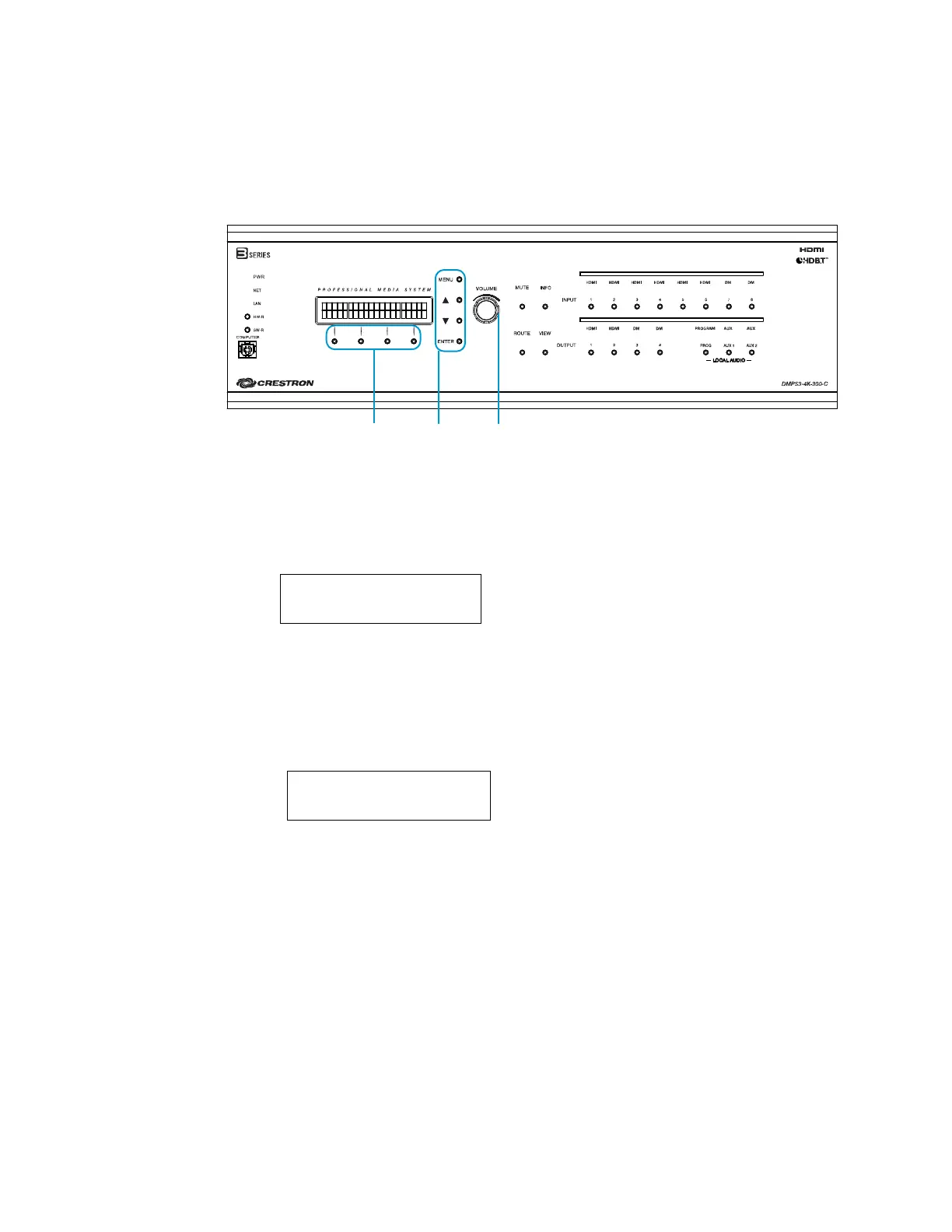
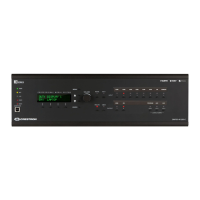
To access and navigate the Setup Menu, use the soft buttons, menu push buttons, and
VOLUME control on the front panel of the device.
Soft Buttons, Menu Push Buttons, and VOLUME Control (DMPS3-4K-300-C Shown)
Accessing the Setup Menu
To access the Setup Menu, do the following:
1. Press the MENU button. The Enter Password prompt appears on the LCD.
Enter Password:
_
2. Using the VOLUME control, enter the digits in the password. To move the cursor to
the right when entering the digits, press the ▲ button as appropriate. To move the
cursor to the left (if necessary), press the ▼
button. The default password is 12345.
(For information about changing the password, refer to "
Password" on page 8.)
3. Press ENTER to apply the password.
The Setup Menu opens.
Setup Menu
Network Setup ▼
Navigating the Setup Menu
To navigate the Setup Menu and submenus, do the following:
• To navigate upward in a menu or to move the cursor to the right when entering
data, press the ▲ button.
• To navigate downward in a menu or to move the cursor to the left when entering
data, press the ▼ button.
• To select an item in a menu or to apply a new setting, press the ENTER button.
• To go back to the previous level in a menu, press the MENU button.
• To select an item in a series of items displayed horizontally on the LCD, press the
soft button under the desired item.
Soft buttons
Menu
push buttons
VOLUME
control


 To Next Page