Configuration Guide – DOC. 8256A CCS-UC-1: Crestron Mercury with Skype for Business • 7
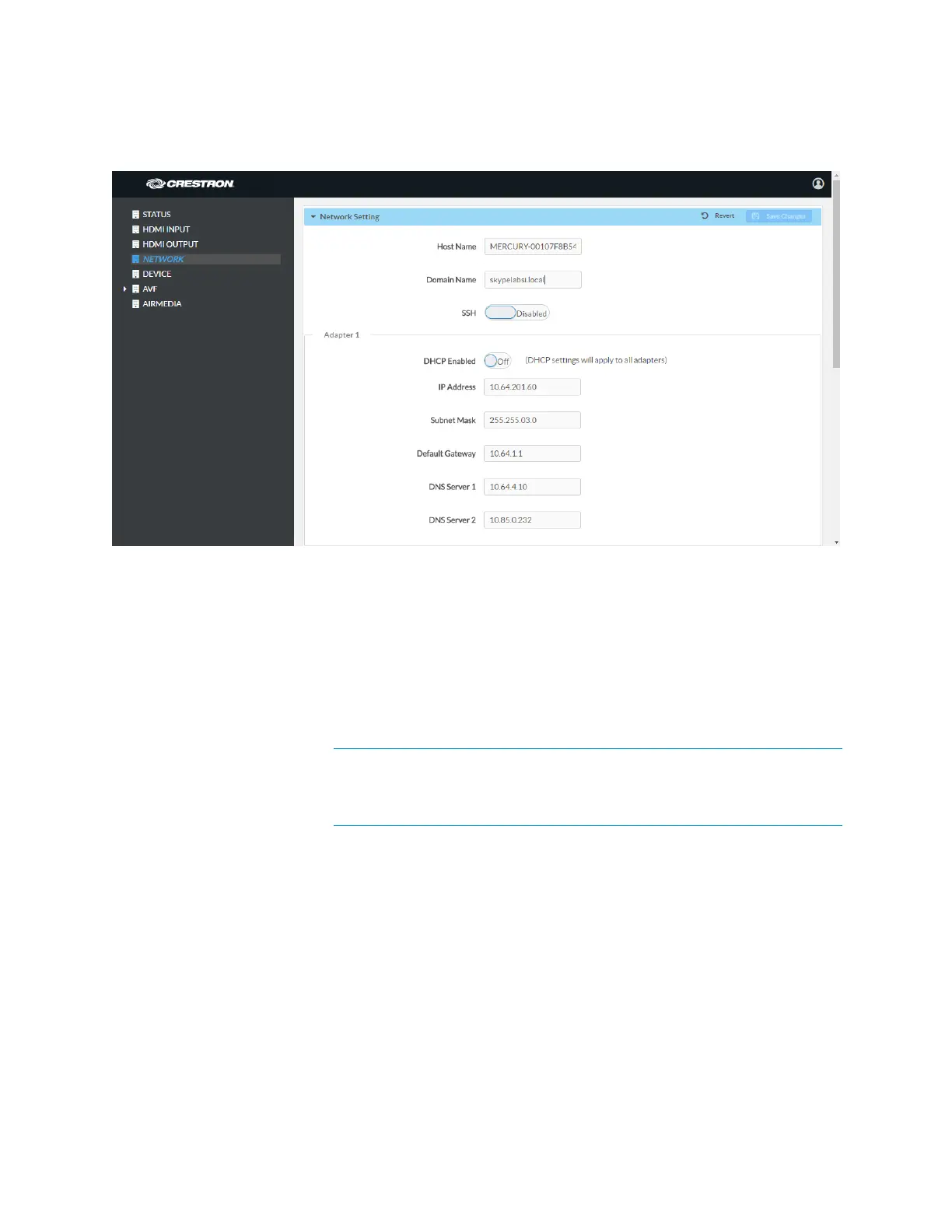
3. On the web GUI, navigate to Network.
Crestron Mercury Configuration: Network Setting: DHCP Off: Static IP Configured
4. Enter the following parameters in the Adapter 1 section to configure the Crestron
Mercury device.
• Domain Name: skypelabsj.local was used in this example
• DHCP Enabled: Choose either of the following:
o Obtain an IP address automatically (On)
o Use the following IP address (Off)
For the example, a dynamic IP was configured.
NOTE: The DNS Server 1 entry should be the DNS server where all the
SfB and Crestron Mercury A & SRV records are configured. In this
example, the DNS server on the domain controller is used: 10.64.1.3 was
used in this example.
5. Click Save Changes.
Configure the SfB Parameters
To configure the SfB parameters, follow this procedure:
1. On the web GUI, navigate to Device > SIP Calling.
2. Set Enable SIP to Off, and click Save Changes.
3. On the web GUI, navigate to Device > Skype for Business.
4. Set Enable to Enabled.
5. Configure the Username: Enter the SIP URI of the Skype for Business user.
6. Configure the Password: Enter the password of the SFB user.



 To Next Page
 Loading...