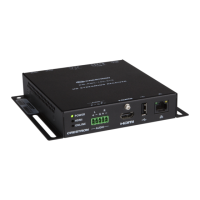
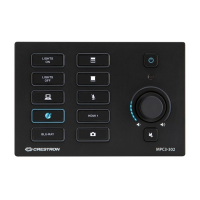
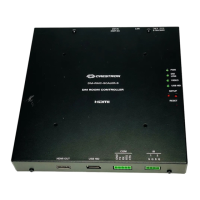
Crestron QM-RMC Room Media Controller
RJ-45 Pinouts
Once the cable connections are made, open the Crestron Viewport and click
Setup | Communication Settings on the menu to display the “Port Settings”
window. Then click TCP/IP as the connection type. Enter the IP address of the
QM-RMC.
“Port Settings” Window
To verify communication, click Diagnostics | Establish Communications
(Find Rack). This should display a window that gives the IP address and port
number.
Troubleshooting Communications
Use the following checklist if communication cannot be established with the
QM-RMC.
1. Verify that you are using the correct cables. As described
previously, an RS-232 connection requires a null modem. TCP/IP
connection requires a CAT5 cable with 8-pin RJ-45 connectors.
2. With a serial connection, verify that the correct COM port on the
PC has been selected. Some computers have more than one COM
port; some may be internal (e.g., for a modem). Consult the
Operations Guide – DOC. 6161 Room Media Processor: QM-RMC • 13



 To Next Page
 Loading...