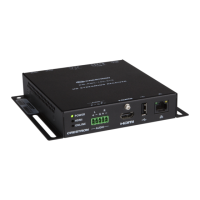
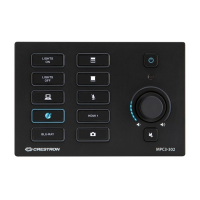
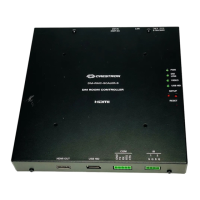
Room Media Controller Crestron QM-RMC
“Send Program” Window
Uploading Web pages to the QM-RMC
The QM-RMC provides a built-in Web server for e-Control applications. The
QM-RMC allots 2.5 MB of memory for “user files” such as Web pages,
mailbox, and the compiled SPZ program file.
VisionTools Pro-e
In most cases, you create a VisionTools Pro-e browser project to generate the
Web pages for uploading to the QM-RMC.
For e-Control projects:
When an e-Control browser project is created, VT Pro-e automatically creates a
folder with the name of the project and a .web extension. This web project folder
itself contains a Java subfolder, in addition to all the HTML files that are sent to
the QM-RMC. In VT Pro-e, the target type is BROWSER.
For e-Control 2 projects:
When an e-Control 2 project is created, VT Pro-e automatically creates a folder
with the name of the project and a .xweb extension. The web project folder
contains all the necessary e-Control 2 files. In VT Pro-e, the target type is
XPANEL.
In designing and creating a browser project, keep in mind that you must assign
an IP ID to all the project pages and specify the IP address of the QM-RMC.
(For further information on this procedure, refer to the VT Pro-e online help
file.)
Viewport
To transfer the Web pages to the QM-RMC, use the File Transfer | Send Web
Pages command.
The options are to send an entire project, only files that have changed, or a
single HTML file. With the “Transfer Entire Project” option, click OK when
16 • Room Media Processor: QM-RMC Operations Guide - DOC. 6161



 To Next Page
 Loading...