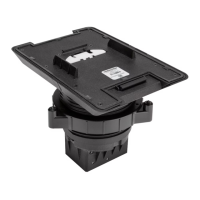
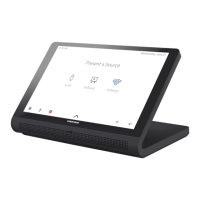
Attach the Touch Screen
1. Route all cables through the chosen knockout and out of the center
opening in the angled bracket, and then connect them to the rear of
the touch screen.
2. After all connections have been made, hold the touch screen over the
mounting plate and place it gently in position so that it attaches
securely to the plate.
Attach the Label (Optional)
To provide a finished appearance for installations on glass or other
transparent surfaces, install the included polycarbonate label on the
opposite side of the surface behind the MSMK.
To install the label:
1. Clean and dry the rear of the mounting surface thoroughly. Refer to
the caution statements at the beginning of the "Surface Mounting"
section for important cleaning and drying notes.
2. Using the level, tape a horizontal reference line on the glass surface
that aligns with the lower edge of the angled bracket on the opposite
side. Ensure the reference line is level before proceeding.
3. Remove the protective liner from the rear of the label.
CAUTION: The adhesive on the rear of the label is high-strength
bond. Once the adhesive comes in contact with a surface, it
cannot be removed easily.
4. Hold the label at a 45-degree angle to the angled bracket, and then
align the lower edge of the label with the lower edge of the bracket.
Do not allow the label adhesive to come in contact with the surface.
5. Once the label is level and aligned with the angled bracket, attach the
label to the mounting surface carefully. Press and hold the label
against the surface for at least 30 seconds to ensure the adhesive
bonds to the surface.
NOTE:All air bubbles must be smoothed out and eliminated to
ensure a complete bond to the surface.
Visit the Product Page
Scan the QR code to visit the product page.
TSW-770/1070-MSMK-ANG
www.crestron.com/model/6511786
7
TSW-770/1070-MSMK-ANG
QuickStart
Multisurface Mount Kit for TSW-770 and TSW-1070 Series, Angled



 To Next Page
 Loading...