Pinch and spread
Use your thumb and forefinger in a pinching motion on your screen to zoom out or spread them to zoom in when viewing
a picture or a web page. (Move fingers inward to zoom out and outward to zoom in.)
Complete the setup screens
Once your service has been activated, you will need to run Setup. The Setup Wizard will appear to guide you through the
basic settings on your device. You will be prompted to select the language you want to use, set up your Wi-Fi connection,
enter your name, set a screen lock method, sign into your Google™ account, select location services, and more.
Follow the remaining instructions to finish your phone setup.
Basic operations
The following topics outline basic features and operations of your phone.
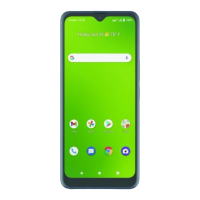
Home screen and Apps list
Most of your phone’s operations originate from the Home screen or the Apps (applications) list.
From any screen, press the Home button to display the Home screen.
From the Home screen, swipe up to access the Apps list.
For information about using the Home screen, see “Home screen basics” on page <OV>.
Select options and navigate screens
Tap icons, on-screen buttons, and other items to open or activate the
assigned function.
Tap the Back button to return to the previous screen.
Recent applications
View your recently used applications by tapping the Recent Apps button.
Switch between recently opened apps
You can easily switch between the apps you’ve recently opened.
Tap the Recent Apps button to see your recently opened apps.
To close an app, swipe it up.
To close all of the apps and clear the list, tap CLEAR ALL.
You can tap the Recent Apps button to quickly switch between the two most recently used apps.
Phone settings menu
You can customize your phone’s settings and options in the Settings menu. There are two ways to access the Settings
menu:


 To Next Page