EasyManua.ls Logo

Crosley Tech Series - USBISD OBEMALGN Cena; PHONO to USB;SD

Crosley Tech Series
16 pages
Print Icon
To Next Page IconTo Next Page
To Previous Page IconTo Previous Page
Loading...
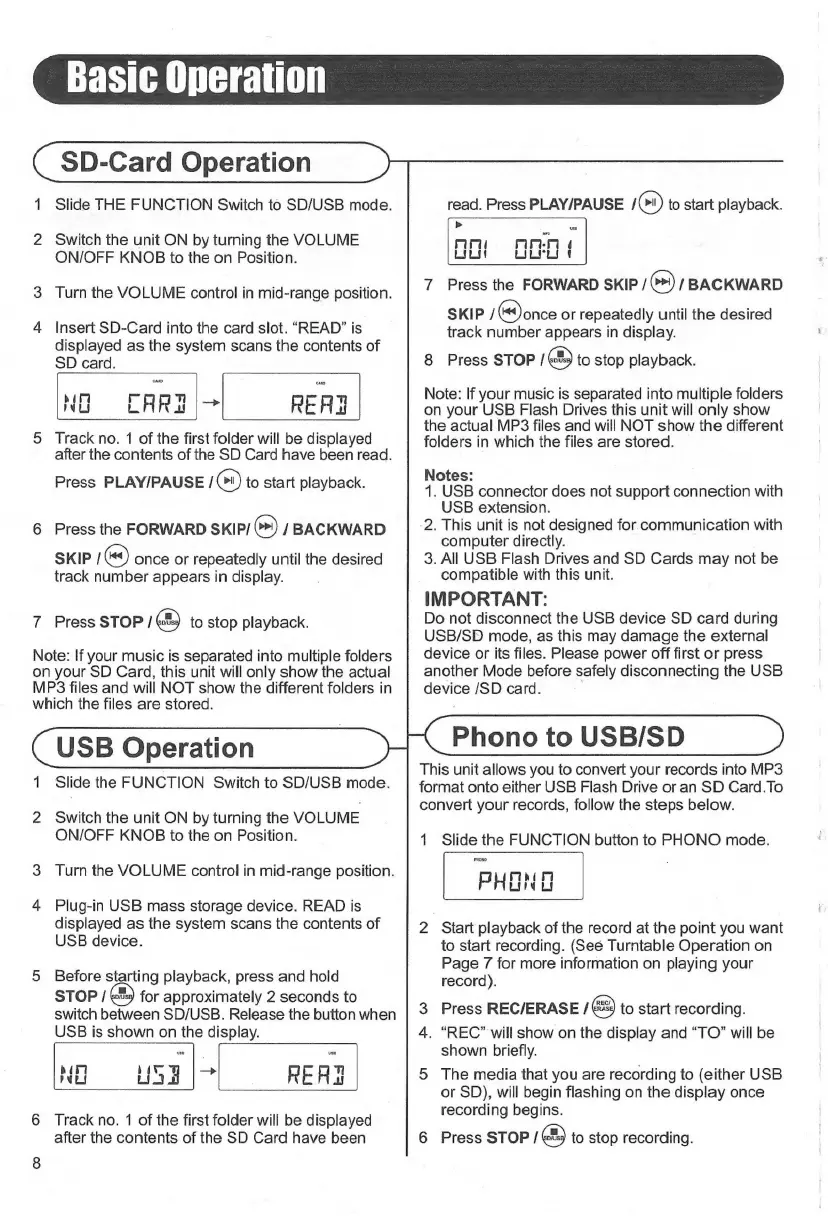
SD-Card
Operation
Slide
THE
FUNCTION
Switch
to
SD/USB
mode.
2
Switch
the
unit
ON
by
turning
the
VOLUME
ON/OFF
KNOB
to
the
on
Position.
w
Turn
the
VOLUME
control
in
mid-range
position.
A
Insert
SD-Card
into
the
card
slot.
“READ”
is
displayed
as
the
system
scans
the
contents
of
SD
card.
NO
CARI
„l
RERI
Track
no.
1
of
the
first
folder
will
be
displayed
after
the
contents
of
the
SD
Card
have
been
read.
Press
PLAY/PAUSE
/
(Pt)
to
start
playback.
al
o
Press
the
FORWARD
SKIP/
(>)
/
BACKWARD
SKIP
1O)
once
or
repeatedly
until
the
desired
track
number
appears
in
display.
7
Press
STOP
/
(a)
to
stop
playback.
Note:
If
your
music
is
separated
into
multiple
folders
on
your
SD
Card,
this
unit
will
only
show
the
actual
MP3
files
and
will
NOT
show
the
different
folders
in
which
the
files
are
stored.
USB
Operation
1
Slide
the
FUNCTION
Switch
to
SD/USB
mode.
2
Switch
the
unit
ON
by
turning
the
VOLUME
ON/OFF
KNOB
to
the
on
Position.
W
Turn
the
VOLUME
control
in
mid-range
position.
>
Plug-in
USB
mass
storage
device.
READ
is
displayed
as
the
system
scans
the
contents
of
USB
device.
al
Before
starting
playback,
press
and
hold
STOP
/
ku)
for
approximately
2
seconds
to
switch
between
SD/USB.
Release
the
button
when
USB
is
shown
on
the
display.
MO
usd)
READ,
Track
no.
1
of
the
first
folder
will
be
displayed
after
the
contents
of
the
SD
Card
have
been
O)
Basic
Operation
(SD-Card
Operation
)
read.
Press
PLAY/PAUSE
IG)
to
start
playback.
>
m
Mi
AM
4
LIL!
LLL
f
Press
the
FORWARD
SKIP
/
(>)
/
BACKWARD
SKIP
J
(«once
or
repeatedly
until
the
desired
track
number
appears
in
display.
8
Press
STOP
/
EN
to
stop
playback.
=J
Note:
If
your
music
is
separated
into
multiple
folders
on
your
USB
Flash
Drives
this
unit
will
only
show
the
actual
MP3
files
and
will
NOT
show
the
different
folders
in
which
the
files
are
stored.
Notes:
1.
USB
connector
does
not
support
connection
with
USB
extension.
-2.
This
unit
is
not
designed
for
communication
with
computer
directly.
3.
All
USB
Flash
Drives
and
SD
Cards
may
not
be
compatible
with
this
unit.
IMPORTANT:
Do
not
disconnect
the
USB
device
SD
card
during
USB/SD
mode,
as
this
may
damage
the
external
device
or
its
files.
Please
power
off
first
or
press
another
Mode
before
safely
disconnecting
the
USB
device
/SD
card.
Phono
to
USB/SD
This
unit
allows
you
to
convert
your
records
into
MP3
format
onto
either
USB
Flash
Drive
or
an
SD
Card.To
convert
your
records,
follow
the
steps
below.
1
Slide
the
FUNCTION
button
to
PHONO
mode.
2
Start
playback
of
the
record
at
the
point
you
want
to
start
recording.
(See
Turntable
Operation
on
Page
7
for
more
information
on
playing
your
record).
Press
REC/ERASE
/
co
to
start
recording.
4.
“REC”
will
show
on
the
display
and
“TO”
will
be
shown
briefly.
5_
The
media
that
you
are
recording
to
(either
USB
or
SD),
will
begin
flashing
on
the
display
once
recording
begins.
6
Press
STOP
/
(5)
to
stop
recording.
W

Related product manuals