This document is the User's Manual for the CTL Chromebox CBx2 Series, a compact computing device designed for various applications.
Function Description:
The CTL Chromebox CBx2 Series is a small form-factor computer running Google Chrome OS. It is designed for general computing tasks, including web browsing, productivity, and media consumption. Its compact size and VESA mounting capability make it suitable for space-constrained environments or as a dedicated media player or digital signage solution. The device supports both wired and wireless peripherals, multiple display outputs, and network connectivity.
Important Technical Specifications:
Processor:
- CBx2: Intel® Celeron® 5205U Processor (2m cache, 1.90 GHz)
- CBx2-7: Intel® i7-10610U Processor (8m cache, 4.90 GHz)
Operating System:
Memory:
- CBx2: 4GB DDR4 RAM
- CBx2-7: 8GB DDR4 RAM
- Note: 16GB upgrade available, 2 SODIMM slots
- Memory type: SODIMM (DDR4-2666/3200) DDR-4 module
Storage:
- Type: SSD (2242 type)
- Capacity (CBx2): 64GB eMMC
- Capacity (CBx2-7): 128GB eMMC
LAN:
- Gigabit Ethernet (10/100/1000M GbE LAN)
WLAN and Bluetooth:
- 802.11ax, BT 5.0 Combo (2x2)
- Intel Harrison Peak 2 Ax201 ac 2x2 + Bluetooth 5.0 M.2 non-vPro PCI-e WW with 2 Antennas
Connectors:
- Front (Both CBx2 and CBx2-7):
- Audio jack (3.5mm)
- (2) USB type-A 3.0 ports
- MicroSD™ card reader
- Rear (CBx2):
- Barrel Jack (Power)
- 1x USB-C
- 2x HDMI
- 1x USB 3.0
- 1x Ethernet - RJ45
- 1x USB 2.0
- Rear (CBx2-7):
- Barrel Jack (Power)
- 1x USB-C
- 2x HDMI
- 2x USB 3.0
- 1x Ethernet - RJ45
Physical Specifications:
- Dimensions: 148 x 148.5 x 41.1 mm
- Weight: 645g
- VESA mounting: 100 x 100 mm
Power:
- Voltage: 19V
- AC Adapter: 65W
- Output: 19V DC, 3.42A
- Input: 100~240V AC, 50/60Hz universal
- Power cord: US type, length 1m
Environmental Conditions:
- Temperature: 32°F to 95°F (0°C to 35°C)
- Humidity: 30-80%
Security:
- Kensington lock
- Reset hole
Usage Features:
Getting Started:
- Connecting AC power: Connect the power cord to the AC adapter, and then the AC adapter to the DC-in jack of the Chromebox and a power outlet.
- Connecting a display device: Use an HDMI cable to connect the Chromebox to a monitor or display device. The Chromebox has two HDMI ports.
- Connecting a mouse and keyboard:
- Wired: Connect USB mouse and keyboard to the USB2.0 ports.
- Wireless: Connect the USB receiver for a wireless mouse and keyboard to a USB port. Wireless peripherals are usually paired automatically after power-on.
- Connecting audio components: Plug audio components into the 3.5mm audio jack.
- Connecting to local area network (LAN): Connect an RJ45 cable from the LAN port of the Chromebox to a network connection device or wall connector.
- Inserting a memory card: Insert a MicroSD™ card with gold contacts facing down into the card reader until it locks.
- Connecting USB devices: Connect USB2.0, USB3.0, or USB type-C devices to the corresponding USB ports.
- Mounting the Chromebox: The device supports VESA mounting (100 x 100 mm). This involves securing an optional mounting plate to the VESA holes on a display, removing rubber feet from the Chromebox, securing screws to the Chromebox's mounting holes, and then aligning and installing the Chromebox onto the mounting plate.
- Powering on: Press the Power button on the front panel; the LED will light white.
- Initial setup: After powering on, configure basic settings such as language, accessibility options, network, and sign in to your Chromebox by following on-screen instructions.
- Resetting the Chromebox: Insert a pointed tool into the reset hole on the side of the device.
Operating the Chromebox:
- Navigating the desktop: The desktop provides access to:
- Launcher: Manages installed apps and performs searches.
- Applauncher: Accesses most frequently used apps quickly.
- Desktop: Right-click to manage shelf visibility, position, and set wallpaper.
- Status tray: Displays notifications, manages connections (Wi-Fi, Bluetooth), and other settings (time, volume, brightness).
- Managing apps: Click the Launcher icon to search, access, and manage apps. You can download new apps from the Chrome Web Store or Google Play Store.
- Wireless connections:
- Wi-Fi: Click anywhere on the Status tray to open it, then click the Wi-Fi icon to enable Wi-Fi and scan for networks. Click on a network to connect, entering a password if required.
- Bluetooth: Click anywhere on the Status tray to open it, then click the Bluetooth icon to enable Bluetooth and scan for devices. Click on a device to connect and follow pairing instructions.
- Managing notifications: Click anywhere on the Status tray to open it. Click the Notifications icon to switch Do Not Disturb mode on/off or to select apps allowed to send notifications.
- Switching to Night Light mode: Click anywhere on the Status tray to open it. Click the Night Light icon to tint the screen with a yellowish hue.
- Adjusting volume: Click anywhere on the Status tray to open it. Click the slider bar or the volume icon to adjust the audio.
- Adjusting brightness: Click anywhere on the Status tray to open it. Click the slider bar to adjust brightness.
- Locking the screen: Click Status tray > Lock icon.
- Configuring Chromebox settings: Click Status tray > Settings icon or Launcher > Settings icon to open the Settings page. Settings include:
- Network > Ethernet: LAN connection parameters.
- Network > Wi-Fi: Connect to a wireless access point.
- Bluetooth > Bluetooth: Enable/disable Bluetooth and pair devices.
- Connected devices: List of connected devices.
- People > Your account: Manage your account.
- People > Sync your settings: Manage sync settings.
- People > Security and sign-in: Enable/disable lock screen on wake-up and set password.
- People > Parental controls: Set website restrictions and screen time limits via Family Link.
- People > Manage other people: Manage other Chromebox user accounts.
- Device > Mouse: Configure mouse settings.
- Device > Keyboard: Configure keyboard settings.
- Device > Displays: Configure display settings.
- Device > Storage management: Manage Chromebox's storage.
- Device > Power: Set Chromebox activity when idle.
- Personalisation > Change device account image: Select preferred account image.
- Personalisation > Wallpaper: Select preferred desktop wallpaper.
- Search and Assistant > Preferred search engine: Set default search engine.
- Search and Assistant > Google Assistant: Enable/disable and configure Google Assistant.
- Apps > Manage your apps: Uninstall, pin, and configure notification settings/permissions for apps.
- Apps > Google Play Store: Uninstall Google Play Store.
- Linux (Beta) > Linux: Run Linux tools, editors, and IDEs.
- Advanced: Configure system advanced settings (date/time, privacy/security, passwords/forms, language/input, downloads, printing, accessibility) and perform system reset.
Troubleshooting:
- Chromebox does not start (power switched on): Ensure AC adapter is properly plugged into the DC-in jack and power outlet.
- Cannot access LAN: Verify RJ-45 cable connection to LAN port and network device/wall connector. Ensure LAN settings are configured correctly.
- Cannot connect to Bluetooth device: Ensure the Bluetooth device is near the Chromebox and visible to other devices.
- No audio: Ensure audio is not muted.
Maintenance Features:
- Read and follow all instructions in the documentation.
- Do not use near water or heated sources.
- Set up on a stable surface.
- Ensure proper ventilation; do not block chassis openings.
- Operate in ambient temperatures between 0°C and 35°C.
- If using an extension cord, ensure total ampere rating does not exceed its rating.
- No disassembly: Disassembly by users voids the warranty.
Care During Use:
- Do not place on an uneven or unstable surface.
- Do not spill liquids into or on the device.
- Avoid sustained contact with the device if it feels too warm during operation/charging to prevent discomfort or burns.
- Clean with a soft, slightly damp cloth; do not use abrasives or cleaning solutions.
- Always disconnect from power and power off before cleaning.
- Do not handle with wet hands while charging.
- Refer all servicing to qualified personnel if the device is damaged (e.g., power cord/plug damaged, liquid spilled, exposed to rain/moisture, dropped, chassis damaged, abnormal operation, performance changes).
- FCC Statement: Complies with Part 15 of FCC Rules. User is cautioned against unauthorized changes. Equipment tested to comply with Class B digital device limits.
- FCC RF Radiation Exposure Statement: Equipment complies with FCC radiation exposure limits for uncontrolled environments. Maintain a minimum distance of 20cm between the radiator and your body.
- Manufacturer's Declaration of European Conformity (CE): CTL declares conformity with EU Council Radio Equipment Directive 2014/53 and EMC Directive 2014/30/EU.
- Restriction of Hazardous Substances (RoHS) Directive: CTL product complies with Directive 2011/65/EU on the restriction of hazardous substances.
- Industry Canada Class B emission compliance statement (ISED Statement): Device complies with Innovation, Science and Economic Development Canada license-exempt RSS standard(s). Operation is subject to not causing interference and accepting interference.
- ISED Radiation Exposure for Canada: Equipment complies with IC RSS-102 radiation exposure limits. Maintain a minimum distance of 20cm between the radiator and any part of your body.
- ENERGY STAR® compliance: CTL is an ENERGY STAR Partner. The Chromebox is designed to meet ENERGY STAR guidelines for energy efficiency. The ENERGY STAR program promotes energy efficiency and reduces air pollution.
- Power management: Turn off the display/initiate sleep after <= 15 minutes (varies by model). Initiate sleep after <= 30 minutes (varies by model).
- The computer exits Sleep when the power/sleep button is pressed.
- Wake On LAN (WOL) feature is enabled; the computer can also exit Sleep in response to a network signal.
- Guidelines for enabling WOL function are provided (using
ethtool commands).
- WEEE information: The WEEE marking indicates that the product should not be disposed of in municipal waste. Appliances are labeled in accordance with regulations concerning waste electrical and electronic equipment.
- Battery recycling information for the European Union: Batteries or packaging are labeled according to European Directive 2006/66/EC. Batteries should not be thrown away but reclaimed upon end of life.
- REACH: CTL publishes chemical substances information on its website in compliance with the REACH regulatory framework.
- CTL Recycling and Takeback Services: CTL offers electronics disposition and disposal services, including removal/recycling of qualified CTL electronics equipment, rechargeable batteries, and packing. Hard drives can optionally be kept by customers. Services comply with EPA standards.
- Rechargeable Battery Recycling: CTL offers no-cost rechargeable battery recycling services for US and Canada customers through Call2Recycle.
- Coating Notice: A coating is applied for electrical insulation and safety, except on I/O port areas.
- CTL Corporation (USA):
- Address: 9700 SW Harvest Ct, Bldg 100, Beaverton, OR 97005, U.S.A.
- Telephone: 800.642.3087 x 212
- Phone: 800.645.8670
- Email: support@ctl.net
- Web Site: http://www.ctl.net, http://support.ctl.net
- CTL Europe / Spain Headquarters:
- Address: Pontevedra n°8, Piso 1, Oficina 6, 36202 Vigo, Pontevedra, Espana
- Teléfono: 986 11 74 73
- Email: atencionalcliente@ctl.net
- Web Site: http://es.ctl.net
- Manufacturer (Taiwan):
- Address: No. 188, Wenhua 2nd Rd., Guishan Dist., Taoyuan City, Taiwan, R.O.C. (桃園縣龜山區文化二路 188 號)
- Tel: +886-3-327-2345
- Made in China USA
- Authorized representative in Europe (CTL Spain S.L):
- Address: Pontevedra n°8, Piso 1, Oficina 6, 36202 Vigo, Pontevedra, Espana

 Need help?
 General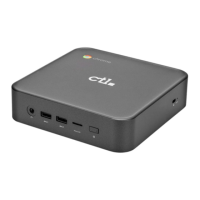

 To Next Page