Laser Air Plus | User Manual Laser Air Plus | User Manual
2625
Wireless Network Setting (Internal router)
Method 1: Easy Set Wizard
Wireless Network Setting (Internal router)
Method 1: Easy Set Wizard continue
NETWORK SETTINGS NETWORK SETTINGS
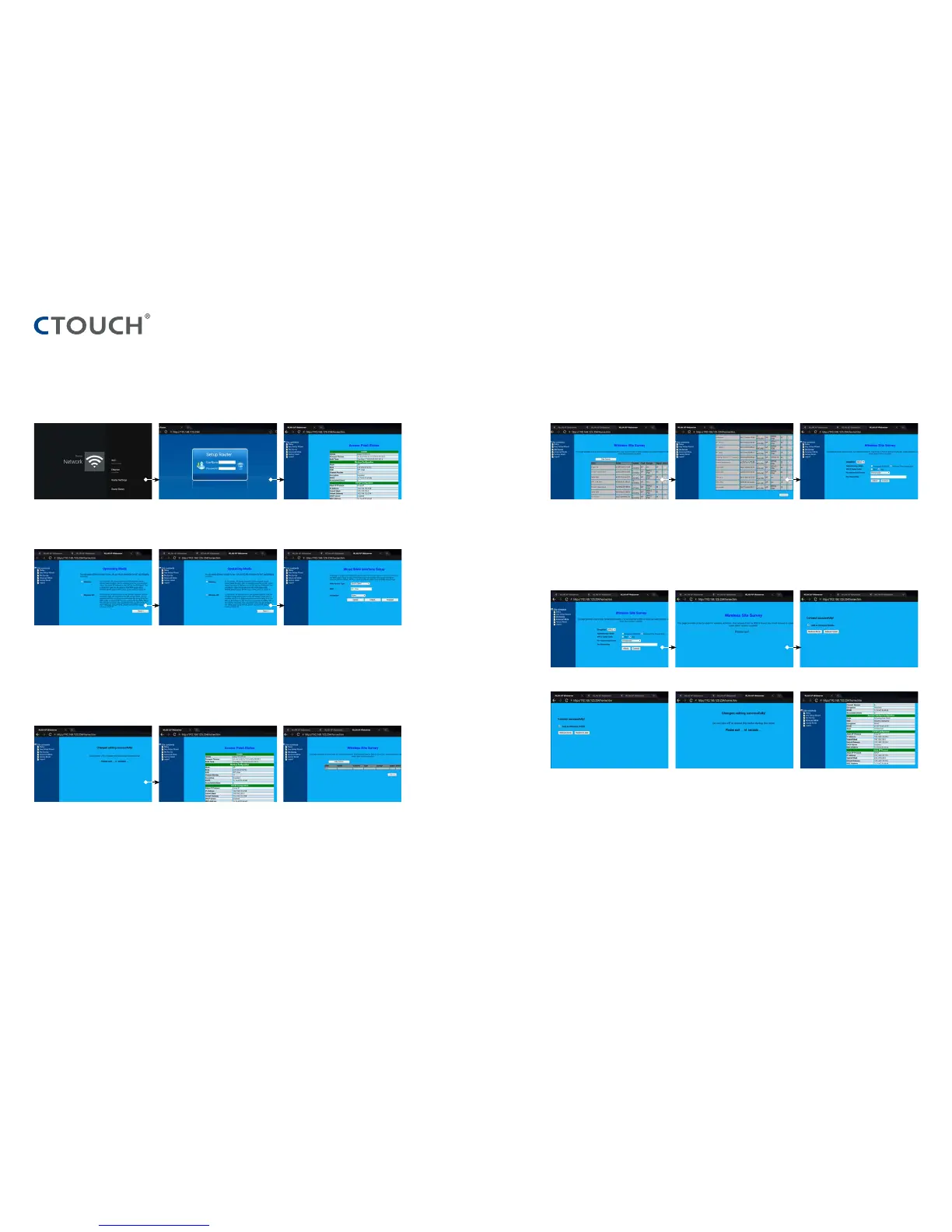
Touch ‘Router Settings’. Enter the password of the selected
Wireless Network.
Note: Make sure the Encryption
corresponds with your Wireless
Network.
Select ‘Easy Setup Wizard’.
Touch ‘Connect’.
Touch ‘Reboot Now.
Select ‘Wireless ISP’.
Wait until the router is finished rebooting. Select ‘Site Survey’. Touch ‘Site Survey’.
Wait until the changes have been saved.
Wait until the router is finished rebooting. If your network is connected to your Wireless
Network you should see an IP-address here.
Touch ‘Next’.
Touch ‘Next’.Fill in the credentials and then touch the
‘login-button’.
Default UserName: admin.
Default password: no default password is set.
Tick the box ‘Add to Wireless Profile’
Touch ‘finished’.
WAN Access Type: DHCP-client by default.
For the other options, please refer to our
Router Manual at our website.
SSID: If required, the name of the screens
Wireless Network can be changed here.
Encryption: If you want to set a password,
you can select a required encryption by
pressing the pull-down menu at ‘Encryption’.
Select the Wireless Network you would
like to connect with.



 To Next Page