EasyManua.ls Logo

CyberPower CP1500PFCLCD - User Manual

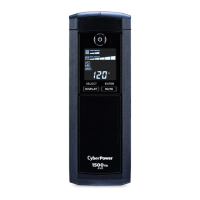
CyberPower CP1500PFCLCD
21 pages
Print Icon
To Next Page IconTo Next Page
Loading...
User Manual of Product 1:
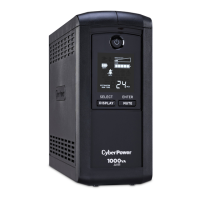
CyberPower CP1000PFCLCD PFC Sinewave UPS System,
1000VA/600W, 10 Outlets, AVR, Mini-Tower
User Manual of Product 2:
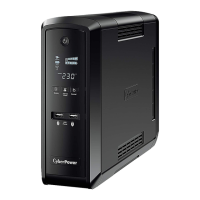
CyberPower CP850PFCLCD PFC Sinewave UPS System,
850VA/510W, 10 Outlets, AVR, Mini-Tower

Other manuals for CyberPower CP1500PFCLCD

Questions and Answers

  • B
    browndouglasAug 13, 2025
    What to do if my CyberPower CP1500PFCLCD UPS will not turn on?
    • R
      rileystewartAug 13, 2025
      If your CyberPower UPS doesn't turn on, there are several possible reasons. First, the on/off switch might be preventing rapid cycling. Turn the UPS off, wait 10 seconds, and then turn it back on. Ensure the UPS is connected to a working 110/120V 60Hz outlet. Also, the USB cable must be connected to the UPS unit and an open USB / serial port on the back of the computer, using the cable that came with the unit.
  • B
    brookssherryAug 16, 2025
    Why is the circuit breaker button projecting from the back of my CyberPower UPS?
    • L
      Lacey WeaverAug 16, 2025
      If the circuit breaker button is projecting from the back of your CyberPower UPS, it means the circuit breaker has been tripped due to an overload. To fix this, turn the UPS off and unplug some equipment. Wait 10 seconds, then reset the circuit breaker by pushing the button in. After that, turn the UPS back on.
  • A
    Andrew BrownAug 20, 2025
    What to do if my CyberPower CP1500PFCLCD doesn't perform the expected runtime?
    • D
      Dennis FerrellAug 20, 2025
      If your CyberPower UPS isn't running as long as expected, the battery might not be fully charged. Try recharging the battery by leaving the UPS plugged in.
  • J
    Joseph RodriguezAug 25, 2025
    What to do if PowerPanel is inactive on my CyberPower CP1500PFCLCD UPS?
    • V
      Victoria AndersonAug 25, 2025
      If PowerPanel is inactive and all icons are grayed out, it could be that the unit isn't providing battery power. To resolve this, shut down your computer, turn the UPS off, wait 10 seconds, and then turn the UPS back on. This should reset the unit. Also, ensure you are using the serial cable that came with the unit.
  • A
    Amanda LyonsAug 28, 2025
    What to do if USB power ports are not providing power on my CyberPower CP1500PFCLCD UPS?
    • V
      Valerie MonroeAug 28, 2025
      The USB power ports on your CyberPower UPS may stop providing power if the total current draw of connected devices exceeds 3.1A, due to the Over Current Protection design. To resolve this, turn the UPS off, unplug at least one device connected to the USB power port, and then turn the UPS back on.
  • J
    Jane JacksonSep 1, 2025
    How to fix inactive PowerPanel® Personal (gray icons) on my CyberPower CP1500PFCLCD UPS?
    • L
      Lynn LopezSep 1, 2025
      If the PowerPanel® Personal software shows inactive icons, it could be due to a connection issue. First, ensure the USB / serial cable is securely connected between the CyberPower UPS unit and an open USB / serial port on your computer, using the cable that came with the unit. If it's connected, check for an alternative USB / serial port on the back of the computer and move the cable to that port. If the issue persists, your CyberPower UPS might not be providing battery power; in that case, shut down your computer, turn off the UPS, wait 10 seconds, and then turn the UPS back on to reset the unit.
  • J
    Julie GalvanSep 4, 2025
    What to do if my CyberPower UPS doesn't provide the expected runtime?
    • P
      penamariaSep 4, 2025
      If your CyberPower UPS isn't providing the expected runtime, it could be due to a battery issue. First, try recharging the battery by leaving the UPS plugged in. If that doesn't resolve the problem, the battery may be worn out, and you should contact CyberPower Systems about replacement batteries.
  • J
    Jose GriffithSep 8, 2025
    What to do if the USB power ports on my CyberPower CP1500PFCLCD UPS are not providing power?
    • S
      syatesSep 8, 2025
      The USB power ports on your CyberPower UPS have an Over Current Protection design. If the total current of connected devices exceeds 2.1A, the ports will stop providing power. To fix this, turn the UPS off, unplug at least one of the devices connected to the USB power port, and then turn the UPS back on.

Summary

Important Safety Warnings

General Safety Precautions

Essential precautions for safe installation and operation of the UPS unit.

Installing Your UPS System

CyberPower GreenPower UPS Technology

Basic Operation

Replacing the Battery

Battery Replacement Procedure

Step-by-step guide for safely replacing the UPS batteries, including precautions.

LCD Indicator Definitions

Troubleshooting

Common UPS Issues and Solutions

Guide to diagnosing and resolving common problems encountered with the UPS unit.

Technical Specifications

CyberPower CP1500PFCLCD Specifications

General IconGeneral
Output power900 W
UPS topologyLine-Interactive
Input frequency60 Hz
Audible alarm(s)Yes
Surge energy rating1030 J
Output power capacity1.5 kVA
Emergency Power Off (EPO)No
Battery type12V/8.5AH
Weight (imperial)24.7 lbs
Nominal input voltage90-140 V
Nominal output voltage120 V
Dimensions (W x D x H) (imperial)3.9 x 14.2 x 10.4 \
AC outlet typesNEMA 5–15R
AC outlets quantity10 AC outlet(s)
Serial ports quantity1
USB 2.0 ports quantity2
Form factorTower
Cable length1.52 m
Display typeLCD
CertificationUL1778, cUL 107.3, FCC DOC Class B
Product colorBlack
Battery technologySealed Lead Acid (VRLA)
Battery recharge time8 h
Typical backup time at full load2 min
Typical backup time at half load11 min
Bundled softwarePowerPanel Personal Edition
Operating temperature (T-T)0 - 40 °C
Operating relative humidity (H-H)0 - 90 %
Sustainability certificatesRoHS

Related product manuals