STEP 1 – Powering on the scanner
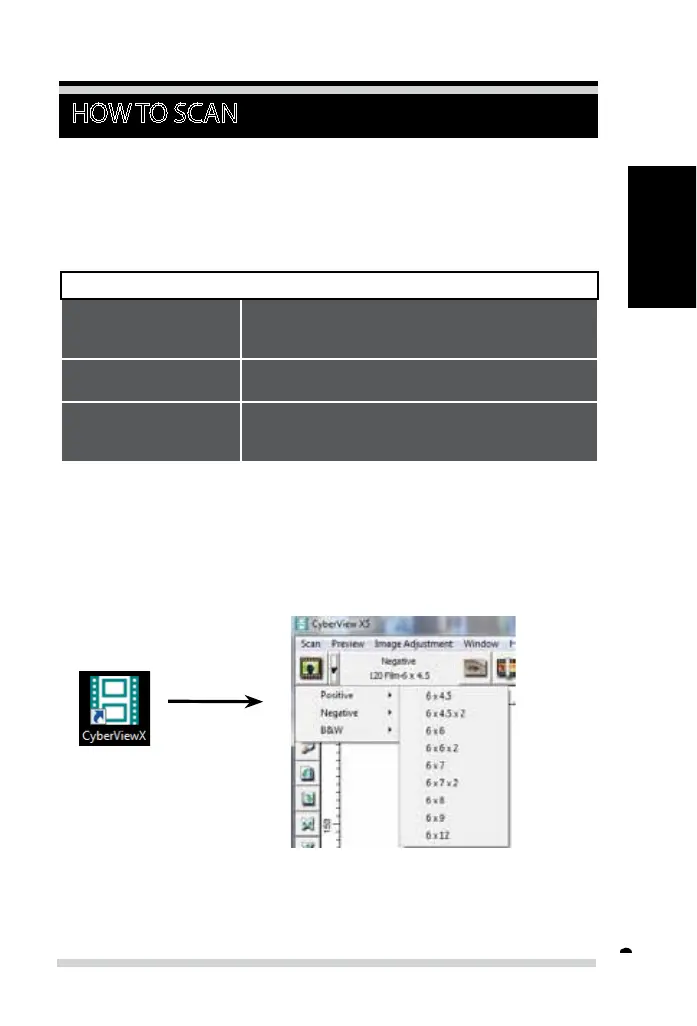
STEP 2 – Select lm type
a. Open the CyberView scanning interface.
b. Select the lm type to be scanned - Positive, Negative or B&W (Black and
White).
HOW TO SCAN
Status LED Scanner Status
Power on Cycle Unit will take approx. 40-50 sec. to callibrate. The power
LED will be solid blue (not blinking) to indicate that
the scanner is ready to use.
LED Status Flashing indicates the scanner is busy, do not insert/re-
move lm holders
Flashes several times,
then a pause,
then ashes again
Scanner is malfunctioning. Turn the unit o , close the
software, power on the scanner, wait for calibration, then
re-open CyberView.
c. Once you have selected a lm type you will have the option to select
the frame sizes for the various 120 format lms, after you have inserted
the lm holder into the unit.
NOTE: The 135 lm will be auto-detected, a frame selection is not necessary.
Scanning process step-by-step:
Powering on the scanner > Select lm type > Optional Prescan >
> Set scan settings > Scan
17



 To Next Page