Need help?
Do you have a question about the Czur ET18 Pro and is the answer not in the manual?
Summary of the CZUR scanner's intelligent features, speed, and conversion capabilities.
Diagram and measurements of the CZUR scanner's physical dimensions.
Detailed illustration of CZUR scanner components with numerical labels.
Technical details including model, resolution, scanning speed, format, and software functions.
List of items included in the CZUR scanner package with quantities.
Steps and recommendations for setting up the scanner and workspace for optimal scanning.
Details on different operational modes for the CZUR scanner.
Instructions for connecting and operating the scanner via USB to a computer.
Guide for using the scanner as a visual presenter connected to a computer and projector.
Instructions for connecting and operating the scanner wirelessly via Wi-Fi and the CZUR app.
Troubleshooting common issues encountered when operating the scanner in PC USB mode.
Solutions for connectivity and scanning issues experienced in Wi-Fi mode.
Details on the warranty scope, service procedures, and exceptions for the CZUR scanner.
Contact details for CZUR TECH CO., LTD. for technical support and inquiries.
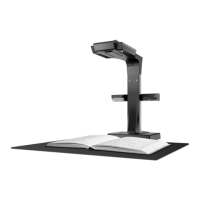
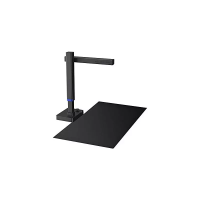
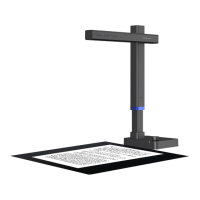
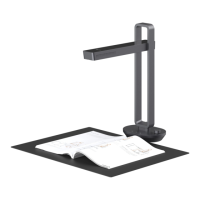
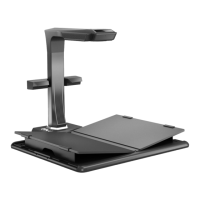
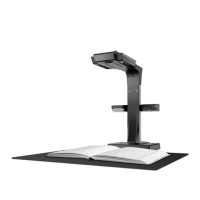
The CZUR ET18 Pro is an intelligent scanner designed for high-speed and efficient document digitization. It offers a new approach to scanning by incorporating advanced algorithms to handle various document types, particularly challenging ones like open books. The scanner's primary function is to convert physical documents into digital formats such as PDF, searchable PDF, TIFF, or text documents, making them easier to archive, share, and manage.
The core function of the CZUR ET18 Pro is to scan and digitize documents with remarkable speed and accuracy. It features an 18-megapixel HD CMOS camera that captures high-resolution images. One of its standout capabilities is the automatic flattening of curved pages, which is particularly useful for scanning open books without damaging their spines. This is achieved through the use of three laser lines that project onto the document, allowing the scanner's software to accurately detect and correct page curvature.
The device also incorporates intelligent image processing functions to enhance scan quality and user convenience. These include automatic fingerprint removal, which detects and eliminates fingers used to hold down pages during scanning (especially when specialized finger cots are worn). It can automatically split double pages into two single pages, correct incorrectly positioned pages, and auto-crop images to the document's edges. This automation significantly reduces the time and effort typically required for post-processing scanned documents.
The ET18 Pro supports multiple operating modes to suit different user needs. In Computer Mode (USB-PC), the scanner connects to a PC via a USB cable, allowing users to control the scanning process through the CZUR software. This mode is recommended for larger projects, such as scanning multiple books or extensive documents, as it provides additional editing functions for professional image processing. The software offers choices for scanning, exporting, and batch processing, enabling users to refine scanned images, perform tilt corrections, and manage their digital library effectively.
The Visual Presenter Mode (USB-PC) allows the device to function as a visual presenter. By connecting the scanner to a computer via USB and then connecting the computer to a projector, users can display documents or objects in real-time, making it suitable for presentations, lectures, or demonstrations.
The Wi-Fi Mode offers wireless connectivity, allowing the scanner to operate independently without a direct USB connection to a computer. In this mode, users can control the scanner and view scan results through the CZUR app on their smartphone or tablet. The device connects to a Wi-Fi network (2.4G only) and uploads scanned images to the CZUR cloud server. This mode is ideal for quick scans and sharing, providing flexibility and mobility. The app allows users to manage their CZUR account, link and unlink scanners, add and delete user accounts, and transfer administrator authority, facilitating collaborative use.
The CZUR ET18 Pro is designed for ease of use, with several features that streamline the scanning process:
While the CZUR ET18 Pro is built for reliability, certain aspects relate to its maintenance and troubleshooting:
 General
| Display | LCD |
|---|---|
| Control type | Buttons, Foot pedal |
| Scanner type | Overhead scanner |
| Product color | Black |
| Built-in display | Yes |
| Display diagonal | 2.4 \ |
| Display resolution | 320 x 240 pixels |
| Distortion | 0.5 % |
| Duplex scanning | No |
| Maximum scan size | 480 x 360 mm |
| Output color depth | 24 bit |
| Optical scanning resolution | - DPI |
| Flatbed scan speed (b/w, A4) | 1.5 sec/page |
| Megapixel | 18 MP |
| Sensor type | CMOS |
| RAM capacity | 1 GB |
| Field of view | 82 ° |
| Image sensor size | 1/2.3 \ |
| Scan file formats | DOCX, JPG, PDF, TIFF, XLS |
| Fixed focal length | 4.55 mm |
| Daily duty cycle (max) | - pages |
| Processor architecture | MIPS |
| Back focal length (BFL) | 3.4 mm |
| Processor operating modes | 32-bit |
| Scanner smart software features | Auto-scanning |
| USB version | 2.0 |
| ISO A-series sizes (A0...A9) | A3, A4 |
| Maximum ISO A-series paper size | A3 |
| Mac operating systems supported | Mac OS X 10.11 El Capitan |
| Windows operating systems supported | Windows 10, Windows 7, Windows 8, Windows XP |
| Quantity per pack | 1 pc(s) |
| Current | 0.6 A |
| Input voltage | 100 - 240 V |
| Output current | 2 A |
| Output voltage | 9 V |
| Power supply type | AC |
| AC input frequency | 50 - 60 Hz |
| Cables included | USB |
| IR cut-filter | 650 nm |
| Number of laser points | 3 |
| Image formats supported | JPG |
| Video formats supported | MJPG |
| Maximum video resolution | 1920 x 1080 pixels |
 Weight and Dimensions
| Depth | 149.3 mm |
|---|---|
| Width | 351.5 mm |
| Height | 362.45 mm |
| Weight | 2000 g |

 To Next Page