PRODUCT SETUP
SETUP
SELECT YOUR METHOD
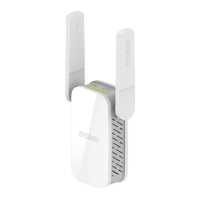
You may set up the DAP-1635 using WI-FI Protected Setup (WPS) (recommended),
the QRS Mobile App, or a web browser.
SETTING UP THE DAP-1635 USING WI-FI PROTECTED SETUP (WPS)
NOTE:
Your source router or AP must feature a WPS button to use WPS.
If the Smart Signal LED has a single amber bar after
the connection process has nished, the DAP-1635 has
established a poor quality connection. To improve the
connection quality, the DAP-1635 should be relocated
to a wall outlet closer to the source wireless router or
AP. The more lit bars on the Signal LED, the better the
wireless signal.
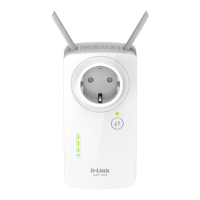
SMART SIGNAL LEDS
OPTIMIZE EXTENDER LOCATION
Step 2
Push the WPS button on your source wireless router
or AP, then push the WPS button on the DAP-1635.
The Status/WPS LED will start flashing green. Allow
up to two minutes for the process to nish. The Status/
WPS LED will turn solid green when the DAP-1635 has
connected successfully.
Step 3
Connect your clients to an extension network created by
the DAP-1635:
2.4 GHz: (Your router’s SSID)-EXT
5 GHz: (Your router’s SSID)-EXT5G
After WPS, the password of extension networks will be
the same as the source wireless network's.
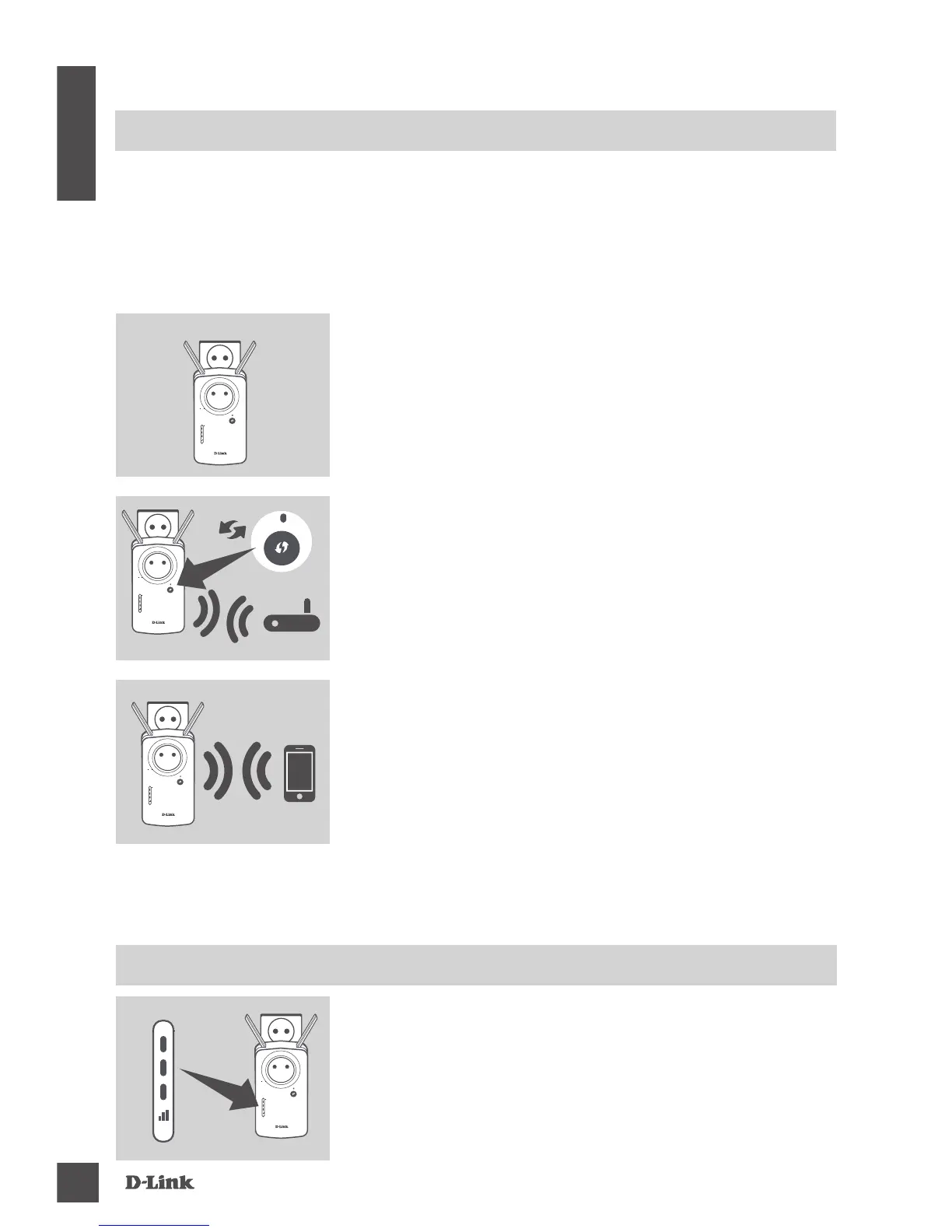
Step 1
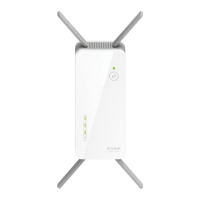
Fully extend the antennas to provide optimal wireless
coverage. Plug the DAP-1635 into a wall outlet, and wait
until the Status/WPS LED is blinking amber.


 To Next Page