Home
D-Link
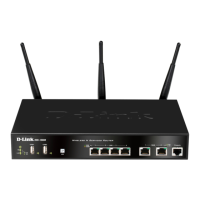
Network Router
DSR-250
Page 73 (Figure 40: the Firewall Rule Configuration Page Allows You to Define the To;From Zone, Service, Action, Schedules, and Specify Source;Destination IP Addresses as Needed)
D-Link DSR-250 - Figure 40: the Firewall Rule Configuration Page Allows You to Define the To;From Zone, Service, Action, Schedules, and Specify Source;Destination IP Addresses as Needed
233 pages
Manual
Save Page as PDF
To Next Page
To Next Page
To Previous Page
To Previous Page
Loading...
Unified Services Rout
er
User Manual
71
F
i
g
u
r
e
40
:
T
h
e
f
i
r
e
w
a
l
l
r
u
l
e
c
o
n
f
i
g
u
r
a
t
i
o
n
p
a
g
e
a
l
l
o
w
s
y
o
u
t
o
d
e
f
i
n
e
t
h
e
T
o
/
F
r
o
m
z
o
n
e
,
s
e
r
v
i
c
e
,
a
c
t
i
o
n
,
s
c
h
e
d
u
l
e
s
,
a
n
d
s
p
e
c
i
f
y
s
o
u
r
c
e
/
d
e
s
t
i
n
a
t
i
o
n
I
P
a
d
d
r
e
s
s
e
s
a
s
n
e
e
d
e
d
.
72
74
Table of Contents
Main Page
Default Chapter
4
Table of Contents
4
Chapter 1. Introduction
12
About this User Manual
13
Typographical Conventions
13
Chapter 2. Configuring Your Network: LAN Setup
15
LAN Configuration
15
Figure 1: Setup Page for LAN TCP/IP Settings
17
LAN Configuration in an Ipv6 Network
18
Figure 2: Ipv6 LAN and Dhcpv6 Configuration
19
Configuring Ipv6 Router Advertisements
21
Figure 3: Configuring the Router Advertisement Daemon
22
VLAN Configuration
23
Figure 4: Ipv6 Advertisement Prefix Settings
23
Associating Vlans to Ports
24
Figure 5: Adding VLAN Memberships to the LAN
24
Figure 6: Port VLAN List
25
Configurable Port: DMZ Setup
26
Figure 7: Configuring VLAN Membership for a Port
26
Universal Plug and Play (Upnp)
27
Figure 8: DMZ Configuration
27
Figure 9: Upnp Configuration
28
Captive Portal
29
Figure 10: Active Runtime Sessions
29
Chapter 3. Connecting to the Internet: WAN Setup
30
Internet Setup Wizard
30
Figure 11: Internet Connection Setup Wizard
30
WAN Configuration
31
WAN Port IP Address
32
WAN DNS Servers
32
Dhcp Wan
32
Pppoe
33
Figure 12: Manual WAN Configuration
33
Figure 13: Pppoe Configuration for Standard Isps
34
Figure 14: WAN Configuration for Japanese Multiple Pppoe (Part 1)
35
Russia L2TP and PPTP WAN
36
Figure 15: WAN Configuration for Multiple Pppoe (Part 2)
36
WAN Configuration in an Ipv6 Network
37
Figure 16: Russia L2TP ISP Configuration
37
Figure 17: Ipv6 WAN Setup Page
38
Checking WAN Status
39
Bandwidth Controls
40
Figure 18: Connection Status Information for both WAN Ports
40
Figure 19: List of Configured Bandwidth Profiles
41
Figure 20: Bandwidth Profile Configuration Page
42
Features with Multiple WAN Links
43
Auto Failover
43
Figure 21: Traffic Selector Configuration
43
Load Balancing
44
Protocol Bindings
45
Figure 22: Load Balancing Is Available When Multiple WAN Ports Are Configured and Protocol Bindings Have Been Defined
45
Routing Configuration
46
Routing Mode
46
Figure 23: Protocol Binding Setup to Associate a Service And/Or LAN Source to a WAN And/Or Destination Network
46
Figure 24: Routing Mode Is Used to Configure Traffic Routing between WAN and LAN, as Well as Dynamic Routing (RIP)
48
Dynamic Routing (RIP)
49
Static Routing
50
Configurable Port - WAN Option
51
WAN 3 (3G) Configuration
51
Figure 25: Static Route Configuration Fields
51
WAN Port Settings
53
Figure 26: WAN3 Configuration for 3G Internet
53
Figure 27: Physical WAN Port Settings
54
Chapter 4. Wireless Access Point Setup
55
Wireless Settings Wizard
55
Wireless Network Setup Wizard
56
Add Wireless Device with WPS
56
Figure 28: Wireless Network Setup Wizards
56
Manual Wireless Network Setup
57
Wireless Profiles
57
WEP Security
58
Figure 29: List of Available Profiles Shows the Options Available to Secure the Wireless Link
58
WPA or WPA2 with PSK
59
Figure 30: Profile Configuration to Set Network Security
59
RADIUS Authentication
60
Creating and Using Access Points
61
Figure 31: RADIUS Server (External Authentication) Configuration
61
Figure 32: Virtual AP Configuration
62
Primary Benefits of Virtual Aps
63
Figure 33: List of Configured Access Points (Virtual Aps) Shows One Enabled Access Point on the Radio, Broadcasting Its SSID
63
Tuning Radio Specific Settings
64
Figure 34: Radio Card Configuration Options
64
Advanced Wireless Settings
65
Wi-Fi Protected Setup (WPS)
65
Figure 35: Advanced Wireless Communication Settings
65
Figure 36: WPS Configuration for an AP with WPA/WPA2 Profile
66
Chapter 5. Securing the Private Network
67
Firewall Rules
67
Defining Rule Schedules
68
Figure 37: List of Available Firewall Rules
68
Configuring Firewall Rules
69
Figure 38: List of Available Schedules to Bind to a Firewall Rule
69
Figure 39: Example Where an Outbound SNAT Rule Is Used to Map an External IP Address (209.156.200.225) to a Private DMZ IP Address (10.30.30.30)
72
Figure 40: the Firewall Rule Configuration Page Allows You to Define the To/From Zone, Service, Action, Schedules, and Specify Source/Destination IP Addresses as Needed
73
Firewall Rule Configuration Examples
74
Figure 41: Schedule Configuration for the above Example
77
Security on Custom Services
78
ALG Support
79
Figure 42: List of User Defined Services
79
VPN Passthrough for Firewall
80
Figure 43: Available ALG Support on the Router
80
Application Rules
81
Figure 44: Passthrough Options for VPN Tunnels
81
Web Content Filtering
82
Content Filtering
82
Figure 45: List of Available Application Rules Showing 4 Unique Rules
82
Approved Urls
83
Figure 46: Content Filtering Used to Block Access to Proxy Servers and Prevent Activex Controls from Being Downloaded
83
Blocked Keywords
84
Figure 47: Two Trusted Domains Added to the Approved Urls List
84
Export Web Filter
85
Figure 48: One Keyword Added to the Block List
85
IP/MAC Binding
86
Figure 49: Export Approved URL List
86
Intrusion Prevention (IPS)
87
DSR. if There Is an IP/MAC Binding Violation, the Violating Packet will be Dropped and Logs will be Captured
87
Protecting from Internet Attacks
88
Figure 51: Intrusion Prevention Features on the Router
88
Figure 52: Protecting the Router and LAN from Internet Attacks
89
Chapter 6. Ipsec / PPTP / L2TP VPN
90
Figure 53: Example of Gateway-To-Gateway Ipsec VPN Tunnel Using Two DSR Routers Connected to the Internet
90
Figure 54: Example of Three Ipsec Client Connections to the Internal Network through the DSR Ipsec Gateway
91
Figure 55: VPN Wizard Launch Screen
92
VPN Wizard
92
Configuring Ipsec Policies
94
Figure 56: Ipsec Policy Configuration
95
Figure 57: Ipsec Policy Configuration Continued (Auto Policy Via IKE)
96
Extended Authentication (XAUTH)
97
Figure 58: Ipsec Policy Configuration Continued (Auto / Manual Phase 2)
97
Internet over Ipsec Tunnel
97
Configuring VPN Clients
98
PPTP / L2TP Tunnels
98
PPTP Tunnel Support
98
Figure 59: PPTP Tunnel Configuration - PPTP Client
99
Figure 60: PPTP VPN Connection Status
99
Figure 61: PPTP Tunnel Configuration - PPTP Server
100
L2TP Tunnel Support
100
Figure 62: L2TP Tunnel Configuration - L2TP Server
101
Openvpn Support
101
Figure 63: Openvpn Configuration
102
Chapter 7. SSL VPN
103
Figure 64: Example of Clientless SSL VPN Connections to the DSR
104
Groups and Users
105
Figure 65: List of Groups
105
Figure 66: User Group Configuration
106
Figure 67: SSLVPN Settings
107
Figure 68: Group Login Policies Options
108
Figure 69: Browser Policies Options
109
Figure 70: IP Policies Options
110
Users and Passwords
111
Figure 71: Available Users with Login Status and Associated Group
111
Using SSL VPN Policies
112
Figure 72: User Configuration Options
112
Figure 73: List of SSL VPN Polices (Global Filter)
113
Figure 74: SSL VPN Policy Configuration
114
Using Network Resources
115
Application Port Forwarding
116
Figure 75: List of Configured Resources, Which Are Available to Assign to SSL VPN Policies
116
SSL VPN Client Configuration
118
Figure 76: List of Available Applications for SSL Port Forwarding
118
Figure 77: SSL VPN Client Adapter and Access Configuration
119
User Portal
120
Figure 78: Configured Client Routes Only Apply in Split Tunnel Mode
120
Creating Portal Layouts
121
Figure 79: List of Configured SSL VPN Portals. the Configured Portal Can then be Associated with an Authentication Domain
121
Figure 80: SSL VPN Portal Configuration
122
Chapter 8. Advanced Configuration Tools
123
USB Device Setup
123
SMS Service
124
Figure 81: USB Device Detection
124
Figure 82: SMS Service - Send SMS
125
Authentication Certificates
126
Figure 83: SMS Service - Receive SMS
126
Figure 84: Certificate Summary for Ipsec and HTTPS Management
127
Advanced Switch Configuration
128
Figure 85: Advanced Switch Settings
128
Chapter 9. Administration & Management
129
Configuration Access Control
129
Remote Management
129
Figure 86: User Login Policy Configuration
129
CLI Access
130
SNMP Configuration
130
Figure 87: Remote Management from the WAN
130
Figure 88: SNMP Users, Traps, and Access Control
131
Configuring Time Zone and NTP
132
Figure 89: SNMP System Information for this Router
132
Log Configuration
133
Defining What to Log
133
Figure 90: Date, Time, and NTP Server Setup
133
Figure 91: Facility Settings for Logging
135
Sending Logs to E-Mail or Syslog
137
Figure 92: Log Configuration Options for Traffic through Router
137
Figure 93: E-Mail Configuration as a Remote Logging Option
138
Event Log Viewer in GUI
139
Figure 94: Syslog Server Configuration for Remote Logging (Continued)
139
Backing up and Restoring Configuration Settings
140
Figure 95: VPN Logs Displayed in GUI Event Viewer
140
Upgrading Router Firmware
141
Figure 96: Restoring Configuration from a Saved File will Result in the Current Configuration Being Overwritten and a Reboot
141
Dynamic DNS Setup
142
Figure 97: Firmware Version Information and Upgrade Option
142
Using Diagnostic Tools
143
Figure 98: Dynamic DNS Configuration
143
Ping
144
Trace Route
144
Figure 99: Router Diagnostics Tools Available in the GUI
144
DNS Lookup
145
Router Options
145
Figure 100: Sample Trace Route Output
145
Chapter 10. Router Status and Statistics
146
System Overview
146
Device Status
146
Figure 101: Device Status Display
147
Resource Utilization
148
Figure 102: Device Status Display (Continued)
148
Figure 103: Resource Utilization Statistics
149
Figure 104: Resource Utilization Data (Continued)
150
Traffic Statistics
151
Wired Port Statistics
151
Figure 105: Resource Utilization Data (Continued)
151
Wireless Statistics
152
Figure 106: Physical Port Statistics
152
Active Connections
153
Sessions through the Router
153
Figure 107: AP Specific Statistics
153
Figure 108: List of Current Active Firewall Sessions
154
Wireless Clients
155
LAN Clients
155
Figure 109: List of Connected 802.11 Clients Per AP
155
Active VPN Tunnels
156
Figure 110: List of LAN Hosts
156
Figure 111: List of Current Active VPN Sessions
157
Chapter 11. Trouble Shooting
158
Internet Connection
158
Date and Time
160
Pinging to Test LAN Connectivity
160
Testing the LAN Path from Your PC to Your Router
160
Testing the LAN Path from Your PC to a Remote Device
161
Restoring Factory-Default Configuration Settings
162
Chapter 12. Credits
163
Appendix A. Glossary
164
Appendix B. Factory Default Settings
167
Appendix C. Standard Services Available for Port Forwarding & Firewall Configuration
168
Appendix D. Log Output Reference
169
Appendix E. RJ-45 Pin-Outs
223
Appendix F. Product Statement
224
Other manuals for D-Link DSR-250
Quick Installation Guide
32 pages
Cli Reference Guide
83 pages
Related product manuals
D-Link DSR-250N
280 pages
D-Link DSR-250V2
8 pages
D-Link DSR-500
213 pages
D-Link DSR-150
378 pages
D-Link DSR-1000
378 pages
D-Link DSR-500N
326 pages
D-Link DSR-1000N
326 pages
D-Link DSL-124
176 pages
D-Link DSS-24+
16 pages
D-Link DSL-224
73 pages
D-Link DSL-3788
126 pages
D-Link DSL-604+
67 pages


 To Next Page