5 Operation
Operation manual
12
FTXTM30+40R2V1B
Daikin room air conditioner
3P485919-14U – 2021.03
5.11.1 Precautions when using the wireless LAN
Do NOT use near:
▪ Medical equipment. E.g. persons using cardiac pacemakers or
defibrillators. This product may cause electromagnetic
interference.
▪ Auto-control equipment. E.g. automatic doors or fire alarm
equipment. This product may cause faulty behaviour of the
equipment.
▪ Microwave oven. It may affect wireless LAN communications.
5.11.2 To install the Daikin Residential Controller
application
1 Open:
▪ Google Play for appliances using Android.
▪ App Store for appliances using iOS.
2 Search for Daikin Residential Controller.
3 Follow the directions on the screen to install.
5.11.3 To set the wireless connection
There are two options to connect the wireless adapter with your
smart device.
▪ Connect the wireless LAN to your smart device directly.
▪ Connect the wireless LAN to your home network. The wireless
LAN will communicate with your smart device in your home
network using a modem, router or a similar device.
For more information and FAQ refer to app.daikineurope.com.
1 Stop operation before setting the wireless connection.
2 Use the user interface to select the wireless LAN setting menu.
Note: Always aim the user interface at the signal receiver on the
unit when operating the user interface.
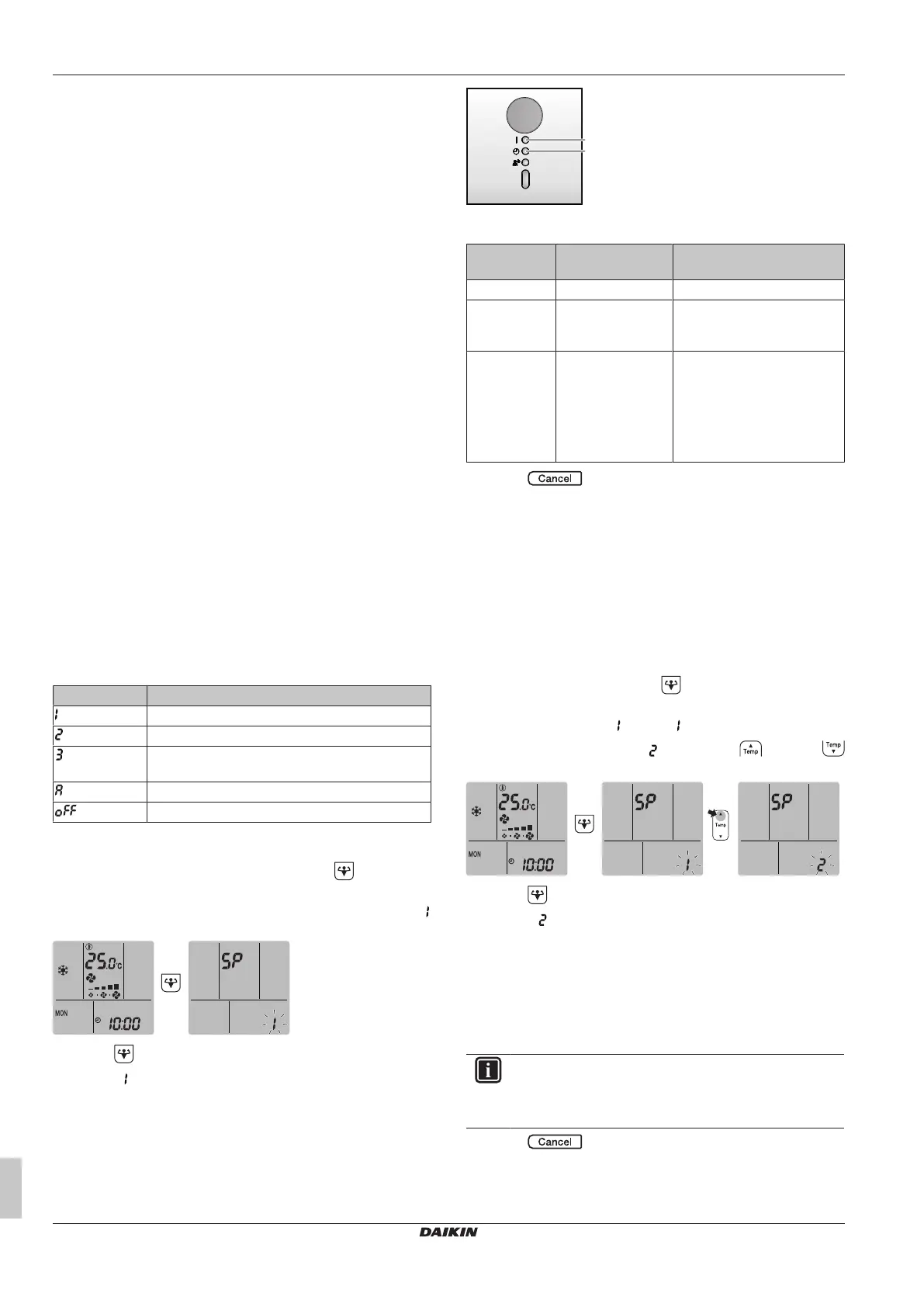
Menu Description
Connection status check
WPS connection setting
AP mode/RUN mode (SSID + KEY) connection
setting
Reset to factory default
Wireless LAN OFF
To confirm the wireless LAN connection status
1 On home screen menu, press and hold for at least
5seconds while the unit is not operating.
Result: The SP (wireless connection setting menu) appears.
is blinking.
2 Press to confirm the selection.
Result: is blinking.
3 Check the operation and timer LEDs on the indoor unit display.
a Operation LED
b Timer LED
If operation
LED…
…and timer LED… …then wireless LAN is…
blinks blinks not connected
is off blinks in 0.5second
interval
running and ready to connect
to the home network via WPS
button on the router.
is off blinks in 1second
interval
▪ connected to the home
network via SSID + KEY.
or
▪ connected to the home
network via WPS button on
the router.
4 Press to exit the menu.
Result: The display will return to the default screen.
To connect the wireless LAN to your home
network
The wireless adapter can be connected to your home network using
the:
▪ WPS button on the router (if present),
▪ SSID and KEY number located on the unit.
To connect using the WPS button
1 On home screen menu, hold for at least 5 seconds while
the unit is not operating.
Result: The SP menu appears. is blinking.
2 Change to the SP menu by pressing once or
repeatedly.
3 Press to confirm the selection.
Result: is blinking. The timer LED is blinking in 0.5s interval
and the operation LED is off.
4 Press the WPS button on your communication device (e.g.
router) within approximately 1 minute. Refer to the manual of
your communication device.
Result: If the connection to your communication device is
successful, the timer LED is blinking in 1.0 s interval and the
operation LED is off.
INFORMATION
If the connection with your router is not possible, try
procedure "To connect using SSID and KEY
number"[413].
5 Press to exit the menu.
Result: The display will return to the default screen.


 To Next Page