DMP-8000 Content Standards Quick Guide
DD3002238
Rev 05
09 June 2020
201 Daktronics Drive
Brookings, SD 57006-5128
www.daktronics.com/support
800.325.8766
Page 1 of 8
Various video-editing software tools are used to create dynamic video content to play on the DMP-8000 player.
This quick guide gives the recommended software settings to create optimal video content for displays in three
different size categories.
• Small displays - up to approximately 350K pixels
• Medium displays - approximately 350K - 2.5M pixels
• Large displays - more than 2.5M pixels (or any display wider than 3840 pixels)
These display size categories are approximate. Depending on the system requirements, it may be benecial to
choose one size over another.
Note: For display sizes that are not divisible by 2 (either width or height), increase this number by one when
creating content.
Content Creation with Adobe
®
Media Encoder (Small or Medium Displays)
Standard video editing programs such as Adobe
®
After Effects
®
or Adobe
®
Premiere
®
Pro are used to edit video
clips, composite video, or add special effects. After editing the video with one of these programs, route the
content through a secondary program to convert it into its nal delivery format. For small or medium display
content, use the Adobe
®
Media Encoder (AME) with a congured Preset.
Display Size/Type Recommended Output File Type AME Preset
Small - no alpha MOV using the Animation codec (RBG: 8 bits per channel) 1
Small - alpha MOV using the Animation codec with alpha (RGB+A: 8 bits per channel plus alpha) 2*
Medium - no alpha MP4 using H264 compression 3
Medium - alpha MOV using the Animation codec with alpha (RGB+A: 8 bits per channel plus alpha) 2*
* These use the same MOV RGB+alpha Preset.
Adobe
®
Media Encoder
For small and medium displays, route the nished, edited video content through the Adobe
®
Media Encoder
(AME).
If working with the Adobe
®
After Effects program, follow these steps:
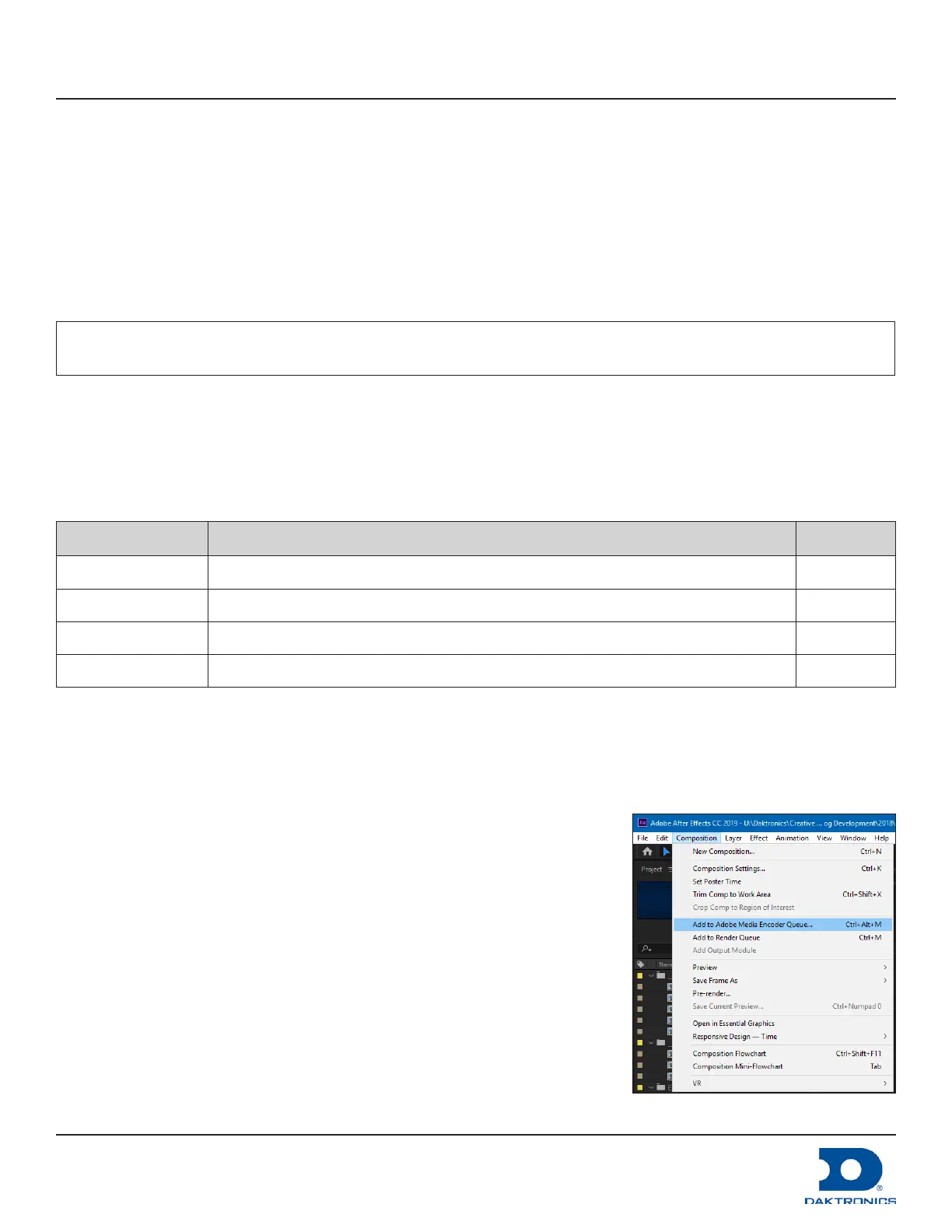
1. Go to Composition > Add to Adobe Media Encoder Queue. Refer to
Figure 1. The Adobe
®
Media Encoder program opens automatically.
2. Create a Preset (during initial setup only) or use a pre-congured Preset
(after initial setup). Refer to Create a Preset (p.2) or Use a Preset
(p.4).
Figure 1: Adobe
®
After Effects to AME



 To Next Page