DMP-8000 Content Standards Quick Guide
DD3002238
Rev 05
09 June 2020
201 Daktronics Drive
Brookings, SD 57006-5128
www.daktronics.com/support
800.325.8766
Page 4 of 8
Use a Preset
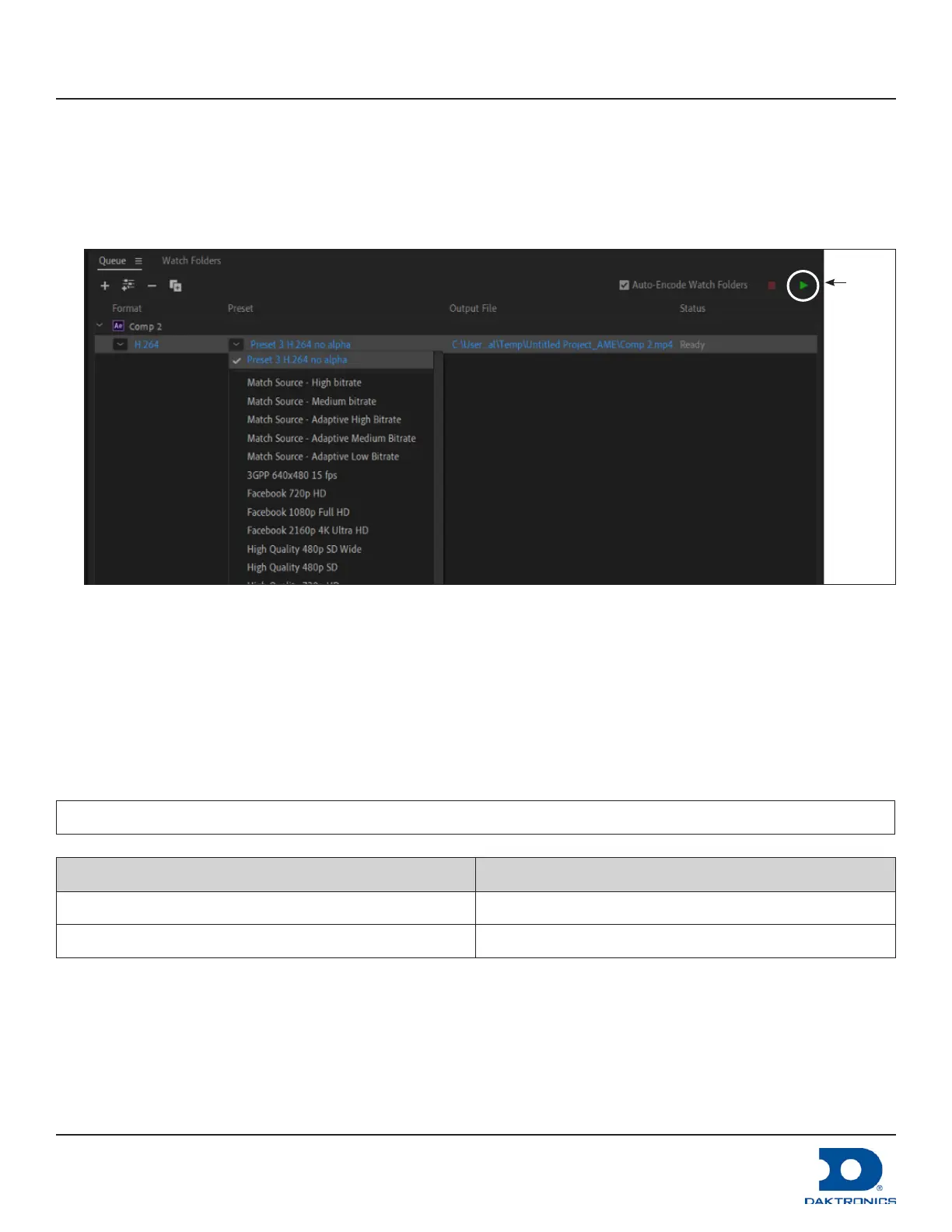
After a Preset is created, use it to encode the queued content. Refer to Figure 5.
1. Select a congured Preset from the le’s Preset drop-down list. Move up or down as necessary.
2. Click the green Play button to start encoding the le. The le is saved in the location shown in the Output
File section.
Play
button
Figure 5: Encoding with a Preset
Content Creation with FFMPEG (Large Displays)
If the display size exceeds a width of 3840, or if it exceeds a height of 1080, save content les as uncompressed
AVI les or MOV les with the Animation codec (RLE encoding) or in another lossless format. Route the edited
video content through the Daktronics FFMPEG Converter version 3.3 (or newer) to convert the le to a nal
HAP-encoded format.
The le compression of 4:1 means that the les may be large depending on the content. This requires more
drive bandwidth and may require a RAID drive; however, this does not require any CPU load for decoding.
Note: Some patterns can make the codec output an incorrect image but this is unusual.
Display Type Recommended Output File Type
Large display - no alpha MOV using the HAP codec
Large display - alpha MOV using the HAP codec with alpha



 To Next Page