
 Need help?
Do you have a question about the Datalogic BC9XX0-BT and is the answer not in the manual?
Explains the meaning of LED indicators on the BC9XXO-BT base station.
Details cradle package contents, bracket types, and mounting methods for desktop or wall.
Step-by-step guide for switching between desktop and wall mounting brackets.
Covers permanent screw mounting and portable mounting using a metal plate.
Instructions for securing the metal plate to the base station itself.
Guides on connecting and disconnecting the interface cable to the cradle.
Illustrates RS232, USB, and Keyboard Wedge interface connection setups.
Explains using Aladdin software, serial strings, or bar codes for configuration.
Details restoring standard factory settings via bar code scanning.
Instructions for scanning bar codes to set the correct interface type.
Shows bar codes for different RS232 interface configurations.
Lists bar codes for various USB interface configurations.
Shows bar codes for selecting keyboard wedge interface types.
Sets the country/language for keyboard interfaces.
Configures character data format for keyboard wedge interfaces.
Sets Numlock key behavior for alternate key encoding interfaces.
Details electrical specs (voltage, power) and Bluetooth protocols/frequency.
Covers temperature, humidity, protection class, weight, and dimensions.
Outlines warranty coverage, duration, claims process, and exclusions.
Covers warranty assignment, transfer, and risk of loss during transit.
Provides recommendations to minimize the risk of ergonomic injury during use.
Guides on accessing downloads, repair programs, and technical support online.
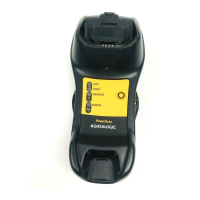
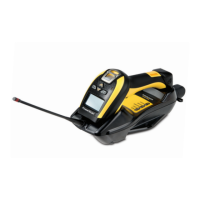
The Datalogic BC9XX0-BT Base Station/Charger is a crucial component of a Cordless Reading System, designed to facilitate the collection, decoding, and transmission of bar code data. When paired with one or more PowerScan™ BT9X00 readers, it creates a robust system for various data capture applications. This base station offers versatile connectivity options, allowing it to be connected to a Host PC via RS232, USB, or KBD Wedge interfaces, making it suitable for a wide range of environments and system configurations.
At its core, the BC9XX0-BT acts as a central hub for PowerScan™ BT9X00 readers. It enables the wireless communication between the reader and a host system, ensuring efficient data transfer. Beyond data transmission, the base station also serves as a charger for the reader's battery. Specifically, the BC91X0 models include an additional slot for charging a spare battery, enhancing operational continuity.
The base station features LED indicators and a multi-function button on its label, providing immediate visual feedback on its status and offering interactive functionalities.
The BC9XX0-BT is designed for flexible installation and ease of use. It can be mounted in several ways to suit different operational needs:
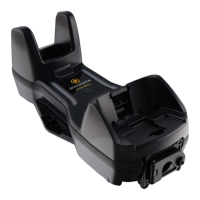
Mounting: The cradle comes with two distinct mounting brackets: a Desktop Mounting Bracket (pre-installed for horizontal use) and a Wall Mounting Bracket (for vertical installation). This adaptability allows the base station to be placed on a flat surface for desktop use or affixed vertically to a wall, optimizing space and accessibility. For permanent installations, the cradle can be directly fastened to a flat surface using screws. When mounting on drywall, it's recommended to screw the base to a wall stud or supporting beam for added support. For portable use, a metal plate can be affixed to a mounting surface, allowing the cradle to be slid on and off, or the metal plate can be attached to the back of the base station, and then both can be screwed to the desired surface. For enhanced security during wall mounting, auxiliary screws can be used through the side mounting holes.
System Connections: The base station provides a multi-interface connector and a power supply connector. Connections should always be made with the power off to ensure safety. The BC9XX0-BT connects to a Host PC via a multi-interface cable, which simply plugs into the Host connector on the front panel. Disconnecting the cable requires inserting a paper clip or similar object into a specific hole on the cradle's body, pushing down on the clip while unplugging the cable. The manual illustrates connections for RS232, USB, and KBD Wedge interfaces. For USB connections, an external power supply is optional, as the cradle can be powered by the USB port. However, for intense usage or overnight charging when the system is shut down, an external power supply is recommended to ensure full battery charging within a reasonable timeframe (approximately 10 hours for an empty battery via USB, compared to 4 hours with an external power supply for a 2150 mAh Li-Ion battery).
Configuration: The BC9XX0-BT can be configured in three primary ways:
LED Indicators: The base station's LEDs provide clear status indications:
Multi-function Button:
The manual emphasizes the importance of proper configuration and provides tools to manage device settings:
Resetting Standard Product Defaults: If programming options are unclear or changes need to be reverted, scanning the "Standard Product Default Settings" bar code will restore factory configurations for the currently active interface. It's crucial to configure the reader for the correct interface before scanning this label, as factory defaults are interface-type dependent. A caution is provided that scanning this bar code will reset all settings for the PowerScan™ BT9X00, potentially losing customized settings.
Interface Selection and Configuration: The manual guides users through selecting and configuring the appropriate interface type (RS232, USB, Keyboard Wedge) using dedicated bar codes. It highlights that interface selections require scanning only one programming bar code label, without preceding ENTER/EXIT bar codes. Some interfaces may require the scanner to start in a disabled state; in such cases, holding the trigger for 5 seconds will enable programming with bar codes.
Country Mode, Caps Lock State, and Numlock: These options allow fine-tuning the keyboard interface behavior to match specific regional layouts and user preferences. Country mode specifies the country/language supported by the keyboard. Caps Lock State determines how the reader sends character data for keyboard wedge interfaces (Caps Lock OFF, ON, or AUTO Caps Lock Enable). Numlock specifies the setting of the Numbers Lock key for alternate key encoding keyboard wedge interfaces (unchanged or toggled). These settings do not apply to USB keyboards.
Support Through the Website: Datalogic provides comprehensive support through its website (www.datalogic.com). Users can access data sheets, manuals, software & utilities, drawings, information on the Repair Program (for On-Line Return Material Authorizations and Repair Center contact), Service Program details (Maintenance Agreements), and Technical Support via email or phone.
Ergonomic Recommendations: The manual includes ergonomic recommendations to minimize the risk of injury, such as reducing repetitive motion, maintaining natural positions, reducing excessive force, keeping frequently used objects within reach, performing tasks at correct heights, reducing vibration, eliminating direct pressure, providing adjustable workstations, ensuring adequate clearance, providing a suitable working environment, and improving work procedures. These recommendations are crucial for promoting a safe and healthy work environment.
 General
| Category | Accessories |
|---|---|
| Connectivity Technology | Bluetooth |
| Battery Life | Not applicable |
| Scanning Technology | Not applicable |
| Scanning Distance | Not applicable |


 To Next Page