18
PX301
RECORD MENU
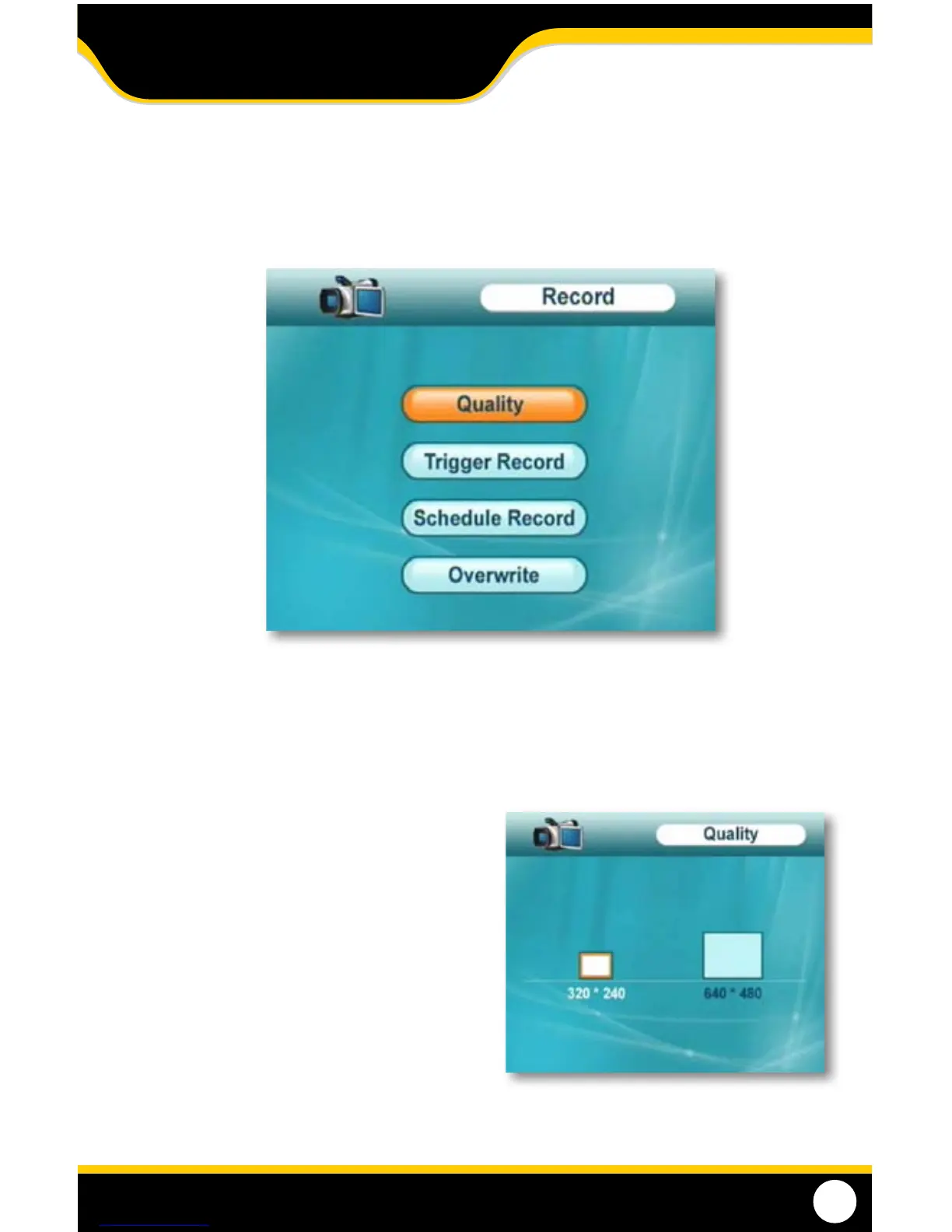
The record menu allows you to adjust the quality of your recorded footage, adjust the recording time when motion
is detected, set and adjust a daily schedule, and turn on/o the overwrite functions.
Record Menu
To adjust quality:
1. Press the menu button to open the main menu.
2. Use the joystick to scroll to the “Record” icon and
press OK.
3. Use the joystick to scroll to “Quality” and press OK.
4. Use the joystick to highlight the quality you
would like.
5. Once the quality you would like is highlighted, press
OK. This will exit the quality adjustment menu and
save your settings.
6. To exit the menu, press the menu button.
QUALITY
You can adjust the quality of your recorded footage to be low quality (320x240) or high quality (640 x 480).
Recording when set to low quality uses less space on your SD card, where recording with high quality uses
more space.
Quality Adjust
MAIN MENU



 To Next Page