EasyManua.ls Logo

Defender SN301-8CH - User Manual

Defender SN301-8CH
93 pages
Print Icon
To Next Page IconTo Next Page
Loading...
SN301-8CH
1
INSTRUCTION MANUAL V1.2
Model#: SN301-8CHwww.defender-usa.com
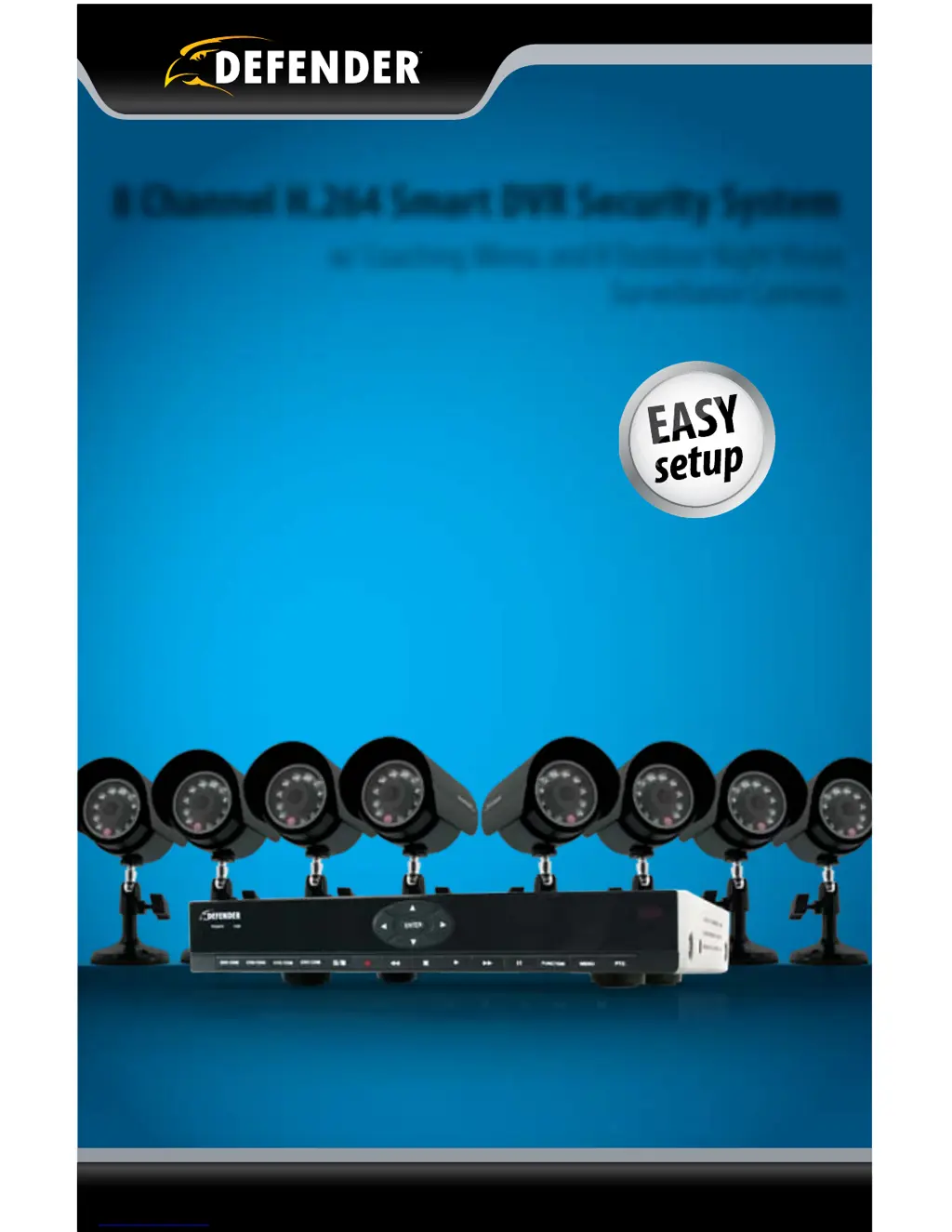
8 Channel H.264 Smart DVR Security System
w/ Coaching iMenu and 8 Outdoor Night Vision
Surveillance Cameras

Table of Contents

Questions and Answers

  • E
    Erica RomeroAug 19, 2025
    What to do if I cannot see all cameras on my Defender Security System?
    • A
      Aaron JimenezAug 20, 2025
      First, verify that all cameras are correctly connected to both the DVR and a power source. If you're using a 4-to-1 power connector, ensure it's properly plugged into a power source and each camera. Also, check the Camera Setup in the main menu of your Defender Security System to confirm that none of the cameras have been turned off.
  • P
    Peter BarberAug 22, 2025
    Why is my Defender Security System hard drive filling up so quickly?
    • J
      John SnyderAug 22, 2025
      If you're recording at a high video quality, the hard drive will fill up more quickly. Try lowering the video quality in the settings. Also, examine your recording schedule and resolution; a 24-hour 'Normal Record' setting will cause the hard drive to fill up faster. Adjust your schedule or resolution to optimize storage usage.
  • D
    Donald BarkerAug 25, 2025
    What to do if my remote control is not working for Defender Security System?
    • T
      Teresa CastilloAug 25, 2025
      First, ensure that the batteries are correctly installed in the remote. Second, make sure you are pointing the remote directly at the IR sensor on the Defender Security System.
  • Y
    ywallaceAug 26, 2025
    Why does my Defender SN301-8CH Security System DVR keep beeping?
    • B
      blanchardstephanieAug 27, 2025
      The beeping from your Defender Security System DVR could indicate several issues: video loss, HDD loss, motion detection, or insufficient HDD space. Check your connections to ensure they are secure. Keep the DVR in a safe, stable location to prevent tampering or accidental movement.
  • S
    Shari CoxAug 28, 2025
    What to do if playback video is choppy on Defender Security System?
    • S
      shelbyrobertsAug 28, 2025
      If the FPS (frames per second) is set too low, the video may appear choppy. Check the FPS settings for each camera recording the choppy video and adjust accordingly.
  • A
    amyberryAug 30, 2025
    What to do if I have lost video footage on Defender SN301-8CH Security System?
    • E
      Eric BlackAug 30, 2025
      Lost video footage could be due to tampering with the cameras. Ensure all connections are secure and properly set. Another potential cause is having HDD overwrite enabled. Try unplugging the power to the cameras and/or DVR, then plugging it back in.
  • N
    Norma JoyceSep 1, 2025
    What to do if my Defender SN301-8CH Security System DVR will not acquire an IP address?
    • M
      mitchell37Sep 1, 2025
      Check the Ethernet connections to ensure the connection lights are on, both on the router and the back of the DVR. Also, try using a different Ethernet cable and/or a different port on your router.
  • K
    klarsonSep 3, 2025
    Why is there a beeping noise when motion is detected on Defender SN301-8CH?
    • A
      Ashley MartinezSep 3, 2025
      To stop the beeping, go to the alarm setup menu and turn off the buzzer function in your Defender Security System settings.
  • C
    coreyrossSep 6, 2025
    What to do if the schedule is not recording properly to my set times on Defender SN301-8CH Security System?
    • C
      Christopher VanceSep 6, 2025
      First, check to see if you have the proper time set on your DVR. Second, double check your schedule record times – you may have it set on the no record function. Finally, remember that the DVR works on a 24 hour clock.
  • A
    Aaron LoveSep 8, 2025
    What to do if I cannot power off my Defender SN301-8CH DVR?
    • S
      Suzanne MurraySep 8, 2025
      To power off the DVR, disconnect the power cable.

Summary

Product Warranty Information

Comprehensive System Features

Remote Viewing and Connectivity

Explains how to view video footage remotely via computers and smartphones.

Basic Setup and Installation Procedures

Camera Wiring and Power Connections

Details the process of connecting cameras to the power supply and DVR.

Main Menu: Configuration and Settings

Camera Setup and Display Options

Configure camera names, positions, colors, and live view status.

Recording Setup and Scheduling

Configure recording quality, audio, file size, and custom record schedules.

Network Configuration and Online Access

Set up IP address, ports, and DNS for online DVR access.

Playback, File Lists, and Device Management

Search footage, view file lists, back up clips, and manage devices.

System Settings and Maintenance

Adjust date, time, video settings, security, and system maintenance.

Playback and Video Review Operations

Searching and Playing Recorded Footage

Search for recorded footage and play it back directly on the DVR.

Network Configuration for Remote Access

Finding IP Address and Computer Preparation

Locate the DVR's IP address and prepare the computer for viewing.

Port Forwarding and Testing Procedures

Configure port forwarding for remote access and test the connection.

Online Viewing Software Operation

Live View and Camera Controls

Access live video feeds and control cameras via the online software interface.

Mobile Viewing Setup and Compatibility

DVR Troubleshooting Guide

Common DVR Operational Problems

Addresses issues like camera sequencing, recording failures, and picture quality.

DVR Technical Specifications

Installation and Wiring Guide

Camera Specifications and Troubleshooting

Defender SN301-8CH Specifications

General IconGeneral
Channels8
Video Resolution1080p
Storage TypeHDD
ConnectivityEthernet
Power Supply12V DC
Video InputBNC
Video OutputHDMI, VGA
Recording Resolution1080p
Hard Drive CapacityUp to 6TB
CompressionH.264
Mobile AccessYes

Related product manuals