SN301-8CH
26
File List
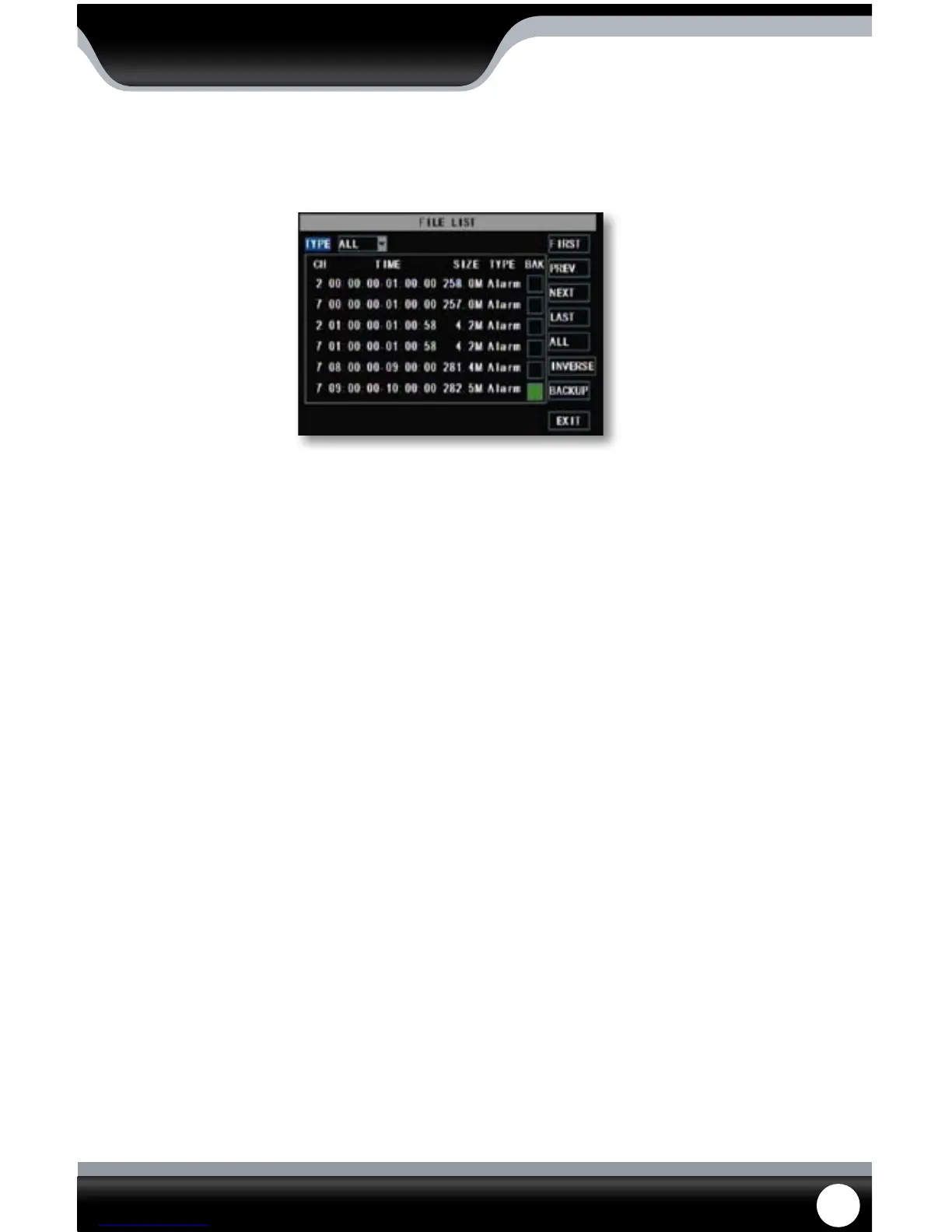
This DVR allows you to view the le list for each day that you have recorded footage. The le list allows you to see
what the type of recording was (normal, motion detection), the date and time the footage was recorded, the size of
the footage, as well as gives you an option to backup particular recorded events.
To access the le from the video search menu:
1. Pick a channel you would like to view footage from, then access the search option and select the date input area.
A keyboard will appear to input the date you would like to see the footage from.
2. Once the proper date has been entered, highlight and select “search” to open up the available times for that date.
The days and times that have recorded footage stored on them are highlighted red or green. Make sure that there
are days that have recorded footage on them.
3. Select the Date you wish to view the le list from.
4. Select the le list button and a separate screen will appear. This screen will have a list of all the recordings from
that day.
5. If you would like to lter out the types of recordings on this list, select what type of recording you would like to
see from the drop down menu next to the word “TYPE”. You can view only alarm (motion) recordings, only normal
recordings or all recordings.
6. The list displays the following information (from left to right).
• CH: The channel with recorded footage
• Time: The time range that the footage was recorded
• Size: The size of the le – the larger the le the longer the video clip
• Type: The type of footage that was recorded (Alarm or Normal)
• BAK: Allows you select video clips to backup onto a USB device
7. The buttons along the side of the list, when highlighted and selected do the following:
• First: Brings you the beginning of the list (oldest footage rst)
• Prev: Brings you back a page if not already on the rst page
• Next: Brings you forward a page
• Last: Brings you to the last page of recorded footage (most recent footage is last)
• All: Selects all footage on the page to be backed up
• Reverse: Inverses the selected and non-selected footage for backup
• Backup: Prompts back up of the selected video clips
• Exit: Exits the le list
File List Menu
MAIN MENU



 To Next Page