EasyManua.ls Logo

Defender PX301 - User Manual

Defender PX301
34 pages
Print Icon
To Next Page IconTo Next Page
Loading...
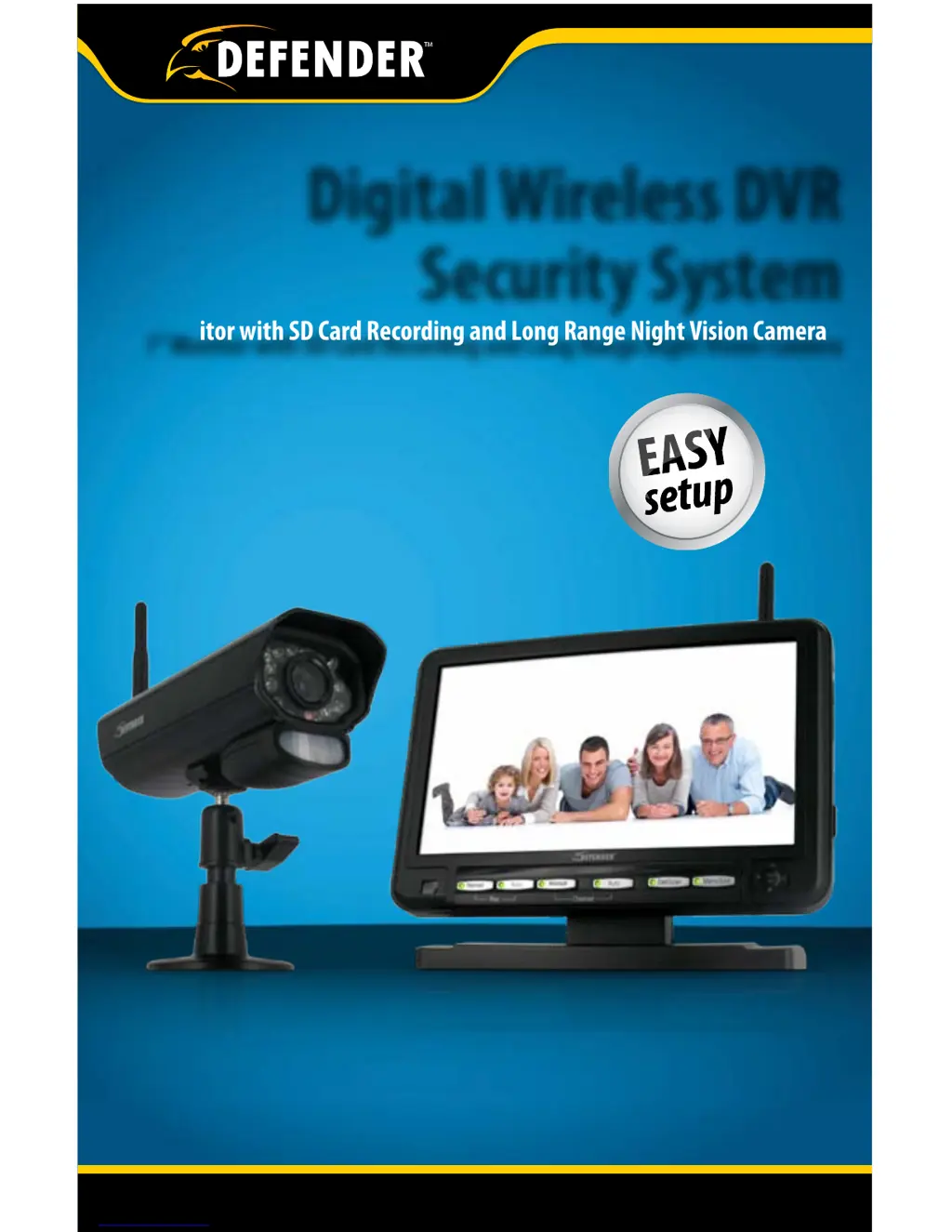
INSTRUCTION MANUAL V1.0
Model#: px301 www.defender-usa.com
7” Monitor with SD Card Recording and Long Range Night Vision Camera
Digital Wireless DVR
Security System

Questions and Answers

  • R
    Richard MunozSep 10, 2025
    What to do if I have no picture or signal on my Defender Security System?
    • M
      Melissa ZunigaSep 10, 2025
      If you are experiencing no picture or signal on your Defender Security System, ensure all connections are secure and properly connected. Verify that your receiver is plugged into a power source using the 9VDC input on the back. Make sure there are no obstructions blocking the camera's view. If problems persist, try re-pairing the camera and receiver.
  • M
    Megan StephensAug 22, 2025
    How to fix a 'No Picture/Signal' issue on my Defender PX301?
    • R
      Raven RosalesAug 23, 2025
      If you are experiencing a 'No Picture/Signal' issue with your Defender Security System, ensure all connections are secure and properly connected. Verify that your monitor is plugged into a power source using the 9VDC input on the back. Also, check for any obstructions blocking the camera's view and try re-pairing the camera and monitor.
  • M
    Matthew MahoneyAug 25, 2025
    Why my Defender PX301 Security System devices are not pairing?
    • J
      James SmithAug 25, 2025
      If your Defender Security System devices are not pairing, make sure the camera and monitor are within 100ft of each other. Try moving the devices closer, as walls or other obstructions can interfere with the signal. Also, ensure that both devices are connected to a proper power source.
  • C
    cynthia36Aug 26, 2025
    What to do if my Defender PX301 remote is not working?
    • D
      Denise JonesAug 26, 2025
      If the Defender Security System remote is not working, first ensure that the remote control has batteries inserted and that they are not dead. Then, try plugging in the IR sensor. Finally, try using the remote control closer to the monitor.
  • W
    warnerbrittanyAug 28, 2025
    How to troubleshoot 'No Audio' on my Defender PX301 Security System?
    • K
      Kenneth YoungAug 28, 2025
      If you're getting no audio from your Defender Security System, first make sure nothing is interfering with the microphone on the camera. Ensure that whatever you are trying to hear is close enough to the microphone on the camera (within 6ft). Disconnect and reconnect the wires from the camera and the monitor to ensure they are secure. Try re-pairing the camera and monitor. Try adjusting the volume on the monitor and ensure that the camera volume is turned up using the remote. Ensure that the AV cord is connected to the proper connections on the monitor.
  • P
    Paul CampbellAug 29, 2025
    Why is my Defender Security System footage not recording?
    • F
      fishermichelleAug 29, 2025
      If your Defender Security System footage is not recording, adjust the recording settings. Make sure the SD card is completely inserted into the monitor. Verify that the SD card is not full and that the overwrite function is turned on. Also, ensure the SD card is not locked by adjusting the tab on the side of the card.
  • M
    Maria LittleSep 18, 2025
    What causes scrolling horizontal lines on my Defender Security System unit?
    • L
      Linda HammondSep 18, 2025
      Scrolling horizontal lines on your Defender Security System unit can occur if the device is not set to NTSC. Ensure that the device is set to NTSC.
  • M
    Meredith SchmidtSep 12, 2025
    What to do if the remote is not working for Defender Security System?
    • J
      Jeffrey SchneiderSep 12, 2025
      If the remote for your Defender Security System is not working, first, ensure that the remote has batteries inserted and that they are not dead. Next, try plugging in the IR sensor. Finally, try using the remote closer to the receiver.
  • M
    Mr. Christopher JohnsonSep 8, 2025
    How to fix Defender Security System when devices are not pairing?
    • B
      bowersnicoleSep 8, 2025
      If your Defender Security System devices are not pairing, ensure that the camera and receiver are within 100 feet of each other. Try moving the devices closer together, as walls or other obstructions can interfere with the signal. Also, verify that both devices are connected to a proper power source.
  • C
    Connor BradleySep 5, 2025
    What to do if Defender Security System footage is not recording?
    • D
      David WilsonSep 5, 2025
      If your Defender Security System is not recording footage, first, adjust your recording settings. Also, ensure the SD card is fully inserted into the receiver and that it is not full. If it is full, make sure the overwrite function is enabled. Finally, verify that the SD card is not locked by checking the tab on the side of the card.

Summary

Product Warranty Information

Warranty Terms and Conditions

Outlines Defender's one-year warranty, terms, and conditions for repair/replacement.

Introduction to the Security System

System Overview

Introduces the PX301 wireless DVR security system and its capabilities.

Key Product Features

Digital Wireless Technology

Superior digital frequency for clear video/audio up to 100ft.

SD Card Recording

Records up to 350 mins of video/audio on 2GB SD card.

Long Range Night Vision

18 IR LEDs provide visibility up to 40ft in the dark.

2 Way Intercom Feature

Allows speaking with monitored individuals via built-in mic/speaker.

Additional Product Features

Weather Resistant Camera

Durable aluminum housing for indoor/outdoor use.

Motion Detection & Scheduled Recording

Records on motion or by schedule for efficient monitoring.

Remote Control and TV Connectivity

System control via remote and connection to external TVs.

System Components and Accessories

Whats Included in the Box

Lists the core system components and included accessories.

Alternate and Additional Kits

Options for expanding the system with extra cameras or accessories.

Monitor Controls and Connections

Monitor Front Panel Overview

Identifies and describes the buttons on the front of the monitor.

Monitor Rear and Side Connections

Details the ports and slots on the monitor's rear and side.

Remote and Camera Components

Remote Control Functions

Explains the functions available via the remote control.

Camera Components and Pair Button

Identifies camera parts and the button for pairing.

Installation and Setup Guidance

Installation Planning and Interference Avoidance

Guides camera placement and minimizing signal interference.

Camera Mounting and Monitor Setup

Mounting the Camera

Instructions for wall or tabletop mounting and connecting power.

Plugging in the Monitor

Steps for connecting the monitor to power.

System Operation and Configuration

Joystick Operation and Menu Navigation

How to use the joystick for menu and playback control.

Pairing Camera and Monitor

Process for establishing a wireless connection between devices.

Getting Started and Basic Operations

Inserting SD Card and Live View

Inserting the SD card and understanding live view status icons.

Camera Viewing Modes

Switching between single camera, quad, or automatic views.

Recording Modes and Settings

Recording Modes Explained

Manual, motion-activated, and scheduled recording options.

Recording Settings: Quality and Trigger

Adjusting Recording Quality

Setting video quality to low (320x240) or high (640x480).

Trigger Record Settings

Configuring how long recording continues after motion detection.

Schedule Record Setup

Setting a daily schedule for automatic recording.

Overwrite and System Settings

Overwrite Functionality

Managing the feature to record over old footage when the card is full.

Date and Time Configuration

Setting the system's date and time accurately.

Brightness and AV Output Settings

Adjusting screen brightness and video output standards.

Screen Saver and Alarm Volume

Configuring screen savers and adjusting alarm volume.

Digital Zoom and Default Settings

Adjusting zoom levels and restoring factory default settings.

Playback and Data Management

Playback on Monitor

How to view recorded footage directly on the monitor.

Computer Playback and Backup

Transferring and viewing footage on a computer.

Playback Controls and Deletion

Using joystick for playback and deleting clips.

Troubleshooting Common Issues

No Picture;Signal and No Audio

Solutions for missing video or audio signals.

Pairing and Night Vision Problems

Addressing issues with device pairing and night vision functionality.

Footage Recording and Remote Issues

Troubleshooting recording failures and remote control malfunctions.

Technical Specifications

Camera Specifications

Detailed technical specifications for the camera unit.

Monitor Specifications

Detailed technical specifications for the monitor unit.

Replacement Parts and Accessories

Replacement Parts List

Identifies available replacement parts for the system.

Additional Accessories for System Upgrade

Lists optional accessories to enhance system capabilities.

Drilling Template

Mounting Hole Guide

Provides a template for drilling mounting holes.

Online Resources and Disclaimer

Website Information

Information on where to find product details and support online.

Product Disclaimer

Legal disclaimer regarding product use and liabilities.

Defender PX301 Specifications

General IconGeneral
BrandDefender
ModelPX301
CategorySecurity System
LanguageEnglish

Related product manuals