28
PX301
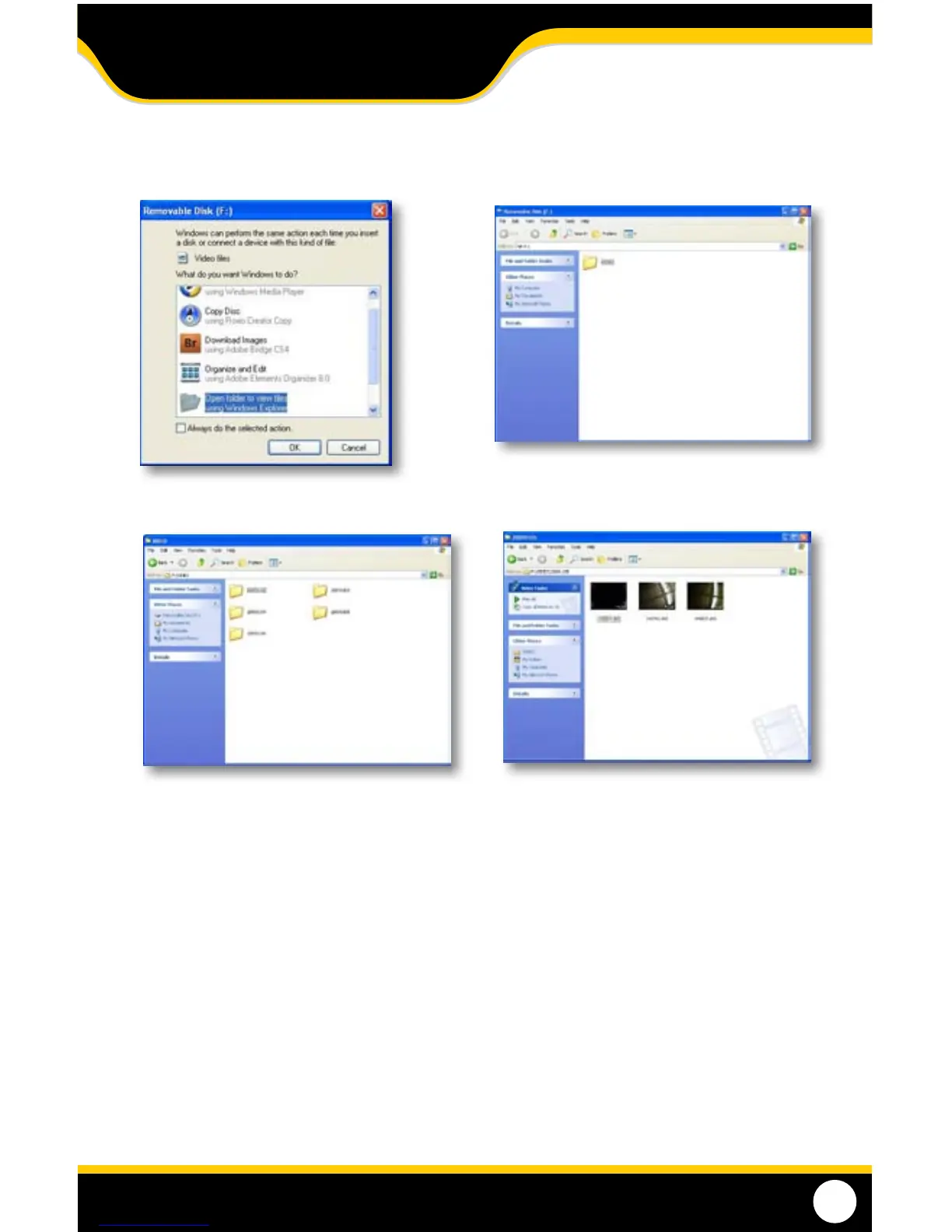
Open folder to view les
Videos organized by date
Open video folder
Footage organized by time
To save recorded footage on your computer:
1. Lightly push the SD card on the side of the monitor to unlock it from its position and then remove it from the
SD slot.
2. Insert the SD card into your card reader.
3. Open folder to view the les.
4. Open the folder called “VIDEO.”
5. The footage is organized by date it was recorded, double click the day you would like to save footage from.
6. The footage is organized by the times it was recorded, right click the footage you would like to save and
select “Copy”.
7. On your computer, locate the area or folder that you would like to save the footage to, then right click and
select “Paste”.
8. The footage will then be saved to that particular location on your computer.
BACKING FOOTAGE UP ON A COMPUTER
PLAYBACK



 To Next Page