SN301-8CH
45
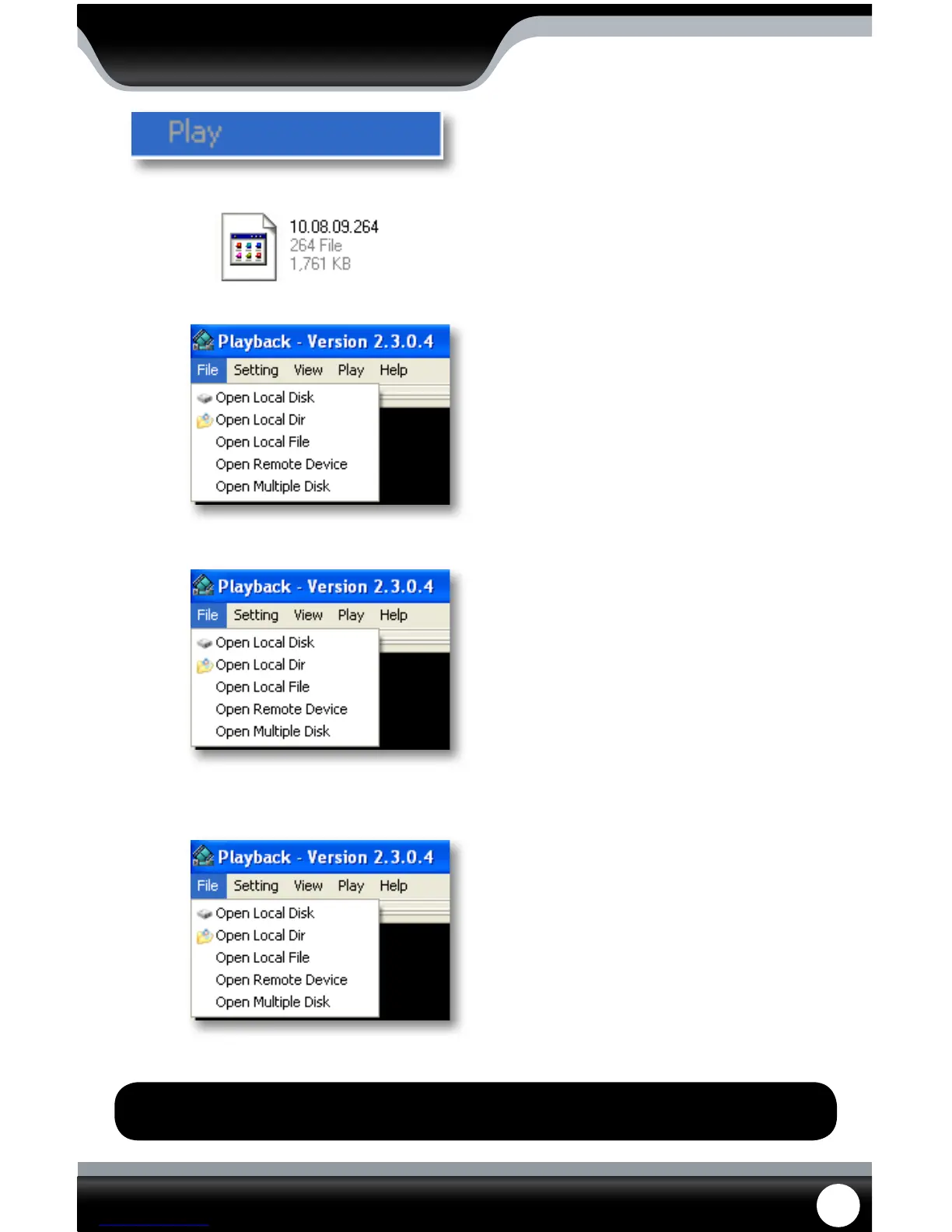
Note: “Open Local Dir” works the same as Open Local Disk and Open Remote Device only works if the
device is directly connected to computer, which is not supported on this device.
PLAYBACK
→
→
→
File Viewing
Be sure that the playback software is open on your
computer. Instructions dier depending on what les you
would like to open and play:
One Video
1. Select “File” →”Open Local File”. Find the USB device
le, or any other area where backed up footage
would be stored on your computer.
2. Make sure to view . 264 Files.
3. Select the le you would like to view and
select “open”.
4. Once you have selected open, the video will NOT play
automatically. You must prompt the video to play.
5. To view the footage you must select “play”, from the
top menu and then scroll down and select “Play”
from there. Once “play” is selected, the video will
begin to play.
An Entire Folder
1. Select “File”→ “Open Local Disk”. Find the USB
device le.
2. Select the le you would like to view and
select “open”.
3. Once you have selected open, the video does NOT
play automatically. You must select “play”.
4. To view the footage you must select “play”. To do this
open the top menu and then scroll down and select
“play”. Once “play” is selected, the video will begin
to play.
Multiple Folders
1. Select “le” → ”Open Multiple Disk”, then select the
folders you would like to view and select “OK”.
3. Once you have selected open, the video does NOT
play automatically. You must select “play”.
4. To view the footage you must select “play”. To do this
open the top menu and then scroll down and select
“play”. Once “play” is selected, the video will begin
to play.
→



 To Next Page