76 │ Troubleshooting
Product specific problems
Common
Symptoms
What you
experience
Possible Solutions
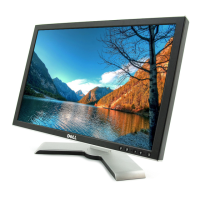
Screen image is too
small
Image is centered
on screen, but
does not fill entire
viewing area
• Check the Aspect Ratio setting in the
Display menu OSD.
• Reset the monitor to factory settings.
Cannot adjust the
monitor with the
Joystick on the back
panel
OSD does not
appear on the
screen
• Turn Off the monitor, unplug the power
cable, plug it back, and then turn On the
monitor.
• The OSD menu may be locked. Press
and hold in Up or Down or Left or Right
direction for 4 secs to unlock.
No Input Signal when
user controls are
pressed
No picture, the LED
light is white
• Check the signal source. Ensure that the
computer is not in the power saving mode
by moving the mouse or pressing any key
on the keyboard.
• Check whether the signal cable is plugged
in properly. Re-plug the signal cable if
necessary.
• Reset the computer or video player.
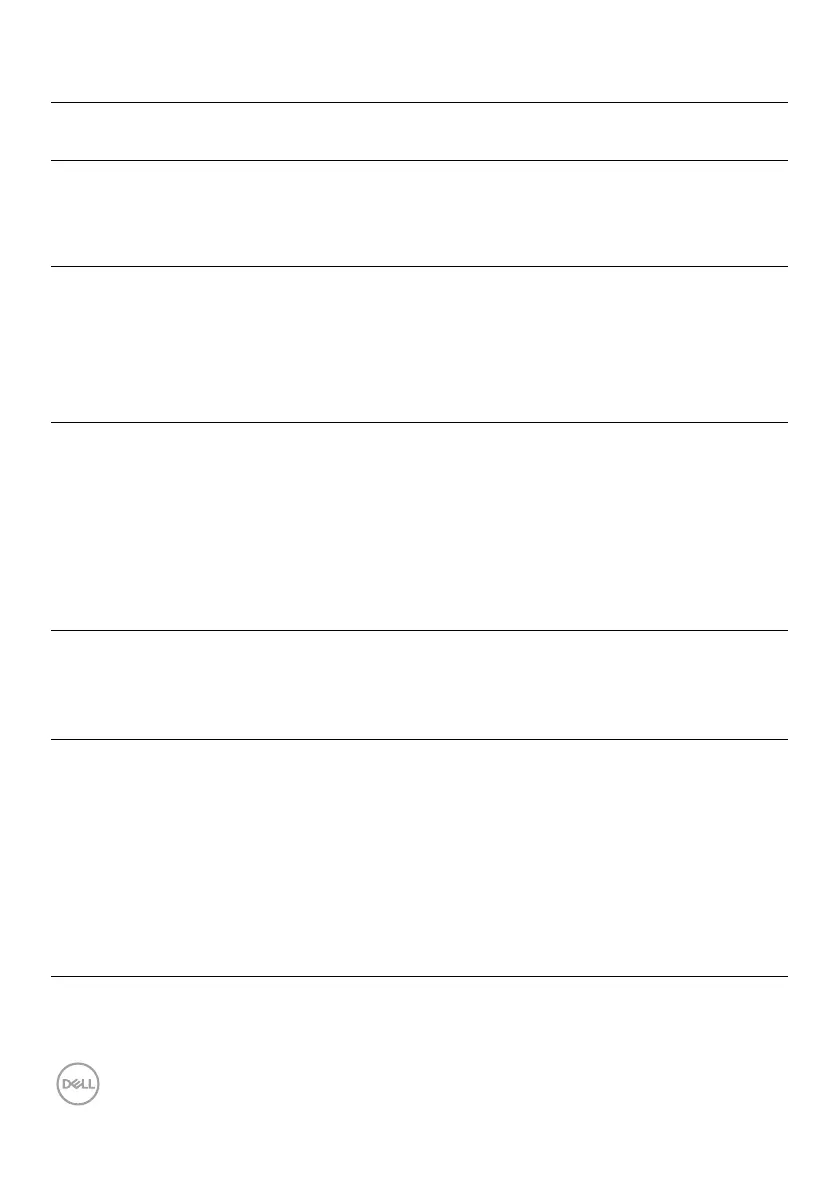
The picture does not
fill the entire screen
The picture cannot
fill the height or
width of the screen
• Due to different video formats (aspect
ratio) of DVDs, the monitor may display in
full screen.
• Run the built-in diagnostics.
No image when using
USB-C connection to
computer, laptop, and
so on
Black screen • Verify if the USB-C interface of the
device can support DP alternate mode.
• Verify if the device required more than
90 W power charging.
• USB-C interface of device cannot support
DP alternate mode.
• Set Windows to Projection mode.
• Ensure that the USB-C cable is not
damaged.


 To Next Page