34 Basic Operations
www.dell.com | support.dell.com
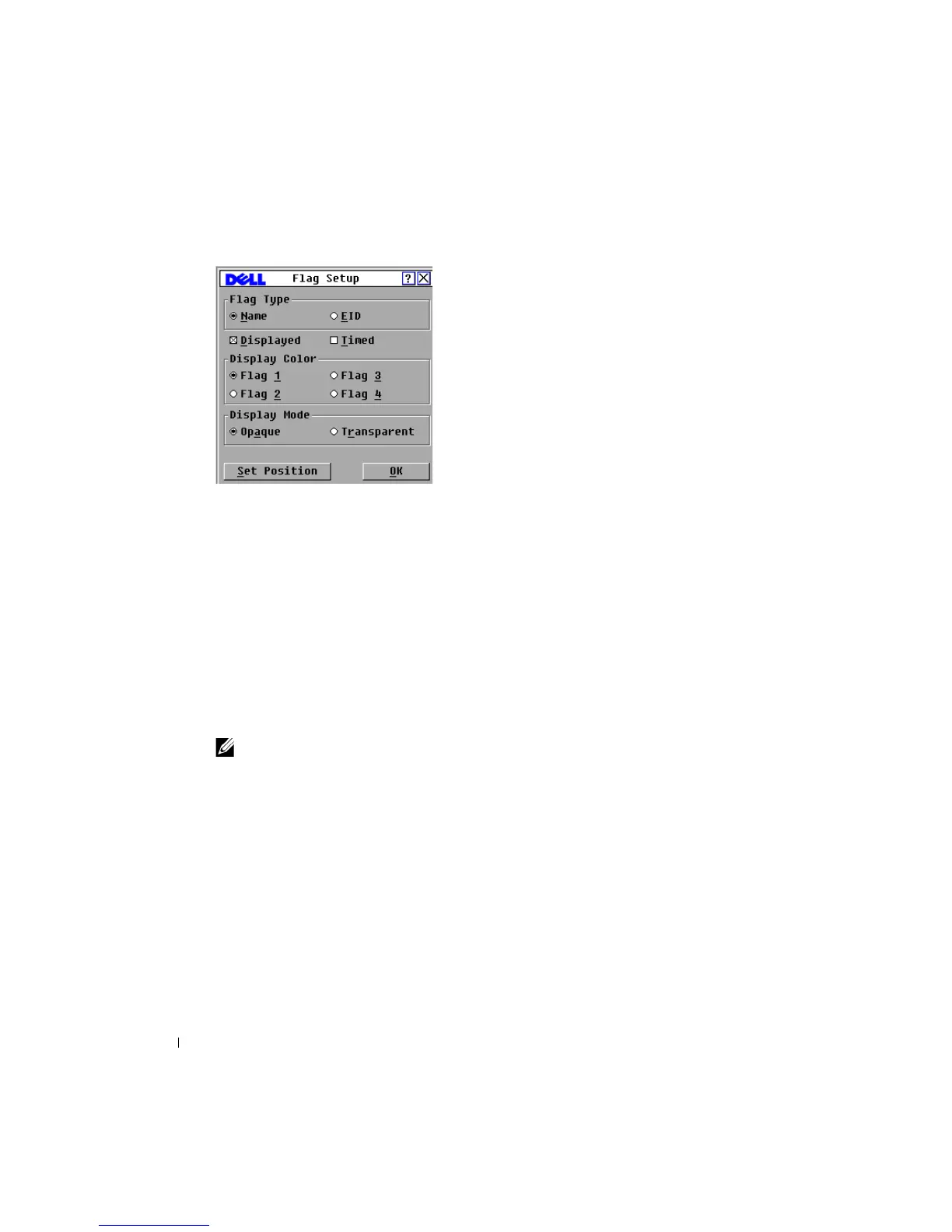
Figure 3-5. Flag Dialog Box
To determine how the status flag is displayed:
1 Select Name or EID to determine what information will be displayed.
2 Select Displayed to show the flag all the time or select Timed to display the flag for only
five seconds after switching.
3 Select a flag color in Display Color.
4 In Display Mode, select Opaque for a solid color flag or select Transparent to see the
desktop through the flag.
5 To position the status flag on the desktop:
a Click Set Position to gain access to the Set Position Flag screen.
b Click on the title bar and drag to the desired location.
c Right-click to return to the Flag dialog box.
NOTE: Changes made to the flag position are not saved until you click OK in the Flag dialog box.
6
Click OK to save settings.
or
Click X to exit without saving changes.
Setting the Interface Language
You can change the OSCAR
®
interface to any one of 4 supported languages by selecting your
chosen language in the Language dialog box.
To change the O SC AR
®
interface language:
1 Press <Print Screen>. The Main dialog box will appear.
2 Click Setup - Language. The Language dialog box displays.




 To Next Page